November 13, 2026
Word Track Changes dictation on Windows: 2026 guide
In Word on Windows, turn on Track Changes before you dictate. Put the cursor in editable text, then dictate a short addition. Stop the microphone and check the revision before you continue. Word manages the redline; the dictation app supplies the text. Test your exact Word version and input method in a disposable document first.
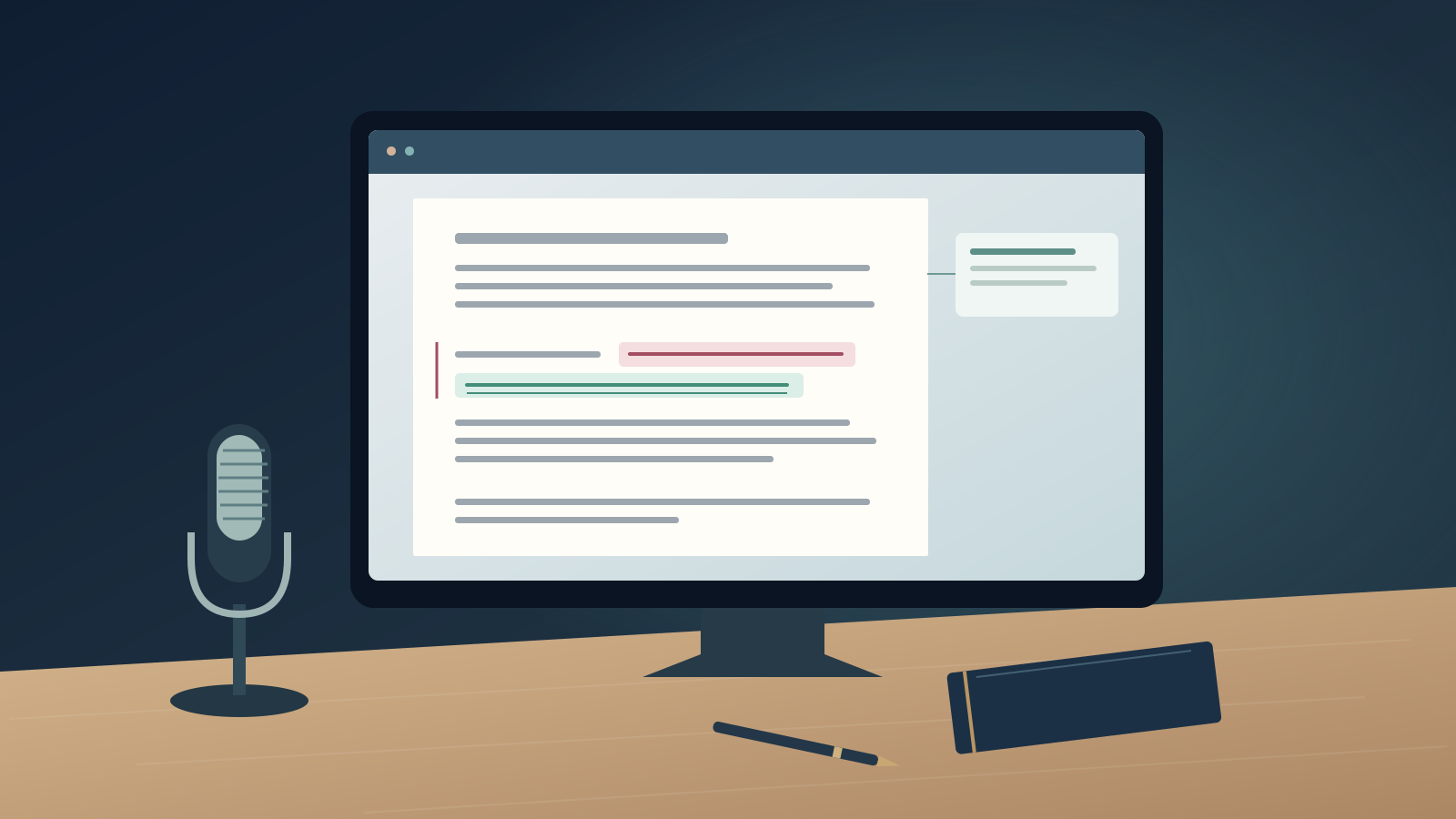
Start with a small revision, not a whole contract
A sentence can sound right but still change a deadline or drop a condition. When you dictate changes into an existing draft, the reviewer needs to see what changed. This guide covers how a spoken amendment becomes a visible, saved revision. It doesn’t recommend letting an app rewrite a contract.
If you haven’t set up your microphone, start with our Word dictation setup guide. For help choosing a broader tool, see the legal dictation page, which covers work in documents, email, and matter systems. Keep this test in desktop Word on Windows. Use fictional text, and make sure no other reviewer edits it at the same time.
Create a disposable document with this invented sentence: 'The supplier will deliver the revised schedule after written approval.' Save it before you begin. The exercise below is a suggested check, not a compatibility test run on your Word installation.
Keep tracking and microphone controls separate
Microsoft lists the tracking control under Review > Tracking > Track Changes. Turn it on and choose All Markup to see revisions. No Markup hides revisions but doesn't remove them, so a clean-looking page doesn't mean the file is clean. See Microsoft's Track Changes instructions.
Next, choose one speech input method. To use Word’s built-in Dictate, go to Home > Dictate. Microsoft’s Word dictation documentation lists a Microsoft 365 subscription, a microphone, and reliable internet access as requirements. If that works for you, start there. Don’t run it alongside another recognizer during the same check.
Move the cursor to the end of the fictional paragraph. Dictate this as a separate sentence: 'The revised schedule is not approved.' Then stop dictation and check the text and its revision display. Make sure it includes 'not', has correct punctuation, and appears in the intended place. If it appears in a comment or another window, undo the test change and restore focus before trying again.
Check one replacement before dictating more
Adding text in a blank space won't show how a replacement behaves. In the disposable file, stop listening and select only 'after written approval'. Check the range before dictating 'after the project lead approves it'. Leave every other word and the paragraph mark unselected.
With revisions visible, check the result to make sure only the intended words changed. Look at the spacing on both sides and confirm the period is still there. If your input method doesn’t replace the selection as expected, undo the test. You can make the exact replacement with the keyboard, then dictate the explanation separately. Don’t keep speaking over a selection you can’t make out.
The more text you select, the harder it is to review. For a small change to an exact date, section reference, defined term, or amount, consider typing it yourself. Read the full sentence afterward, including the words that didn't change. A replacement can be transcribed correctly and still make the sentence wrong when joined to the surrounding clause.
If you want to explain a revision without changing the clause, create a comment using Word’s controls first. Click inside the comment box before you dictate. Check where your words will go, and post the comment only when you mean to. Dictating “add comment” in a separate app doesn’t mean Word will carry out that command.
Where a separate desktop app can help
DictaFlow may help when you use Word, Outlook, and browser fields in the same workday. On desktop, hold to speak, then release to insert. The text goes into the destination field for you to review, not a separate contract-approval screen. Follow the getting-started guide, then repeat the checks in a disposable document using the output method you plan to use.
DictaFlow's current product facts explain the difference between Paste output and Typing Mode. Typing Mode sends characters instead of using clipboard paste. Neither method guarantees a specific number of Word revision entries or compatibility in every setup. For hosted Word, use the Windows Citrix setup guide for lawyers, and test the remote document separately.
For a small amendment, avoid broad cleanup instructions. A request like “make this friendlier” may change wording in a negotiated sentence that you need to keep. Choose recognition and cleanup settings carefully, then compare the output with the words you dictated. Custom vocabulary can help with recurring terms, but it can't verify a citation or decide whether a clause is acceptable.
For new direct desktop or web purchases, Consumer Pro costs $9/month or $84/year, equivalent to $7/month with annual billing. Free includes 2,000 cloud words every 30-day cycle. Prices may differ by store or region. Supported Local Offline transcription needs setup. Optional cloud cleanup still requires an internet connection. Use your firm's approved processing route before opening client material. Consumer isn't the PHI product. Review the privacy policy and, if applicable, the separate Medical product.
Reopen the file before handing it off
Save and close the disposable document, then reopen it and review the revisions. Confirm that the added sentence and small replacement are still there, and that no unrelated passage changed. This checks a different problem from speech recognition: whether the document retained the edits.
Microsoft’s tracking guide says stopping tracking leaves existing revisions in the document. You must decide separately whether to accept or reject them. Don’t use Accept All to tidy a file unless you’re authorized to resolve every change it affects. Keep the agreed review copy and follow your team’s handoff procedure.
If you work mainly in Word and its Dictate feature passes these checks, you may not need another subscription. A desktop app is worth the cost if its wider input workflow helps enough to justify it. Compare dictation options by checking correction time and accuracy in saved documents, not by assuming voice editing is always faster.
Frequently asked questions
Can I dictate with Track Changes turned on in Word?
Use a disposable document to check your Word version and speech input method. Turn on Track Changes, dictate a short addition, and inspect the revision. Word controls tracking; the speech tool supplies the text.
Does No Markup remove tracked changes?
No. Microsoft’s guide says No Markup hides revisions from view. Review the revisions and follow the agreed process for accepting or rejecting them before sharing the document.
Can I dictate over selected text in a contract?
Try a small replacement in a fictional document first. Check that the right text is selected, dictate a short phrase, then review the replacement and nearby text. If the selection behaves unpredictably, undo the test and make the exact edit with your keyboard.
Does a dictation app accept Word revisions for me?
Don't assume that inserting text accepts revisions or approves a contract. Keep dictation separate from Word's review controls, and resolve revisions only through your team's approved process.