November 24, 2026
Dictate Google Docs Suggestions on Android in 2026
Use Suggest changes in Google Docs and your Android keyboard mic to dictate an edit. Learn when to leave a comment instead.
Turn on Suggest changes in the Google Docs Android app before editing the text. Then use your keyboard’s microphone to dictate the replacement. The keyboard supplies the words, and Docs decides whether to add them as a suggestion or make a direct edit. If you’re asking a question instead of proposing exact wording, dictate it in a comment.
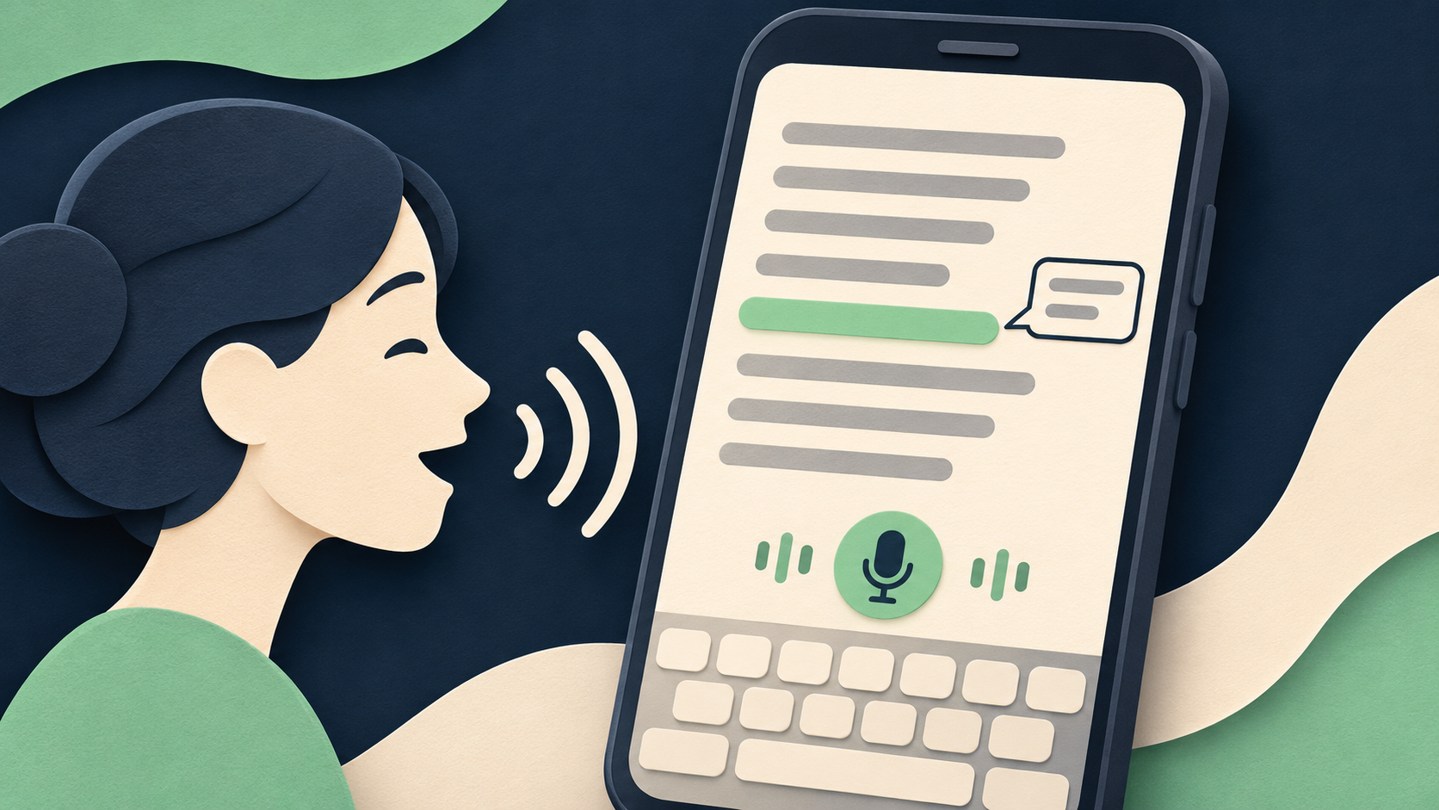
Switch modes before you dictate
Open the shared file in the Google Docs app. Open the three-dot More menu and turn on Suggest changes. Google says people with comment or edit access can suggest edits. If you're signed in to the wrong account or only have view access, switching keyboards won't help.
Before changing a shared draft, try a short sentence in a disposable Google Doc. With Suggest changes on, select one word and dictate a replacement using the keyboard mic. Check the result in the document, then tap the highlighted text and the Suggestion control. You should see both the text being removed and its replacement. If the original disappears without a tracked change, undo it and check the mode before trying again.
On a small screen, it's easy to select a space or punctuation mark by mistake. Read the sentence around the suggested replacement, not just the marked text. When you're finished, stop the mic and tap Done. To review someone else's suggestion, use the separate Accept or Reject control in Docs.
Which field should get your words?
Say a shared project brief reads: ‘Send the draft to the client on Tuesday.’ You have three ways to respond when you're away from your computer.
If the client has already confirmed Thursday, select Tuesday and dictate Thursday as a suggestion. Don't dictate the whole sentence again. That makes the change easy to review and avoids running the same names and punctuation through speech recognition twice.
If the date isn't confirmed, select the sentence, tap More, then Add Comment. Dictate ‘Can we move this to Thursday?’ Tap Send after you've read it back. If there's already a thread, tap Add a reply and use the keyboard microphone there instead of opening another comment.
If you own the draft and want to make an immediate change, edit it directly. Read the revised line back before you leave the document. You can use keyboard input for all three, but each leaves something different for your teammates: a proposed change, a discussion, or new text.
If the words go to the wrong place
Test the same short phrase twice. First, dictate it in a new, editable Google Doc. Then try it in the exact comment field or document selection you wanted to use. If the microphone is missing in both places, check which keyboard is active and whether it has microphone permission. If dictation works in the test document but not the shared one, check your account, sharing access, and selected field before switching dictation apps.
If the words appear but you don’t see a suggestion, the microphone worked. Check that Suggest changes is on. If you see a suggestion but the new word is wrong, the issue is with recognition or selection. For an exact ticket number or URL, type or paste it into the same field instead of repeating the phrase three more times.
For a rewrite that spans several paragraphs, start with an approved private draft. In the shared file, make only the changes a reviewer needs to approve. You can dictate on your phone and finish the review on a bigger screen without turning the whole document into one hard-to-read change.
When to try another voice keyboard
DictaFlow publishes this guide and makes a competing dictation app. If Gboard handles short corrections and comments well, stick with it. You don't need another subscription to turn on Suggest changes.
If repeated names and technical terms slow you down, try the DictaFlow Android keyboard in a disposable document before switching. Test one body edit and one comment separately. Cloud transcription needs a connection. The November 22 Google Play listing also describes offline dictation on compatible Android devices after a local model download. AI editing still uses the cloud. Test offline transcription and offline document access separately before relying on either. The dictation app provides the text; Google Docs controls who can suggest changes and how edits get approved.
Frequently asked questions
Can I dictate a suggested edit in Google Docs on Android?
Yes. In the native Docs app, turn on Suggest changes and select the text you want to edit. Then use the microphone on your Android keyboard to enter the new wording.
Can a viewer use voice typing to suggest a change?
With view-only access, you can’t suggest edits. Ask the owner for permission to comment or edit. Switching keyboards won’t change your Docs permissions.
Can I dictate a comment without changing the document text?
Yes. Select the text, tap More, then Add Comment, and dictate into the comment field. Read it back, then tap Send. For an existing thread, dictate into Add a reply instead.
Does a different dictation keyboard add an Accept button?
No. Google Docs controls suggestion review. In the Android app, tap the highlighted text and the Suggestion control, then choose Accept or Reject if available.
Related guides
- Android app setup and downloads
- DictaFlow keyboard setup
- Dictation for Google Docs on desktop
- DictaFlow privacy policy
- Set up Google Docs voice typing on Android
- Dictate checklists in Google Keep