July 24, 2026
Google Docs Voice Typing on Android: 2026 Setup Guide
Gboard and Google Docs use different voice typing systems. Set up the right one, then test the limits that matter.
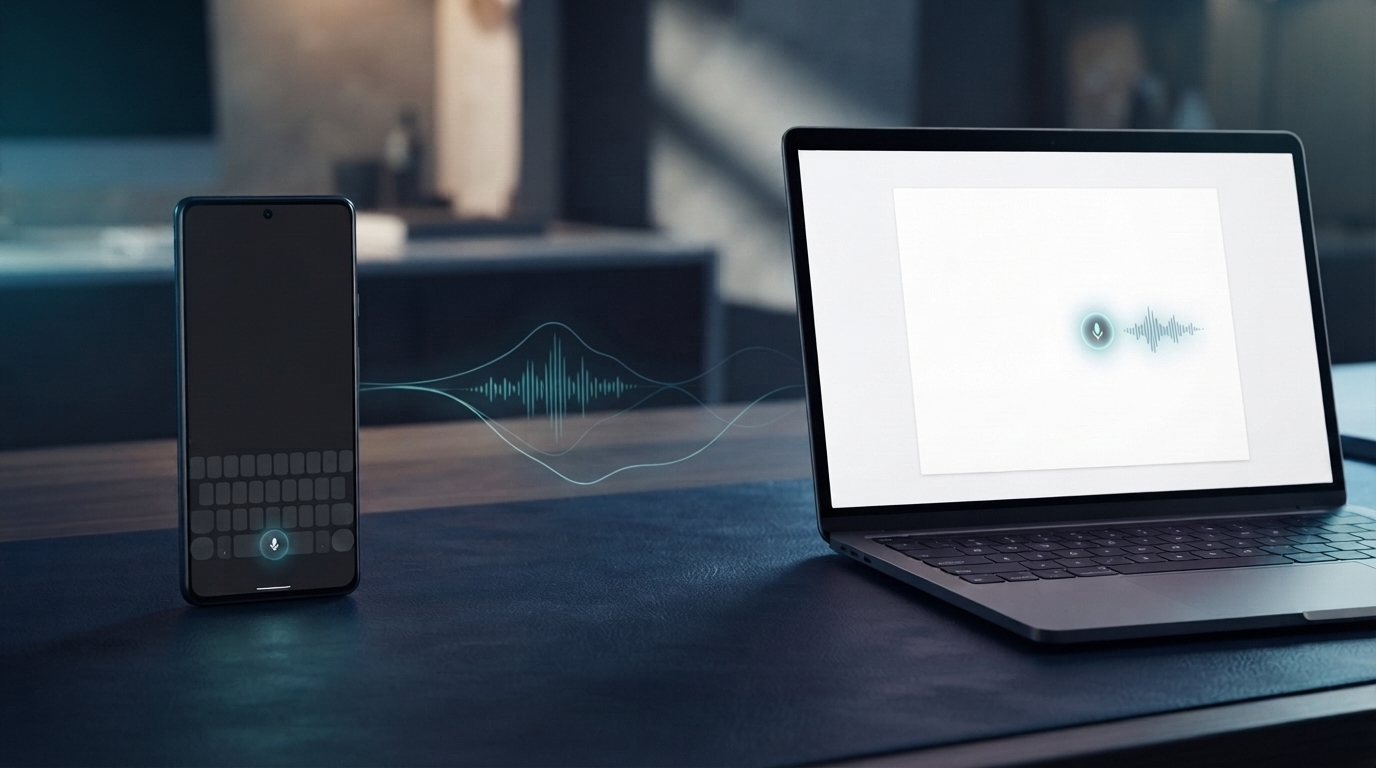
Google voice typing sounds like one feature, but it’s really two different tools. On Android, it’s the microphone inside Gboard. On a computer, it’s the Voice typing command inside Google Docs. The setup, privacy behavior, editing controls and app coverage are different enough that treating them as one product leads to bad advice.
This Google voice typing setup guide shows which version you have, how to turn it on, and where each one stops being useful.
Android setup: use Gboard’s microphone
Google’s standard Android instructions are pretty short. Install or open Gboard, tap a text field in an app like Gmail or Keep, then tap the microphone at the top of the keyboard. When “Speak now” appears, just talk normally.
If the microphone is missing, open Gboard settings and check Voice typing. Android also needs to give Gboard microphone permission. The exact Settings path changes by phone maker, so it’s usually faster to search Android Settings for “microphone permissions” than to follow some old menu path from a random guide.
Standard Gboard dictation works in most places where the keyboard can type, and that’s its main advantage over Google Docs Voice typing. You can use it in messages, email, notes, forms and plenty of third-party apps. Google does warn that talk-to-text doesn’t support every language, and punctuation support varies depending on the language.
Useful spoken commands include “period,” “comma,” “question mark,” “new line,” and “new paragraph.” To replace a word, press and hold it, tap the microphone, and say the replacement.
Pixel setup: check if advanced voice typing is on
Pixel 6 and newer phones can use Google’s advanced voice typing. Open any app with a text field, tap the Gboard Settings icon, go to Voice typing, then turn on Advanced voice typing features. When advanced mode is on, you’ll see a colorful microphone icon.
This version is a lot better than basic Gboard dictation. It adds automatic punctuation, emoji dictation, and commands like "delete last word," "clear all," and "send." It can also keep the microphone open while you type.
The limits matter. Google’s current help page says advanced voice typing needs a Pixel 6 or newer, including Pixel Fold and Tablet. Supported languages include English, French, German, Italian, Japanese and Spanish. The “Fix it” proofreading feature needs a Pixel 8 or newer, US English, and a network connection. Detailed voice edits are also limited to Pixel 8 and newer in US English.
Google says normal advanced dictation stays on the device. “Fix it” and detailed edits are the exceptions. Detailed edits send the command transcript and the text in the input field to Google’s servers, though Google says no audio is sent and the text isn’t stored there.
Google Docs setup on Windows or Mac
On a computer, Google voice typing is built into Google Docs, not the operating system. Open a document in a current version of Chrome, Edge, or Safari. Go to Tools, then Voice typing. Click the microphone box, allow the browser to use your microphone, and start speaking.
Google now lists Chrome, Edge, and Safari as supported browsers. That corrects a lot of older guides that still say the feature is Chrome-only. Firefox is not on Google's current supported list.
The same tool works for Google Slides speaker notes. Open a presentation and choose Tools, then Dictate speaker notes. Voice commands for editing and formatting are not available in Slides speaker notes.
Google Docs supports a long list of languages and accents. Voice commands are a lot more limited. Google says they only work in English, and both the account language and document language need to be English. You can use them to select text, apply headings, create lists, insert comments and move around the document.
Why Android and Docs feel like different products
Gboard is a keyboard feature. On Android, it follows you into most text fields. Google Docs Voice typing is a document feature. It can format and edit a document with detailed commands, but it stays inside Docs or Slides speaker notes.
That distinction decides which one to use:
- For quick Android messages, notes, and forms, use Gboard.
- For long drafts that will remain in Google Docs, use Docs Voice typing.
- For the best Google experience on mobile, a recent Pixel gets features other Android phones do not.
- For work that moves among Gmail, Word, Slack, an EHR, a terminal, and a remote desktop, neither desktop Docs Voice typing nor mobile Gboard gives you one consistent computer workflow.
A five-minute setup test
Do not judge a dictation tool from one clean sentence. Use the same short test in the apps where you actually work.
First, dictate a 30-second message with a name, an acronym, a number, and a correction. Then repeat it in a second app. On a Pixel, check whether the microphone is colorful and whether punctuation arrives automatically. In Google Docs, test one formatting command such as "create bulleted list." Finally, correct the same unusual term twice and see whether the third attempt improves.
Count corrections instead of admiring the demo. A tool that saves 20 seconds during capture but adds two minutes of cleanup is not faster.
When a system-wide dictation app is the better choice
Google's tools are free and already available to millions of people. Start there. Gboard is hard to beat for short Android messages, especially on a recent Pixel. Google Docs Voice typing is a solid free choice for people who mainly draft in Docs.
The gap appears when work leaves one device or one app. A system-wide tool such as DictaFlow keeps the same hold-to-talk workflow across Windows, Mac, and iOS, with native Android app access. It can type where the cursor is, use custom vocabulary for names and technical terms, and handle Citrix, VMware Horizon, and Remote Desktop through keystroke insertion.
DictaFlow Pro costs $9/month or $84/year ($7/month with annual billing). The useful comparison is not free versus paid in the abstract. It is whether Google voice typing covers the text fields, devices, vocabulary, and privacy choices you use every day. The DictaFlow comparison page lays out the differences, while the getting started guide shows the hold-to-talk setup.
If your entire workflow is Android messages and Google Docs, stay with Google's free tools. If dictation needs to follow you through desktop apps, technical vocabulary, and locked-down remote systems, test the full workflow instead of comparing recognition on one sentence.