November 20, 2026
Canvas Discussion Dictation on Windows: 2026 Setup
A short spoken reply still needs a source check and a deliberate post.
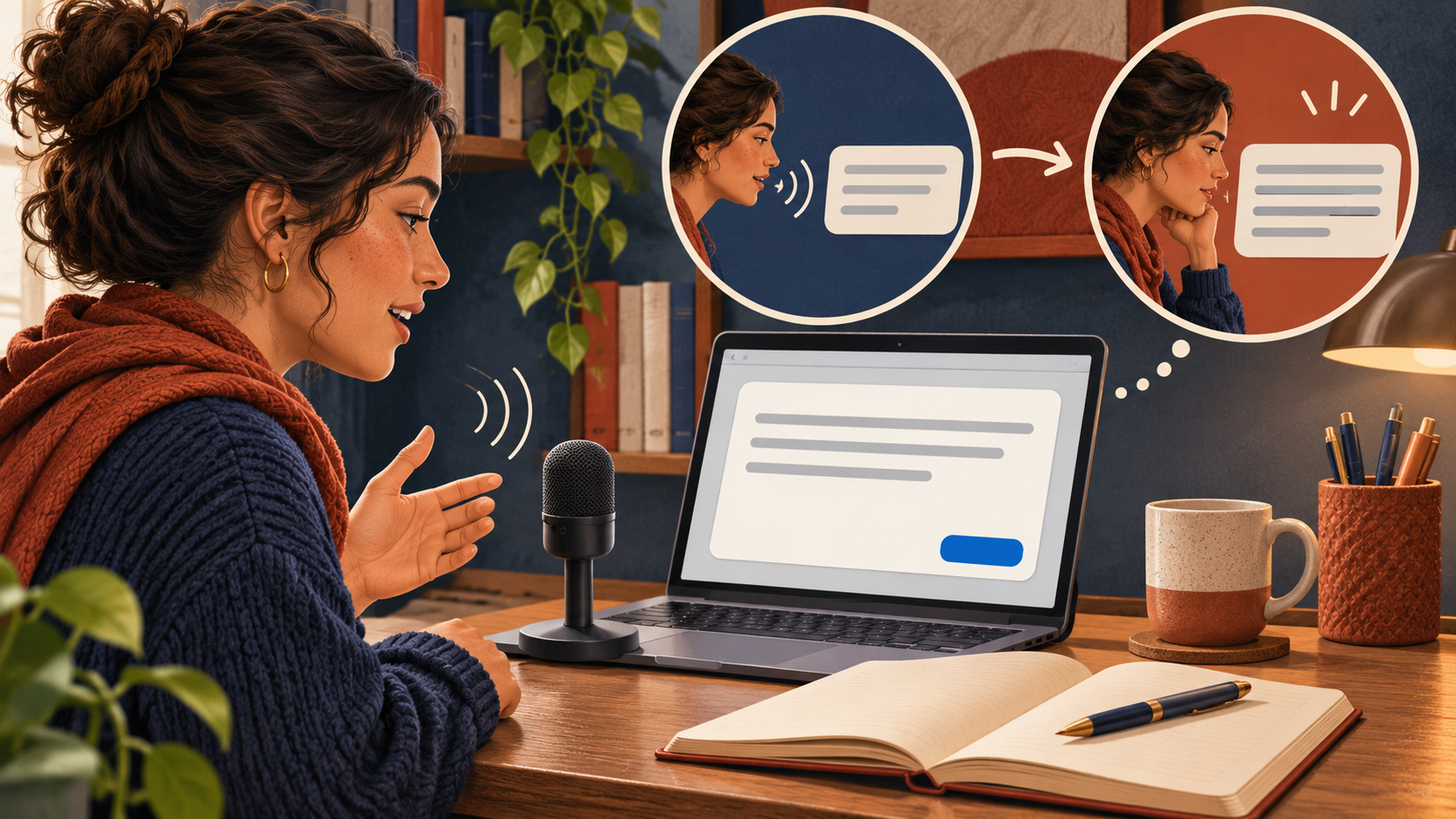
To dictate a Canvas discussion reply on Windows, open the discussion, select Reply, then click in the Rich Content Editor. Press Windows + H and wait for "Listening" to appear before speaking a short sentence. Stop the microphone and review the text, then select Reply to post it. Start with Windows' built-in voice typing; you can use a separate app if you want.
Start in the reply editor, not the course search box
Canvas has several places where you can enter text: the course search box, discussion search, main reply editor, and reply boxes for classmates. A working microphone won't show which box has the cursor. Before dictating, type a few characters in the reply you want, then delete them. Keep only one reply editor open while you set things up.
Instructure's student discussion guide shows the steps: open Discussions, select the discussion title, then choose Reply. A reply to a classmate may open in the Thread sidebar. Check who you're replying to before adding your paragraph. If comments are closed for the topic, changing dictation software won't reopen it.
Read the prompt and rubric first. Decide what claim to make and find a reading to support it. Speaking can replace typing, but it won't make sure your response answers the assignment. This guide is for regular browser discussions, not proctored exams or locked-down testing browsers.
Try a disposable sentence with Windows + H
With the cursor in the editor, press Windows + H. Microsoft's voice-typing documentation says you need an internet connection, a working microphone, and an active text box. Wait for Listening before you speak. Use the microphone button to stop before you switch fields.
Use this invented practice sentence: 'The example supports the first claim, but it does not establish the second.' Check that recognition kept 'does not.' This is a setup exercise, not a quotation or a finding from a study. Delete it before writing the actual response.
If that works for you, dictate one paragraph at a time and pause to read what appears. Use the keyboard for citations, exact names, equations, and edits. You don't need to say every character out loud. Our student dictation buying guide explains when built-in input is enough.
Keep the source quotation separate from your response
Copy an exact passage from the reading instead of asking speech recognition to recreate it from memory. Mark it as a quotation and add the citation your course requires. Dictate your explanation in a separate paragraph. Before posting, compare both parts with the original. Neither a fluent transcript nor a familiar author's name verifies the source.
Canvas' Rich Content Editor guide says you can paste without formatting on a PC with Ctrl + Shift + V. Use it when a draft brings unwanted fonts into your reply, then check the links, italics, and paragraph breaks. Plain-text paste can also remove formatting you need.
The editor also has a word-count control. Check the assignment's requirements instead of assuming the microphone tool's count matches your submitted text. For research notes before the discussion, the Zotero Windows dictation guide separates spoken commentary from annotations linked to sources.
If the microphone works but no words appear
Stop listening. Click in the reply body again, then check that you can type there. Don't repeat the whole response into a place you're not sure is active. If your typed characters appear somewhere else, fix the focus first.
Next, dictate the same short sentence in Notepad. If it fails there too, check the selected microphone, Windows microphone permissions, connection, and dictation language. If Notepad works but Canvas doesn't, check the destination or how the text is being inserted. That narrows down the problem, but it doesn't prove that any particular app works with your school's setup.
DictaFlow offers two ways to insert text: standard Paste output or character-by-character Typing output. Follow the setup guide, change one setting at a time, then try a disposable sentence again. Typing output isn't a way around exam restrictions or school policy. We haven't independently tested DictaFlow's compatibility with Canvas for this article.
When a separate dictation app earns its place
Use Windows Voice Typing if it handles these replies comfortably. Consider DictaFlow if you want hold-to-talk control or need to reuse a vocabulary list across course work and other apps. Set the shortcut, focus the reply editor, hold to speak, then release to insert the text. Add recurring course terms to Knowledge Base, but check their spelling and meaning.
The Consumer product facts page says Free includes 2,000 cloud words per 30-day cycle. Direct desktop/web Pro costs $9/month or $84/year, which works out to $7/month when billed annually. Pro includes unlimited dictation for normal personal use. Store and regional prices may differ. Don't subscribe just to try a vocabulary list. Knowledge Base is included on Free.
DictaFlow offers native apps for Windows, Mac, iPhone, iPad, and Android. These steps are for a Windows browser, not the Canvas mobile app. Once setup is complete, Local Offline can transcribe on supported devices without an internet connection. Cloud cleanup still needs an internet connection, and local recognition doesn't make Canvas available offline. If you mainly study on another device, compare the broader input options.
Posting is a separate step
Stop the microphone, then read your complete response in Canvas. Check the quoted passage, its attribution, any negation, and the person or thread you're replying to. Select Reply only when you mean to publish. Then find your response in the discussion and check the final formatting.
Don't count on fixing a reply later. Instructure says instructors can limit editing and deletion. Its editor guide warns that browser autosave isn't guaranteed and can fail when several reply editors are open. Keep an approved copy of longer replies, but check the posted reply to confirm you're done.
Follow your course's rules for transcription and AI-assisted editing. A tool that formats or rewrites speech may do more than transcribe it. If that distinction matters for an assignment or accommodation, confirm which workflow is allowed before using the tool. Use fictional text when setting it up, and don't enter patient information into Consumer DictaFlow for a clinical course.
Frequently asked questions
Can I dictate a Canvas discussion reply on Windows?
Try Windows + H with the cursor in the discussion's Rich Content Editor. You'll need a working microphone and internet connection. Dictate a short test, stop listening, and review the text before you post. Your browser and school configuration can affect whether the text is inserted.
Does Canvas need microphone permission for Windows voice typing?
Windows Voice Typing uses Windows microphone access. Canvas' separate media-recording permission controls a different feature. First, check Windows microphone settings and the input device. Granting Canvas media permission alone won't tell you why Windows dictation text is missing.
Why does dictation work in Notepad but not in Canvas?
That points to a focus issue or the destination's text insertion behavior, not a general microphone failure. Check that you can type in the reply box. If you use a separate dictation app, test its supported output settings with a disposable sentence.
Will dictation automatically post my Canvas reply?
Ordinary text dictation puts words in the active field. Review your response, then use Canvas' Reply control to post it. Check that it appears in the correct discussion thread.
Can I use Local Offline when Canvas has no connection?
Local Offline only supports speech recognition on a supported device after setup. It doesn't let you post to discussions in Canvas offline. Cloud cleanup and reply submission still require a connection.
Start with the Free plan, then test a short draft in your own app before choosing Pro.