October 24, 2026
Zotero Dictation on Windows: Research Notes in 2026
Speak your reading response. Keep quotations and citation objects attached to the source.
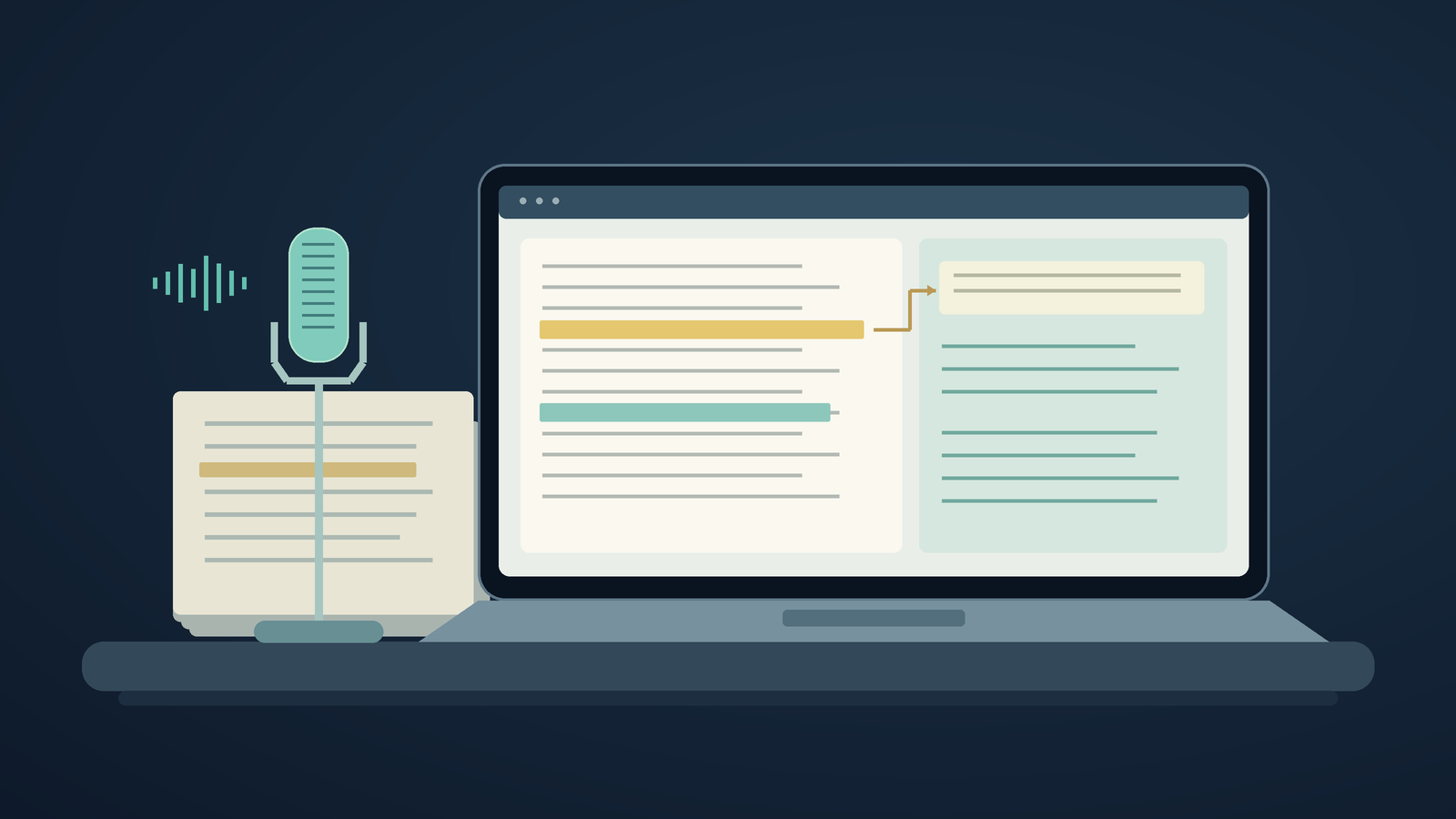
To dictate research notes in Zotero on Windows, open an editable note and click in its body. Press Windows key + H to start Voice Typing. Wait for “Listening,” then speak a short comment. Stop dictation before returning to the PDF. Use Zotero’s annotation tools for quotations and citations instead of dictating them from memory.
Keep the paper’s words separate from your response to them. A highlighted sentence comes from the source. Any objection, question, or connection you say aloud belongs in your note. This distinction makes the note easier to trust when you return to it months later.
This setup guide is based on documentation, not tests of every Zotero release or Windows setup. Ryan Shrott, founder of DictaFlow, wrote it. The free Windows option is a sensible place to start. A paid app needs to prove it belongs in your workflow.
Create a note attached to the right paper
In your Zotero library, select the paper’s parent item, right-click it, and choose Add Note. Zotero will attach a child note to that item. You can also create standalone notes, but a child note is a clearer place to start when commenting on one paper. Zotero’s documentation covers both note types and creation options.
Type a short label, such as Reading response, before starting the microphone. Click the blank line below it and type one harmless word. If the word appears in the library search box, an item title, or a PDF search field, you haven’t focused the note body yet. Undo the word and click the correct field.
If your layout has room, keep the PDF open beside your note. In Zotero's reader, the Notes pane is in the upper-right corner. You can create a note or reopen one there without leaving the reading view. If the pane feels cramped, Zotero also documents opening a note in a separate window.
Start with Windows Voice Typing
With the caret in the note, press Windows key + H. Microsoft says Voice Typing requires an internet connection, a working microphone, and an active text box. Wait until it says Listening before you speak. When you're done, press the microphone button to stop.
Try dictating a short comment before a full literature-review session. For example: “The sample excludes part-time workers, so this result may not transfer to the population in my proposal.” This is an invented practice sentence, not a finding from a real study. Check that “excludes” and “may not” survive recognition and cleanup.
Windows Voice Typing lets you turn on automatic punctuation and choose a default microphone. Select the microphone you plan to use. If you're listening to a paper through headphones, pause playback during your first test so you can focus on your own speech.
Microsoft also documents Fluid dictation on supported Copilot+ PCs. It can fix grammar and remove filler words, but that doesn’t mean the feature is available on every Windows PC. Check your settings, and review scientific qualifiers after an automatic rewrite.
Let Zotero carry the quotation and citation
If you can copy a quotation accurately from the PDF, don’t dictate it. Highlight the passage, then add the annotation to your open note. Zotero says you can drag annotations into a note or choose Add to Note from an annotation’s context menu. These inserts include source links and citations. Dictated text doesn’t become a citation object.
After the quoted passage, start a new paragraph for your interpretation. You can add a simple label, such as My comment, to separate your words from the quote. Dictate your reasoning there, then stop. Before you decide whether your response describes the passage fairly, check the original.
The PDF reader documentation also explains Show on Page, which reopens an annotation in its source context. Use it when you review a note later. Speak your explanation, but use Zotero’s citation controls to identify the source and add page references. An author’s surname and year spoken aloud are just text.
When hold-to-talk is worth trying
A system-wide app is useful when you switch between Zotero notes, a manuscript, and messages to collaborators. DictaFlow uses a hold-to-talk shortcut: hold, speak, then release to insert text at the active cursor. It has native apps for Windows, Mac, iPhone, iPad, and Android. The setup in this article is specific to Windows.
On Windows, start with DictaFlow’s standard Paste output and a short note you can delete. If recognition works but the text doesn’t appear, try Typing output, which sends the text one character at a time. See the getting started guide. Neither mode includes Zotero citation integration or guarantees compatibility with every app.
Add repeated author names or project terms to custom vocabulary in the Knowledge Base. Free includes this feature, so you don’t need to subscribe just for vocabulary. Direct desktop or web Pro currently costs $9/month or $84/year. Monthly plans include 100,000 cloud words per cycle; annual plans include 200,000. Store prices and existing subscriptions may differ. See the current Consumer facts.
Pro includes unlimited Local Offline dictation on supported devices. On supported 64-bit Intel or AMD Windows PCs, download the model while online before you rely on offline dictation. Raw Local Offline transcription can work without an internet connection, but AI cleanup and Email mode send text online. Zotero sync uses a separate data flow. Get institutional approval for the full workflow. Consumer DictaFlow isn’t for PHI.
If voice typing lands in the wrong place
Stop dictation and type a few characters in the same spot. If they appear somewhere else too, fix the focus before changing your microphone or recognition settings. Zotero has several places you can edit, and a working microphone won’t tell you which field has the caret.
If Windows Voice Typing won’t start, check your internet connection, selected input, and microphone permissions in Windows. If a separate app records your speech but doesn’t enter any text, try a plain local text editor. This can help tell whether the problem affects text insertion generally or just that Zotero note. Don’t keep replaying a long paragraph into a destination you’re unsure about.
Before choosing a setup, make a correction in the middle of a disposable note, switch to the PDF, then return. Check that the surrounding words and citation are still intact. Close and reopen the note. Choose the free option if it works comfortably. Pay for another tool only if its trigger, vocabulary, or insertion behavior fixes a recurring problem.
For work beyond the reference manager, see our Word dictation guide and custom vocabulary guide. Whichever microphone tool you choose, keep a final source check in your research workflow.
Sources checked October 24, 2026
Zotero: PDF reader and note editor
Microsoft: Windows Voice Typing requirements and Fluid dictation