November 03, 2026
Zoom chat dictation on Windows: setup guide (2026)
Dictate an editable message, keep meeting audio under control, and send it yourself after checking the recipient.
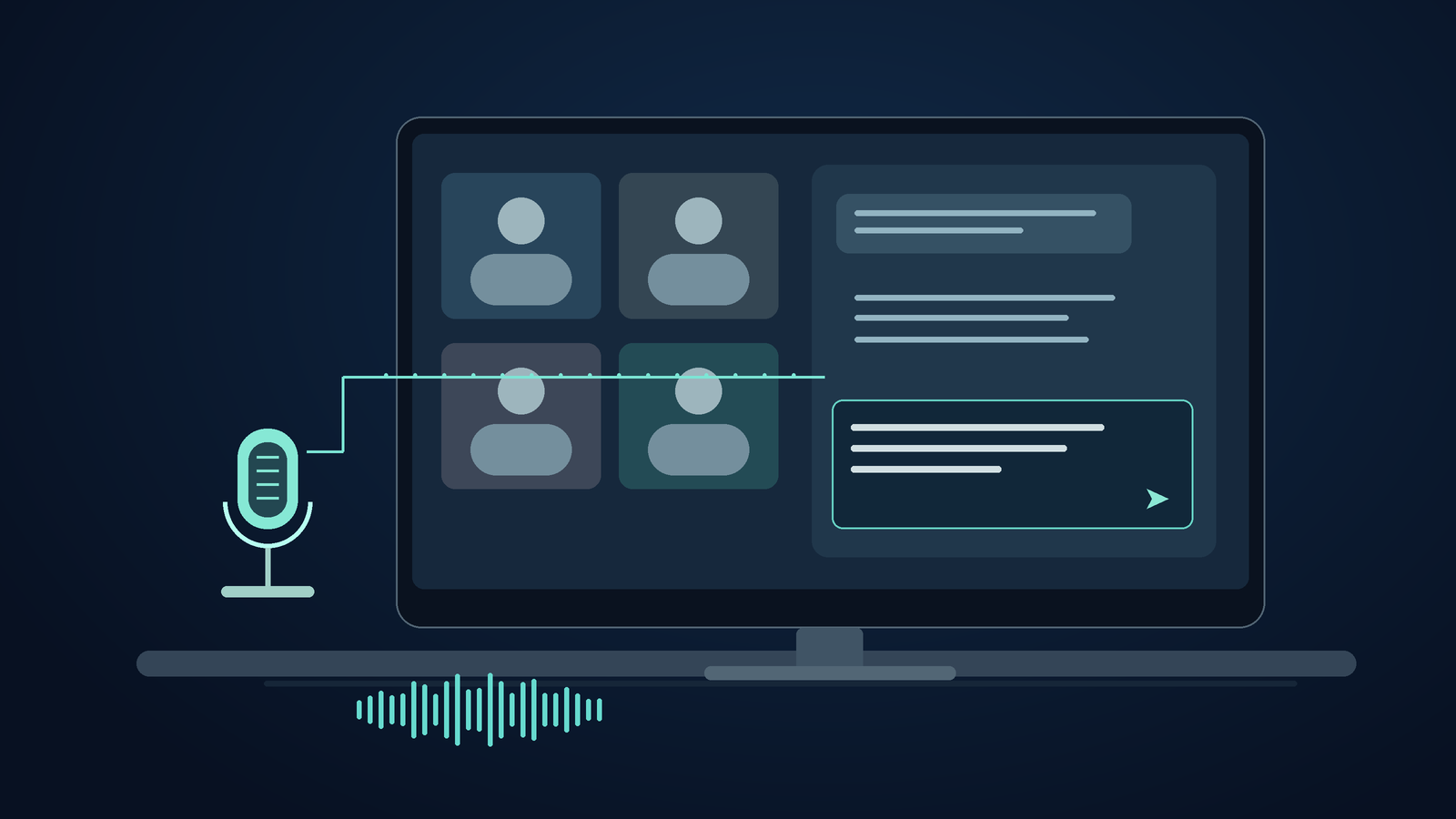
To dictate in Zoom chat on Windows, first open the meeting chat and choose the conversation. Click in the message box, then press Windows + H or use your desktop dictation shortcut. Stop dictation and check the text and recipient before sending the message yourself.
Don't use Zoom's Space-bar push-to-talk to start dictation. It briefly unmutes your meeting audio, but doesn't create an editable chat draft. Use separate controls for meeting mute and dictation recording. Zoom's push-to-talk guide explains when pressing Space unmutes you.
Set up the chat destination before starting the microphone
Try this in a meeting you control before using it with clients. Open Chat from the meeting toolbar. On Windows, Zoom lists Alt + H as the shortcut to show or hide in-meeting chat. Click the compose box itself. Opening the panel may not place the text cursor there.
Check who will receive your message. The main meeting chat, a private conversation, and a reply thread are separate destinations. The host can restrict chat or turn it off completely. Dictation can't restore permissions the meeting doesn't allow. Zoom documents these controls in Zoom's in-meeting chat instructions.
Dictate a harmless sentence, such as: 'Please send the revised agenda after the meeting.' Stop recording and read the text in the composer. Don't press Enter while checking it. Zoom says you can post a chat message by pressing Enter or clicking the send icon. This is a suggested setup check, not a claim that we've tested your Zoom account.
Try Windows + H before paying for another app
Click the message box so the caret is there. Press Windows + H and wait for the listening indicator. Say a short sentence, stop the microphone, then edit the draft as usual. Microsoft's Windows voice typing instructions say you need an internet connection, a working microphone, and a text cursor.
Try one message first, not a long update. Copy exact URLs or reference numbers from their source instead of reading every character aloud. If Windows voice typing works well for your occasional chat replies, keep using it. You don't need a dedicated subscription just because the text box is in Zoom.
Mute your meeting audio before speaking if you don't want other participants to hear your draft. Zoom's mute control affects what the meeting receives. Your dictation app has its own recording control. Don't assume one microphone indicator tells you the state of both apps.
A separate shortcut for repeat chat dictation
DictaFlow lets you use one dictation trigger in chat, documents, and other Windows apps. Install the desktop app and choose your microphone. Then set a shortcut using the getting-started guide. In Zoom, hold the trigger while you speak, then release it. Keep the message field focused until the text appears.
Choose a trigger that won't conflict with meeting controls. Zoom lists Alt + A for mute and Alt + H for chat. You can change shortcuts or make some of them global. Check your settings before choosing a combination, to make sure it isn't already in use. Zoom's shortcut reference has the authoritative list.
Add recurring project names to Custom Vocabulary instead of spelling them out in every update. Vocabulary gives recognition context, but it doesn't verify a person's name or a delivery promise. Start with ordinary dictation, then check any cleanup settings before relying on them for precise wording.
Consumer Free includes 2,000 cloud words per month. Direct Consumer Pro costs $9/month or $84/year, which works out to $7/month when billed annually. Store prices can differ. Pro includes Local Offline transcription after setup, but desktop cloud formatting needs internet. Check the current product facts and plan details for allowances. Offline transcription doesn't let you use a Zoom meeting without a connection.
If the words land in the wrong place
First, make sure you can type a few characters in the composer. If chat is disabled, ask the host for access. If you can type but dictation enters nothing, dictate the same harmless sentence in Notepad. If it fails in both apps, check the microphone, shortcut, or recording setup. If the draft appears in Notepad, check Zoom's focus and input handling next.
If a transcript appears but the chat box stays empty, look for a delivery problem before changing recognition settings. Check that the right chat is selected and the caret is in the box. On a managed or remote desktop, keep the dictation app and the place you're typing in the same environment you're testing. The Citrix and remote-input guide explains Paste versus Typing Mode. Neither bypasses your organization's restrictions.
If you're unsure where the words will go, stop trying in a live public chat. Use a controlled meeting to test ordinary messages and thread replies separately. When reporting a problem, include the Zoom version, Windows version, and whether you were typing into a desktop or remote-session field.
Keep dictation separate from meeting transcription
This lets you write a message and decide whether to send it. It won't transcribe everyone in a meeting, show captions, or create a recap. Use an approved meeting tool for those tasks. If speaking would interrupt someone on a call, typing a short reply may work better.
For a similar way to enter text in another collaboration app, read the Teams dictation guide. The Slack dictation guide covers chat outside the meeting window. In both cases, check that the reviewed draft goes into the right field and isn't sent by mistake.
Frequently asked questions
Can I dictate a Zoom chat message on Windows?
Yes. Click the chat compose box and try Windows + H or a desktop dictation app. Stop recording and review the text and recipient before sending. The meeting must allow chat, and input compatibility depends on your setup.
Does Zoom push-to-talk type my words into chat?
No. Zoom's Space bar push-to-talk temporarily unmutes meeting audio when its documented conditions apply. It doesn't create an editable chat message. Use a separate dictation control and avoid assigning the same trigger to both tasks.
Can people hear me dictating while I am muted in Zoom?
Zoom's meeting mute and your dictation app's recording state are separate. Keep Zoom muted if you don't want the meeting to receive your speech, and verify the indicators before dictating. People physically near you can still hear you.
Will DictaFlow send the Zoom message automatically?
Ordinary dictation inserts text into the active field; sending remains a separate action. Check the recipient and wording before using Zoom's send control. Avoid pressing Enter during review because Zoom documents it as a way to send chat messages.
Try it in the field you use
Start with a harmless draft. Check the wording before sending or sharing it.