July 03, 2026
Slack Dictation in 2026: Better Than Voice Clips
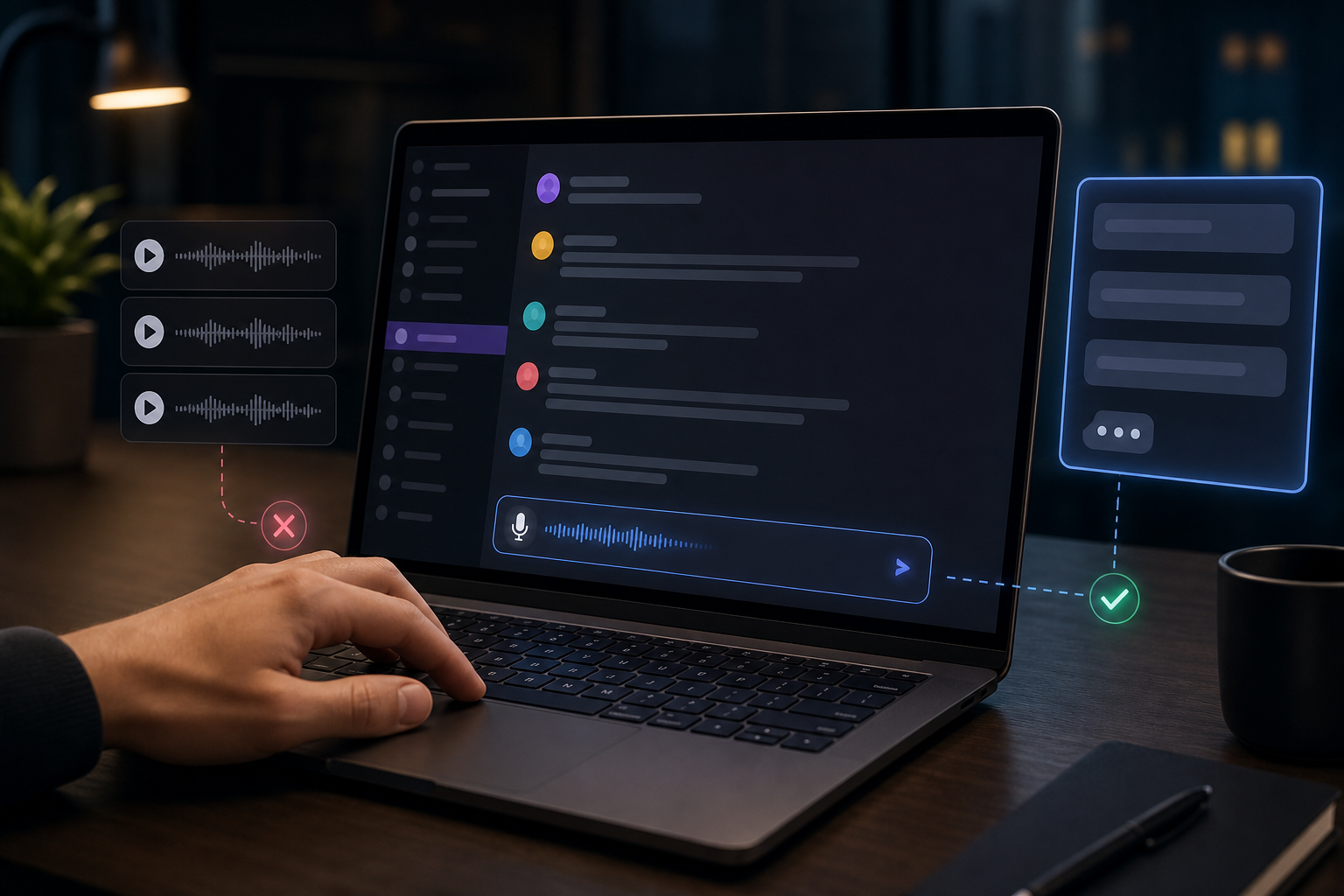
Slack dictation in 2026 is still a weird patchwork. Slack has gotten better at audio in general. You can record audio clips right in the message field, generate transcripts after sharing them, and even dictate prompts to Slackbot if your workspace has Slack AI. But that still leaves a pretty obvious hole for people who just want to speak a message and have clean text appear in the composer.
That gap is why this search term matters now. Slack's own help docs now show three different voice-related paths. The audio and video clips guide walks you through recording a clip, then generating a transcript under the clip after you send it. The Slackbot guide says you can click the microphone icon to dictate a prompt to Slackbot. And a current workplace messaging guide from Weesper Neon Flow points out the part a lot of people run into fast: Slack still does not give you a real desktop dictation composer for everyday team messages.
So if you are searching for Slack dictation in 2026, here is the short version. Slack is decent at voice clips. It is getting more serious about transcripts. It is even willing to let you talk to AI inside Slack. But if what you want is hold-to-talk dictation that types right into a normal message box, you still need something outside Slack. That is where DictaFlow fits.
Why Slack dictation feels half finished
The problem is not that Slack ignores voice. The problem is that Slack treats voice and typed text as separate lanes.
If you send an audio clip, the other person has to play it back or open the transcript under the clip. That can be fine for a quick update, especially across time zones. It is not the same thing as typing a clean paragraph into a channel, thread, or direct message where people can skim it instantly, quote it, react line by line, or paste parts into another tool.
That difference matters more than it sounds like on paper. A lot of Slack messages are tiny workflow moves. You are writing a standup update, answering a customer question, clarifying a deadline, dropping notes after a sales call, or turning a scattered thought into one tight paragraph before somebody goes offline. In those cases, a voice clip is often one step too heavy and a transcript under a clip is one step too separate.
What most people actually want is simple. Press a key. Talk. See clean text land in the composer. Hit Enter when it looks right.
Slack still does not own that experience on desktop.
What Slack gives you today
Slack's current voice features are useful, just different from dictation.
First, there are audio clips. Slack's help center says you can click the microphone icon in the message field, record, stop, send, and then generate a transcript below the clip. That is helpful when tone matters or when a fast spoken update is easier than typing.
Second, there are huddle notes and transcripts in some Slack AI workflows. Those are useful for meetings, recaps, and catching up later. They are not a substitute for quickly dictating a normal message to a teammate.
Third, there is Slackbot voice input. Slack's own docs now say you can click the microphone icon to dictate your prompt to Slackbot. That is a good sign that Slack understands voice input has become normal. But it also makes the gap more obvious. You can talk to the bot, but regular team communication still leans on clips, not true dictation.
That is why Slack dictation still feels unfinished. The system understands audio. It just does not consistently turn your speech into the same kind of typed message you would have written yourself.
Where Slack voice workflows break down
The biggest problem is speed on everyday text.
A voice clip asks more from the person receiving it. They have to listen, or at least open the transcript. That is fine once in a while. It gets annoying when the message could have just been text in the first place.
The second problem is editing. If you dictate into a true text composer, you can glance at the message, fix one word, add a bullet, tag someone, and send it. With clips, the transcript is tied to the recording. You are not really drafting in the same way.
The third problem is mixed workflows. Slack is rarely the only place the work lives. A message becomes a Jira ticket, a CRM note, a Notion update, an email reply, or a quick comment in a browser tab five minutes later. If your voice setup only works as an audio object inside Slack, the workflow stops the second you leave Slack.
Then there is the social part. Plenty of people like dictation but do not want to spray voice clips all over team channels. Text feels lighter. It is easier for other people to scan. It does not interrupt anyone. It does not force the whole room to hear your thought process.
That is why text-first dictation keeps winning for work chat.
What a better Slack dictation setup looks like
A good Slack dictation setup should work like typing, just faster.
It should let you hold a hotkey, speak a short burst, and drop clean text directly into the active composer. It should handle names, acronyms, product terms, and casual workplace language without turning everything into stiff polished junk. It should make quick corrections easy because Slack writing is short and reactive. And it should keep working when the conversation moves into your browser, your notes app, your CRM, or your AI prompt window.
That is the part built-in platform features still miss. They often solve one surface well. People need the whole chain.
Wirecutter's June 2026 roundup makes the broader market point pretty clearly: dictation is finally good enough that the real question is not whether speech-to-text works. It is where it works, how fast it starts, and whether it stays useful once you move beyond a single app.
Slack is a perfect example of that shift.
Why DictaFlow works better for Slack-heavy days
DictaFlow works better here because it is not trying to turn Slack into a recording app. It just lets you dictate where your cursor already is.
If you are writing a DM, a thread reply, a standup note, or a channel update, you hold the hotkey, talk, release, and the text appears in the message box. Then you can edit it like normal text because that is what it is. No clip. No extra transcript panel. No separate playback step for the other person.
That alone makes Slack feel more natural. But the bigger win is what happens after Slack. The same habit carries into Gmail, Notion, browser forms, AI tools, and stubborn enterprise apps. If you are already bouncing between chat, docs, and follow-up tasks all day, that matters a lot more than one shiny in-app voice feature.
The other advantage is control. DictaFlow gives you a custom vocabulary and Knowledge Base workflow, so recurring names, shorthand, and product terms stop being a daily correction tax. That is a real upgrade for teams that live in abbreviations, customer names, or technical language.
And the pricing is straightforward. DictaFlow Pro is $7/month or $69/year. If you want the bigger side-by-side picture, the DictaFlow comparison page lays out how it stacks up against the other major tools. If you want to try it without overthinking the setup, the getting started guide is the shortest path.
When Slack's built-in voice options are enough
To be fair, not everyone needs a dedicated dictation tool for Slack.
If you mostly send occasional voice updates, work with people who are happy listening to clips, and do not care much about turning speech into normal typed messages, Slack's built-in audio features may be enough. The same goes for huddles and recap workflows. Slack is clearly putting real effort into that side of the product.
And if you mainly want to talk to an AI assistant inside Slack, Slackbot voice input is a legit convenience.
But those are different jobs.
If your real goal is to send typed Slack messages faster, keep your communication skimmable, and carry the same voice workflow into the rest of your day, built-in clips and transcripts stop being enough pretty quickly.
The bottom line
Slack dictation in 2026 is better than it was, but mostly because Slack has improved audio clips, transcripts, and AI prompt input. It still has not nailed the simplest use case: speak into a message box and get clean text where you are already working.
That is why the best Slack dictation setup in 2026 usually is not a Slack feature. It is a system-wide dictation tool that treats Slack like any other text field.
If you like voice clips, keep using them. If you want faster typed communication without the playback step, try DictaFlow free. For Slack-heavy workdays, it is the cleaner answer.
Related pages
Useful next stops if you want comparisons, setup help, or more workflow-focused dictation ideas.