June 29, 2026
Gmail Dictation in 2026: Better Than Browser Voice Typing
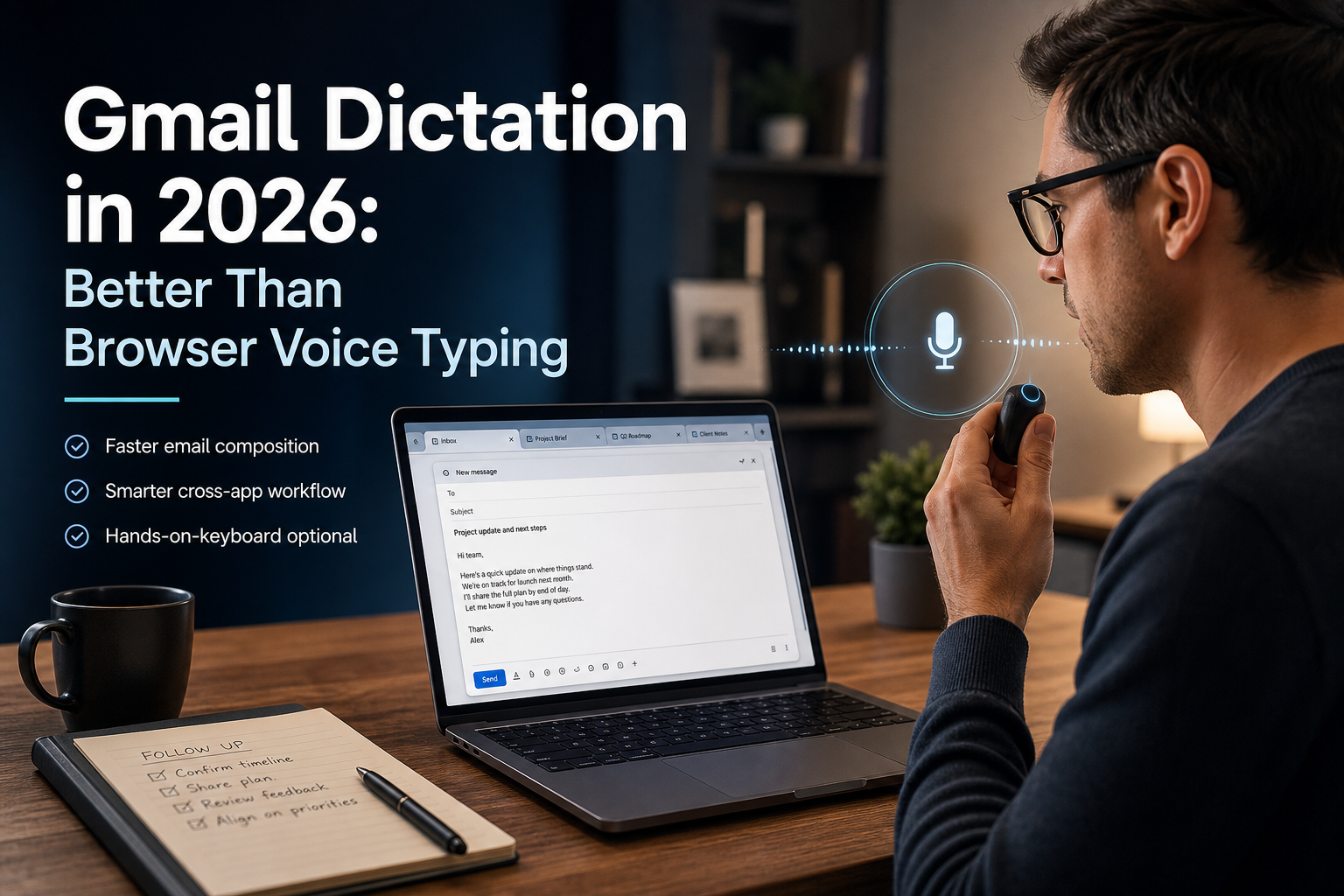
Wirecutter updated its dictation software guide this month, and Willow published a fresh Gmail voice dictation guide right behind it. That tells you something useful on its own: people are still actively trying to solve Gmail dictation, because the obvious built-in answer still is not that satisfying.
If you search for Gmail dictation in 2026, you mostly land on three kinds of advice. Use browser voice typing. Use a Chrome extension. Or use your operating system's dictation and hope it behaves inside the compose box. Sometimes that is enough for a quick reply. A lot of the time it feels slow, fragile, and weirdly high-friction for something as basic as answering email.
That is the gap this article is really about. Gmail dictation is not hard because speech to text is bad now. It is hard because email work is messy. You jump between a compose window, old threads, a help center tab, a CRM note, a calendar invite, and three links you need to paste in the right order. Browser voice typing can handle a sentence. It usually starts to wobble once the workflow stops being one clean text box.
So here is the short version. If you only want to dictate a quick Gmail reply once in a while, browser voice typing is fine. If email is a real part of your job and you want dictation that keeps up, DictaFlow is the better setup. It types at the cursor, works across the browser and the next app you open, and feels more like a real input method than a browser trick.
Why Gmail dictation still feels awkward
Gmail lives in the browser, which sounds simple until you actually try to dictate into it all day. The browser is crowded. Extensions compete with each other. Focus jumps between fields. Sometimes the cursor lands where you expect, sometimes it does not. A voice tool can look perfect in a demo and still get annoying fast once you are replying to real email under time pressure.
The newest Gmail dictation guides all circle the same problem. There is no single obvious Gmail-native dictation layer that most people love. Instead you get a stack of partial solutions. Maybe a browser extension helps on websites. Maybe Mac Dictation or Windows Voice Typing works well enough. Maybe a separate dictation app handles the compose box better. The fact that everyone keeps writing new Gmail dictation guides is the giveaway. The problem is still not solved cleanly.
There is also a deeper accuracy problem that matters more than people admit. A recent speech recognition piece from TechTimes highlighted research showing that standard word error rate can look good even while the important words still get mangled. That matters in Gmail because email is full of names, numbers, product terms, ticket IDs, links, and little bits of business context where one wrong word is the whole point of the message.
Where browser voice typing usually breaks
The first break point is speed. Browser voice typing often feels okay when you are testing it, then slow when you are using it for actual work. You pause, it lags, you repeat yourself, then it inserts the phrase twice or drops the punctuation where you did not want it. That is not a speech recognition problem in the abstract. It is a workflow problem. You stop trusting the tool.
The second break point is context switching. Real Gmail work is rarely just one email. You read a thread, open a doc, check a support note, maybe answer in Slack, then go back to the inbox. If your dictation tool only feels good in the exact browser field you started in, you keep falling out of flow.
The third break point is cleanup. Email is full of short, slightly awkward sentences. You think, talk, stop, change tone, add a bullet, paste a link, then keep going. A lot of tools are either too dumb about cleanup or too aggressive about rewriting. One leaves you with messy punctuation. The other turns your normal voice into fake polished corporate sludge.
And the fourth break point is vocabulary. Gmail is where your real language shows up: customer names, company acronyms, internal shortcuts, product names, legal matter names, medical terms, or the weird way your team labels tickets. If you have to fix the same term every other message, dictation stops feeling fast.
What a better Gmail dictation setup looks like
A better setup starts with one simple rule: the tool should follow your cursor, not your app. Gmail is just one stop. After you answer the email, you may need to write the follow-up note in HubSpot, update a task in Linear, send a Slack reply, or fill a browser form. Good dictation should move with you.
It also needs fast start and stop behavior. Email dictation is bursty. Most people do not want an always-listening microphone while they clear an inbox. They want hold-to-talk. Press a key, speak one paragraph, release, read it, fix one sentence, then do the next one.
The tool should also let you keep your own voice. This gets missed a lot. Good AI cleanup is not the same thing as AI rewriting. The point is to remove the garbage, repeated words, obvious punctuation misses, and little transcription glitches while still sounding like you. Especially in email, that matters.
And finally, it should help with vocabulary instead of pretending vocabulary is solved. If you send ten emails a day about the same project, the tool should get better at those terms instead of making you do the same correction loop forever.
Why DictaFlow works better for Gmail-heavy work
This is exactly where DictaFlow makes more sense than browser voice typing. It is system-wide. Press and hold a hotkey, speak, release, and the text appears where your cursor already is. That sounds small until you spend a day bouncing between Gmail, the rest of your browser tabs, and the other apps attached to the conversation.
For Gmail-heavy work, that means one dictation habit instead of three workarounds. You can answer the email, add the follow-up note, clean up the task description, and send the side message without changing tools every ten minutes.
The other thing DictaFlow gets right is control. It has a Knowledge Base and custom vocabulary workflow, so recurring names, acronyms, and product terms do not stay a coin flip forever. That is a much better fit for inbox work than crossing your fingers and hoping the browser learns the language of your job.
Pricing matters too. DictaFlow Pro is $7/month or $69/year. That is an easy decision if email is one of the places where typing keeps eating your day. If you want the side-by-side view, the full DictaFlow comparison page is the cleanest place to start. If you want the quick path, the getting started guide gets you running fast.
When browser voice typing is enough
To be fair, not everyone needs another tool. If you send a few emails a day, mostly stay in one browser tab, and do not care whether the same dictation workflow follows you into docs, chat, forms, and desktop apps, then browser voice typing may be enough.
That is the right place to start if you are just testing whether speaking emails feels natural at all. Use the free option first. See where it breaks. If you hit the same problems most people hit, lag, repeated words, awkward app switching, and vocabulary misses, then you know the upgrade is not about fancy AI. It is about having an input method that actually fits the way you work.
The bottom line
Gmail dictation in 2026 is possible. It is just still more patched together than most people want. Browser voice typing can work for quick replies, but it tends to crack under real inbox work once the task spills into the rest of your day.
That is why DictaFlow is the better answer for anyone serious about Gmail dictation. It keeps the useful part of speaking instead of typing, then removes the browser-only bottleneck. If your inbox is where work starts but not where it ends, try DictaFlow free. It is a cleaner setup than juggling browser voice typing every time the workflow gets messy.
Related pages
Useful next stops if you want the faster setup or the broader side-by-side comparison.