July 04, 2026
Teams Dictation in 2026: Better Than Meeting Notes
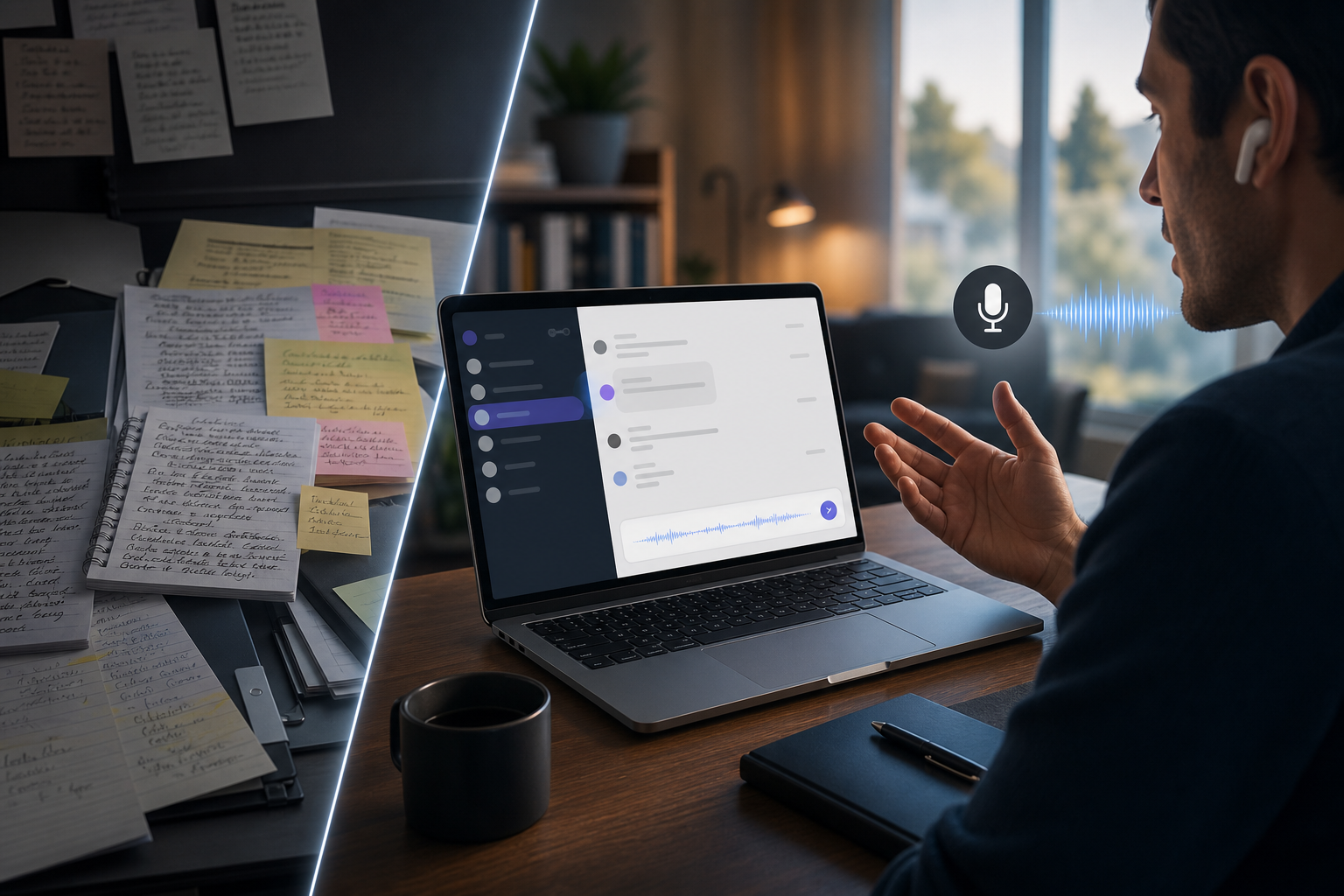
Microsoft Teams keeps getting smarter about meetings. The July 2026 Teams updates keep adding more caption controls, meeting AI, and recap features. That all matters if your problem is figuring out what happened after the meeting.
But a lot of people searching for Teams dictation aren’t trying to summarize a one-hour call. They’re trying to send a clean message faster, reply in chat without hunting and pecking, update a channel after a customer call, or turn a spoken thought into text while bouncing between Teams, Outlook, browser tabs and a CRM.
That’s where Teams still feels incomplete.
If you want the short version, here it is. Teams is pretty good for transcripts, captions, and meeting intelligence. It still isn’t great for simple text-first dictation in everyday work. If you want hold-to-talk dictation that drops clean text into the active field and keeps working after you leave Teams, you’ll still need something outside Teams. That’s where DictaFlow fits.
Why Teams dictation still feels unfinished
The gap is easy to miss because Teams has so many voice and AI features now. Microsoft keeps improving live captions, meeting summaries and Copilot-style meeting help. There’s no shortage of audio-related functionality.
The problem is that most of it lives around the meeting, not inside your normal writing flow.
A normal Teams-heavy workday is full of tiny bits of writing. Quick direct messages. Thread replies. Standup updates. Channel recaps. A follow-up note after a client call. A draft you paste into email two minutes later. Those aren’t meeting artifacts. They’re just text work, and that’s where the friction shows up.
People don’t want to record a clip every time they need to answer “can you send the latest numbers” or “here’s what changed in the proposal.” They want to hit a key, talk for ten seconds, and have a clean paragraph show up in the box.
That still isn’t the main Teams experience.
What Teams does well right now
Teams is pretty good when the job is capturing conversations.
Live captions are better than they used to be. Meeting transcripts, recaps, and AI-generated notes are getting better fast. The recent July 2026 Teams update cycle is another reminder that Microsoft is focused on making meetings easier to search and easier for machines to read. And this week's coverage of Teams' new AI meeting features made the same point from a different angle: Microsoft is putting more energy into what the system can actually hear during meetings.
That’s useful. It just isn’t the same as dictation.
AI for meetings helps after people talk. Dictation helps while you're writing.
That distinction matters because a lot of work in Teams happens outside formal meetings. Maybe you missed a deadline and need to explain what changed in a thread. Maybe you are replying to three internal questions while a browser tab, Excel sheet, and customer record are all open. Maybe you need to turn a call outcome into a short note for the rest of the team. That is where meeting recap features stop helping.
Where Teams voice workflows break down
The first problem is that voice features and text features still feel like separate lanes.
Teams can help you capture a meeting. It does not feel built around the idea that your fastest way to write a normal chat message might be speaking into the current text box.
The second problem is cross-app flow. Teams is rarely the only place the work lives. A message becomes an Outlook email, a Salesforce note, a support ticket, a browser form, or a quick update in another app. If your voice workflow only makes sense inside a meeting context, it breaks the second the work moves somewhere else.
The third problem is control. People want to dictate short bursts, not be stuck in an always-listening mode or a formal transcript workflow. They want to correct one word, swap a phrase, add a bullet, and send. That is a very different experience from generating a meeting artifact.
And then there is the social part. A lot of workers do not want to spray audio clips around when plain text would do the job better. Text is lighter. Teammates can skim it. Search it. Quote it. React to one line. Move on.
That is why text-first dictation keeps winning over voice-note style workflows in chat tools.
What a better Teams dictation setup looks like
A good setup should feel boring in the best possible way.
You hold a hotkey. You speak. You release. The words appear in the active Teams field like you typed them yourself.
It should also keep working when you leave Teams. Same habit in Outlook. Same habit in a browser tab. Same habit in your notes app. Same habit in a locked-down remote desktop if your company lives in Citrix or another VDI environment.
That is the real standard now. It is not enough for a tool to understand speech in one surface. People want one voice workflow across the whole day.
That is also why Teams dictation is a more useful search term than it looks. On the surface it sounds like a simple product feature query. In practice it is usually a workflow query. People are really asking, "how do I stop typing so much while I work in Teams all day without creating more friction everywhere else?"
Why DictaFlow works better for Teams-heavy days
DictaFlow solves the practical version of this problem. It is not trying to turn Teams into a meeting recorder. It just lets you dictate anywhere your cursor is.
If you are writing a DM, a channel update, or a thread reply in Teams, you hold the hotkey, talk, release, and the text appears right there. Then you edit it like normal text because that is what it is.
That matters more than it sounds. The same voice habit keeps working when the conversation jumps into Outlook, a customer success platform, a browser-based admin panel, or a stubborn enterprise app that doesn’t play nicely with clipboard tools.
It also helps with recurring names, acronyms, and internal shorthand. Teams-heavy companies are full of weird product names, customer names, and abbreviations that free built-in dictation tools constantly mangle. DictaFlow's custom vocabulary and Knowledge Base are a real upgrade there.
And the pricing is clean. DictaFlow Pro is $7/month or $69/year. If you want the broader competitor picture, the DictaFlow comparison page is the fastest side-by-side view. If you want the setup path, the getting started guide is the shortest route.
When Teams built-ins are enough
Not everyone needs a dedicated dictation app.
If most of your voice usage is in meetings, Teams may already cover enough. Captions, transcripts, AI summaries, and meeting recaps are legitimately useful. If that is your whole use case, stick with the built-in workflow.
But if your real pain is the amount of typing wrapped around those meetings, Teams still leaves a hole.
That is the gap between meeting intelligence and daily dictation. One helps you remember what was said. The other helps you get words out faster while you work.
The bottom line
Teams dictation in 2026 is better if you count captions, transcripts, and AI meeting notes as dictation. But if you want fast text in normal chat boxes across the rest of your workflow, it’s still pretty weak.
That is why the best Teams dictation setup usually is not a Teams feature. It is a system-wide dictation tool that treats Teams like any other text field.
If you mainly need meeting recap tools, Teams is doing a lot right. If you want faster text-first communication before, during, and after those meetings, try DictaFlow free. It is the cleaner fix.
Related pages
Useful next stops if you want comparisons, setup help, or more workflow-specific dictation guides.