July 14, 2026
VS Code Dictation in 2026: Speech Extension vs System-Wide
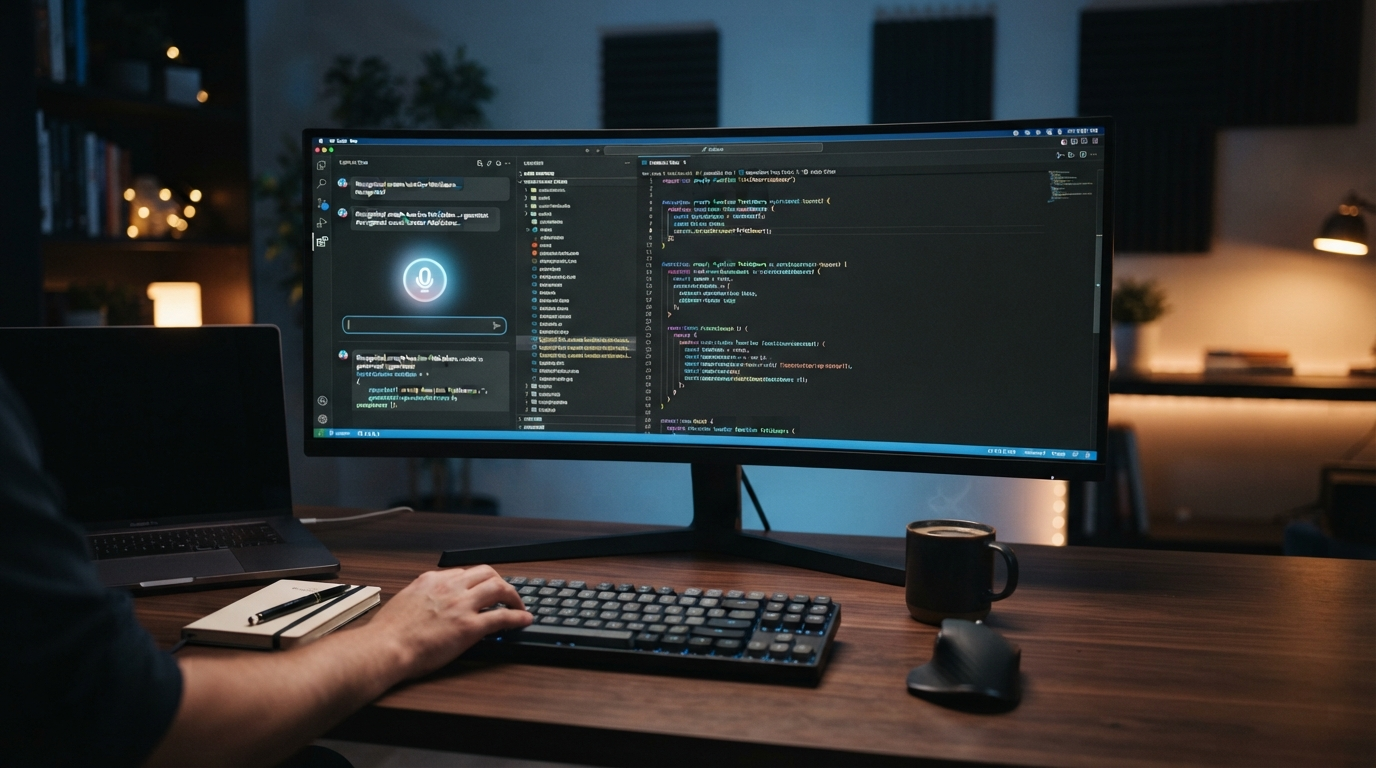
VS Code dictation has gotten a lot better in 2026, but it still feels patchy. Microsoft has a free Speech extension for editor and Copilot Chat input. GitHub added local voice input to Copilot CLI in June. But developers still run into panels and tools where the microphone just disappears, including the newer Agent Window reported in VS Code’s own issue tracker.
That gives you a pretty practical choice. You can use the free VS Code Speech extension in the parts of the editor it supports, or go with system-wide dictation that follows your cursor into terminals, issue trackers, pull requests, Slack, and every other place your coding day ends up. The right answer depends on where you actually speak.
What VS Code Speech does well
Microsoft's VS Code Speech documentation says the extension processes voice audio locally and doesn’t need an internet connection. Install GitHub Copilot Chat, sign in, add VS Code Speech, and microphone controls show up in supported chat interfaces.
The extension can start voice chat, stop listening, and submit the prompt with keybindings. It also supports a walkie-talkie style setup where you hold a shortcut while speaking and release to submit. For a developer who mainly wants to talk to Copilot Chat without sending microphone audio to a cloud transcription service, that’s a pretty solid free baseline.
It also skips a common annoyance with voice input: recording a prompt, waiting for another app to finish, then pasting it into chat. The speech control is right where the prompt goes. For short Copilot questions and commands, that feels a lot more direct.
GitHub is adding voice one surface at a time
GitHub’s June 2 update added local voice input to Copilot CLI. You can hold the space bar and talk, or hit Ctrl+X then V to record. GitHub says the audio stays on your machine, and the first run downloads a speech runtime plus a model.
That’s useful, but it also points to the bigger problem. Voice shows up as a feature inside each product surface. Copilot Chat has one flow. Copilot CLI has another. Editor comments, commit messages, GitHub issues, browser docs, and team chat may all need something different.
A May feature request in the VS Code issue tracker points to the same split. The reporter says VS Code Speech works in the standard editor and chat interface, but it isn’t available in the Agent Window. The request is for the same microphone control there too. That’s not some weird edge case. Agent workflows are exactly where long spoken instructions can save the most typing.
Use voice for prompts and prose, not code characters
Trying to dictate raw code character by character is usually miserable. Saying "open parenthesis string user ID comma integer retry count close parenthesis" is slower than typing, and one recognition error can break the line.
Voice is better for the language around code.
- Explain a bug and ask Copilot for a plan. - Draft a docstring or code comment. - Describe a refactor with constraints and files to avoid. - Write a commit message, pull request summary, or issue update. - Capture a test case while the failure is still fresh.
Keep the keyboard for symbols, short identifiers, exact paths, and final edits. This split is faster because speech handles complete thoughts while typing handles precision.
The technical vocabulary test
Before you pick a setup, write out a real prompt from your current project. Include a package name, two file names, an acronym, and one internal term. A polished demo sentence tells you almost nothing.
For example: “Update the Pydantic validator in auth session dot py so expired JWT refresh attempts return the same error shape as the mobile client.” If your dictation spits out “pedantic,” “J W T,” and the wrong filename, you’ll end up spending the time you saved fixing the prompt anyway.
Custom vocabulary matters more to developers than a flashy general accuracy score. A useful tool should let you teach it terms like Pydantic, Prisma, Vitest, Kubernetes, product names, repository names and customer-specific abbreviations. Every codebase has its own vocabulary, so the setup has to be adjustable.
When the free extension is enough
Use VS Code Speech first if most of your voice work happens in Copilot Chat, you want local audio processing, and you don’t mind switching back to the keyboard outside supported panels. It costs nothing and keeps everything inside VS Code.
Give it a real working session, not a two-minute test. Dictate three Copilot prompts, one comment, and one explanation of a failing test. Then see how often you reach another text box and lose the microphone workflow.
If that barely happens, stop there. There’s no prize for paying for a system-wide tool when the free extension already covers your day.
When system-wide dictation makes more sense
System-wide dictation wins when VS Code is only one stop in the workflow. A normal coding task might start in a GitHub issue, move into VS Code, jump to a terminal, require a browser search, and end with a pull request plus a Slack update. App-specific speech makes you relearn the interaction or fall back to typing at every handoff.
DictaFlow uses one hold-to-talk shortcut across Windows and Mac. Press, speak, release, and the text goes where the cursor is. That means the same interaction can fill Copilot Chat, a terminal prompt, a GitHub issue, a commit message, or a support reply.
Its Knowledge Base is useful for stack names, paths, acronyms, and project vocabulary. App-aware formatting can keep a Copilot prompt conversational while cleaning up a pull request summary or email. Local and cloud processing options let you trade speed, privacy, and model capability based on the task.
The tradeoff is price. VS Code Speech is free. DictaFlow Pro costs $7/month or $69/year, and the free tier is there to test whether cross-app consistency saves enough time to matter.
A 15-minute VS Code dictation setup
Start with a small test instead of rebuilding your whole workflow.
- Install the official VS Code Speech extension and confirm the Microsoft publisher. - Test one Copilot Chat prompt with local speech input. - Try the same idea in the Agent Window and note whether voice is available in your version. - Dictate a technical prompt containing real package and file names. - Open a terminal, GitHub issue, and Slack message, then repeat the same hold-to-talk test with a [DictaFlow](https://dictaflow.io/) free-tier install. - Count corrections and context switches, not words per minute.
The winner is the setup that needs the fewest repairs across the full task. Raw transcription speed is less important than whether the tool follows you through the places where development actually happens.
The practical answer
VS Code Speech is probably the easiest first step if you want voice inside Copilot Chat. It’s free, runs locally, and is built right into the editor. GitHub’s local Copilot CLI input also makes the terminal side better, too.
But developers do not work in one panel. If voice control disappears in the Agent Window, browser, issue tracker, or team chat, the workflow is still fragmented. That is where system-wide dictation earns its keep. Test both against one real bug from issue to pull request. The setup that survives the whole trip is the one worth keeping.
Related pages
Useful next steps for voice coding and dictation setup.