July 05, 2026
How to Dictate in Cursor in 2026: Faster Coding Setup
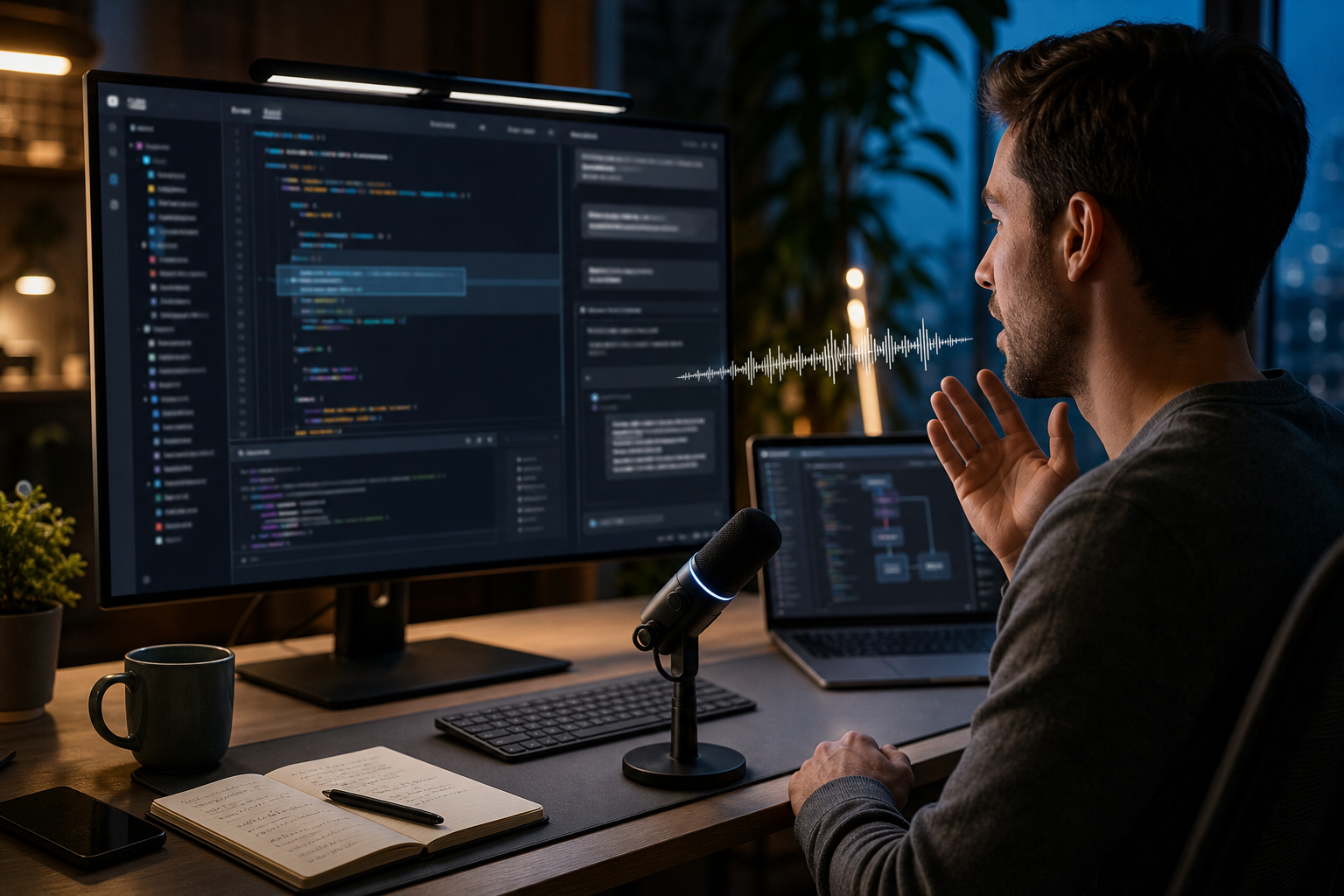
If you are trying to figure out how to dictate in Cursor in 2026, the confusing part is that Cursor feels like a voice-friendly app right up until you actually try to use your voice all day.
It has chat, inline edit boxes, Composer, and lots of places where natural language helps. But those are still plain text fields. A recent June 2026 guide on dictating in Cursor made the practical point clearly: you are still relying on a system-wide dictation layer to feed speech into Agent, Composer, Cmd-K, or the code editor itself. A May 2026 Cursor voice-input walkthrough landed in the same place. Cursor is good at receiving text. It still is not a full dictation workflow on its own.
That distinction matters because the real developer use case is bigger than prompt boxes. You are not just talking to Cursor. You are dictating a refactor request, then a commit message, then a terminal note, then a GitHub issue, then a Slack update, then another inline edit. If your setup only works in one part of that chain, it gets annoying fast.
So the short answer is this: the best way to dictate in Cursor in 2026 is to use a system-wide hold-to-talk dictation app that works in every Cursor text surface and keeps working when you leave Cursor. That is where DictaFlow has a real edge.
What people actually mean when they search for Cursor dictation
Most developers are not searching for a novelty demo. They are searching for a workflow that reduces keyboard time without slowing them down somewhere else.
In practice, that means a few specific jobs:
- dictating longer prompts into Cursor Chat or Composer without mangling technical words
- using Cmd-K inline edits by voice when you already know what change you want
- writing comments, commit messages, docs, and PR notes without switching tools
- keeping the same habit in the terminal, browser, Slack, and Notion after the coding part is done
That last point is the trap. Plenty of voice tools can look decent in a product demo where someone only speaks one polished prompt into one shiny input box. Real coding work is messier than that. You are bouncing between apps, revising small bits of text, and using technical vocabulary that built-in dictation often butchers.
Where Cursor helps, and where it still gets in the way
Cursor absolutely benefits from voice input because it is already built around plain-English instructions. Saying "extract this into a helper, keep the public API the same, and add tests for the edge cases" is often faster than typing it.
The problem is that Cursor does not own the full input experience. It owns the AI editor. It does not own your microphone layer, your correction behavior, your custom vocabulary, or what happens when you leave the editor and jump into a browser tab or terminal.
That is why generic voice-control demos can feel misleading. They make it sound like voice coding is one feature. It is not. It is a chain. The weak link is usually not whether the AI editor can understand English. The weak link is whether your dictation layer is fast, accurate on weird code words, easy to trigger, and consistent across the rest of your day.
The setup that actually works
The cleanest setup is boring, which is a good sign.
You put your cursor in the place you already work, Cursor Chat, Composer, Cmd-K, a markdown file, a commit message box, a terminal prompt, whatever. Then you hold a hotkey, speak, release, and the text appears in that exact field. No separate dictation window. No copy-paste dance. No "start recording" mode that feels heavier than typing.
That is the part a lot of developer dictation posts skip. The goal is not just speech recognition. The goal is low-friction insertion.
If your tool forces you to think about the tool each time you use it, you will fall back to the keyboard. Developers are ruthless about that stuff. One extra step is enough to kill the habit.
Why system-wide dictation matters more than Cursor-specific tricks
Cursor-specific workflows sound appealing because they feel tailored. But most developers do not live inside one surface. They live inside an ecosystem of tiny text tasks.
Maybe you dictate a prompt into Cursor, then copy the result into a GitHub comment. Maybe you explain a bug fix in Slack right after shipping it. Maybe you update a ticket, write a changelog line, and answer a teammate in a browser-based chat. The useful habit is not "voice inside Cursor." The useful habit is "voice anywhere I can type."
That is also why technical vocabulary matters so much. Coding dictation falls apart when the model constantly guesses wrong on variable names, product names, CLI flags, or mixed English-plus-code phrasing. Even when the broad sentence is right, one wrong package name or one mangled flag is enough to create cleanup work.
DictaFlow handles that better than most general dictation tools because it gives you custom vocabulary, a Knowledge Base for repeated terms, and app-aware behavior that does not try to rewrite your coding voice into something fake-polished.
Where DictaFlow fits in a Cursor workflow
DictaFlow is a good fit for Cursor because it solves the practical layer around the editor, not just the prompt box inside it.
You can use it for:
- longer prompt drafting in Chat or Composer
- quick Cmd-K edits when you want to say the change faster than you can type it
- README updates, PR summaries, and commit messages
- terminal notes, browser forms, and support replies after the code change is done
The other reason it works well for developers is control. Hold-to-talk is a better fit than always-listening dictation when you are mixing speech, shortcuts, and code review. You stay in charge of when audio becomes text. That sounds small, but it makes the workflow feel intentional instead of noisy.
And the pricing is simple. DictaFlow Pro is $7/month or $69/year, which is a lot easier to justify than stacking niche tools for the editor, browser, and messaging side of the same workflow.
When built-in options are enough
To be fair, not everyone needs a dedicated setup.
If you only dictate occasionally, macOS Dictation or Windows Voice Typing may be fine for short prompts. If you mostly stay inside VS Code, editor-specific voice tooling can cover part of the job too. The problem shows up when you want one consistent habit across coding, communication, and docs, especially if you care about technical terms and low cleanup.
That is when the built-ins start feeling cheap in the bad way. They are free, but they leak time.
The bottom line
If you want to dictate in Cursor in 2026, do not overthink Cursor itself. The editor already gives you the text boxes. The real decision is what speech layer you trust to feed them cleanly.
A good setup should work in Cursor Chat, Composer, Cmd-K, markdown files, commit messages, terminals, browsers, and the random text fields around the rest of your day. That is the standard now.
If you want the fastest path, start with a system-wide hold-to-talk workflow and keep it consistent everywhere. The DictaFlow AI coding workflow shows how to use the same voice input in Cursor, Claude, ChatGPT, terminals, and GitHub.
Related pages
If you want the side-by-side breakdown or the fastest setup path, start here.