July 07, 2026
Dictation Microphone Permission Problems in 2026: The Setup Friction Nobody Mentions
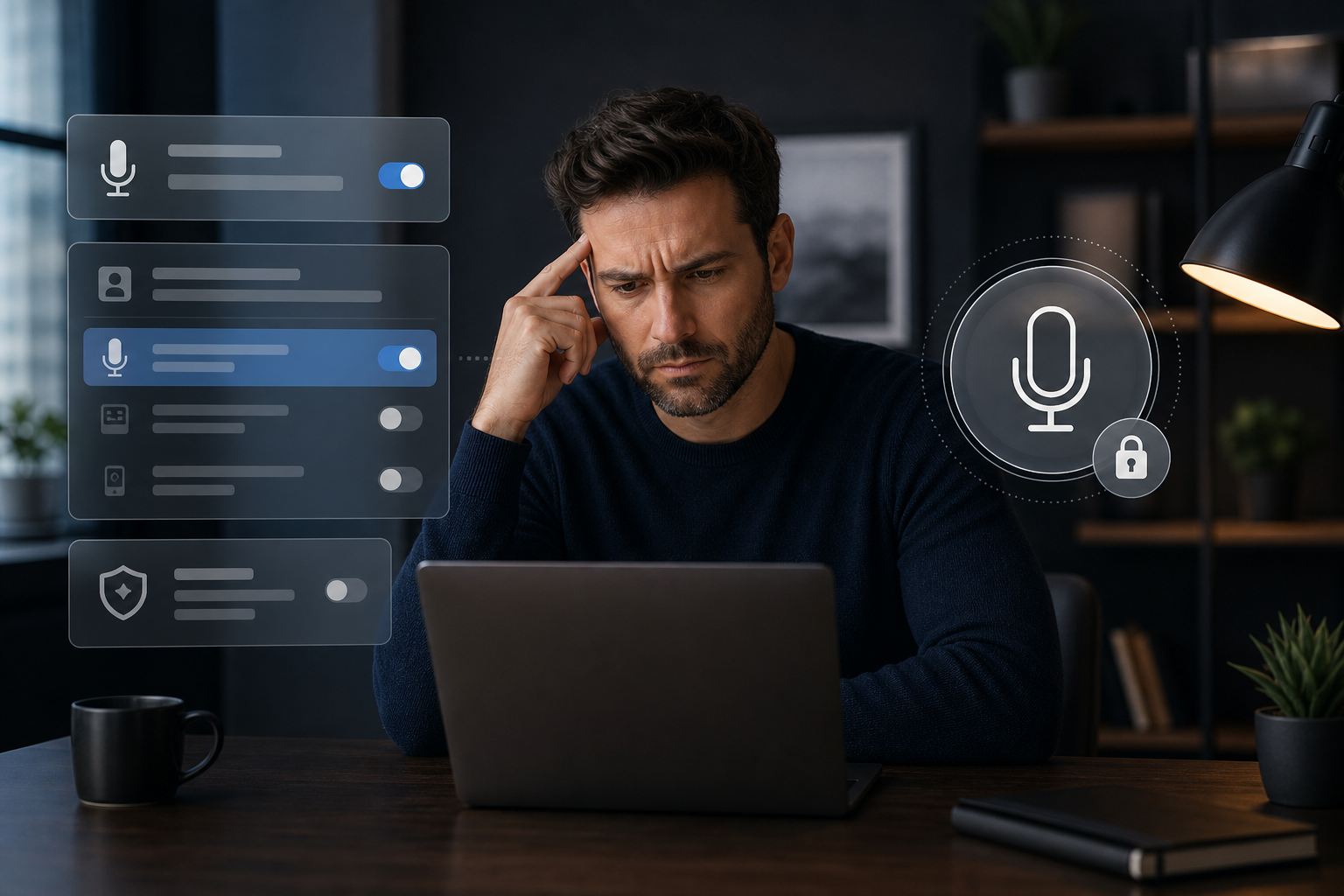
Pain point logged: Some dictation apps fail on basic microphone permission setup.
Dictation apps like to talk about model quality, AI cleanup, and accuracy. Fair enough. But a lot of users never get that far. They get stuck at the boring part: microphone permissions.
The app cannot hear them. The browser has permission but the desktop app does not. Windows privacy settings are off. The input device is wrong. A headset connects after launch and the app keeps listening to the old microphone. Nothing about this feels futuristic.
This setup friction matters because dictation has to become a habit before it becomes valuable. If the first session feels flaky, users assume the whole category is flaky.
Microphone setup is part of the product
A dictation tool is only as good as the capture step. If audio capture fails, the rest of the stack does not matter.
That means microphone state, permission state, device selection, and error messages are product features. They are not just support issues. A user should know whether the app is listening, which microphone it is using, and what to fix when capture fails.
This is especially important for professionals who move between laptops, docking stations, headsets, remote desktop sessions, and locked-down IT environments.
Why browser dictation makes this worse
Browser-based voice tools can be convenient, but permissions are fragmented. A browser might allow microphone access on one site and block it on another. A system-level setting can override both. A remote desktop or Citrix session can add another layer of confusion.
The user does not care which layer failed. They just know they pressed the dictation button and nothing useful happened.
That is one reason system-wide desktop dictation is still valuable. DictaFlow is designed as a dedicated input layer, not a random voice box inside one webpage.
The best dictation UX makes capture obvious
Users should not have to wonder whether the app is listening. The workflow should have a clear start, a clear stop, and a clear result. Hold-to-talk is strong for exactly this reason. The user controls when audio is captured.
Always-on tools can feel magical until they capture the wrong thing, miss the right thing, or leave the user unsure what state the app is in. For dictation, explicit control is often better than invisible automation.
A good setup flow should also handle failure plainly: no microphone detected, permission blocked, input level too low, or active field unavailable. Vague “something went wrong” errors are not good enough.
What to choose if setup keeps breaking
If you are evaluating dictation software, do not only test accuracy. Test the first five minutes. Can you install it, grant permissions, select the right microphone, dictate into a real app, and repeat the workflow without babysitting it?
That is the real adoption test. Dictation has to be easy before it can be fast.
If your current tool keeps failing at microphone setup or capture state, try a cleaner system-wide workflow. DictaFlow keeps the habit simple: put the cursor where text belongs, hold to talk, speak, release, and keep working.
Related pages
Useful next stops if you want setup help, comparisons, or nearby workflow guides.