Hold-to-talk dictation: the underrated feature that makes voice typing actually usable
February 15, 2026
Most people try dictation once, get burned, and never come back.
It usually goes like this: you start talking, your words show up late, the cursor jumps, a notification pops, and suddenly the microphone is still “listening” while you are thinking. You end up with a paragraph full of false starts and filler. If you are in medicine or law, the downside is worse because you are trying to capture details that do not tolerate guesswork.
The fix is not “speak more clearly” or “buy a better mic.” The fix is control.
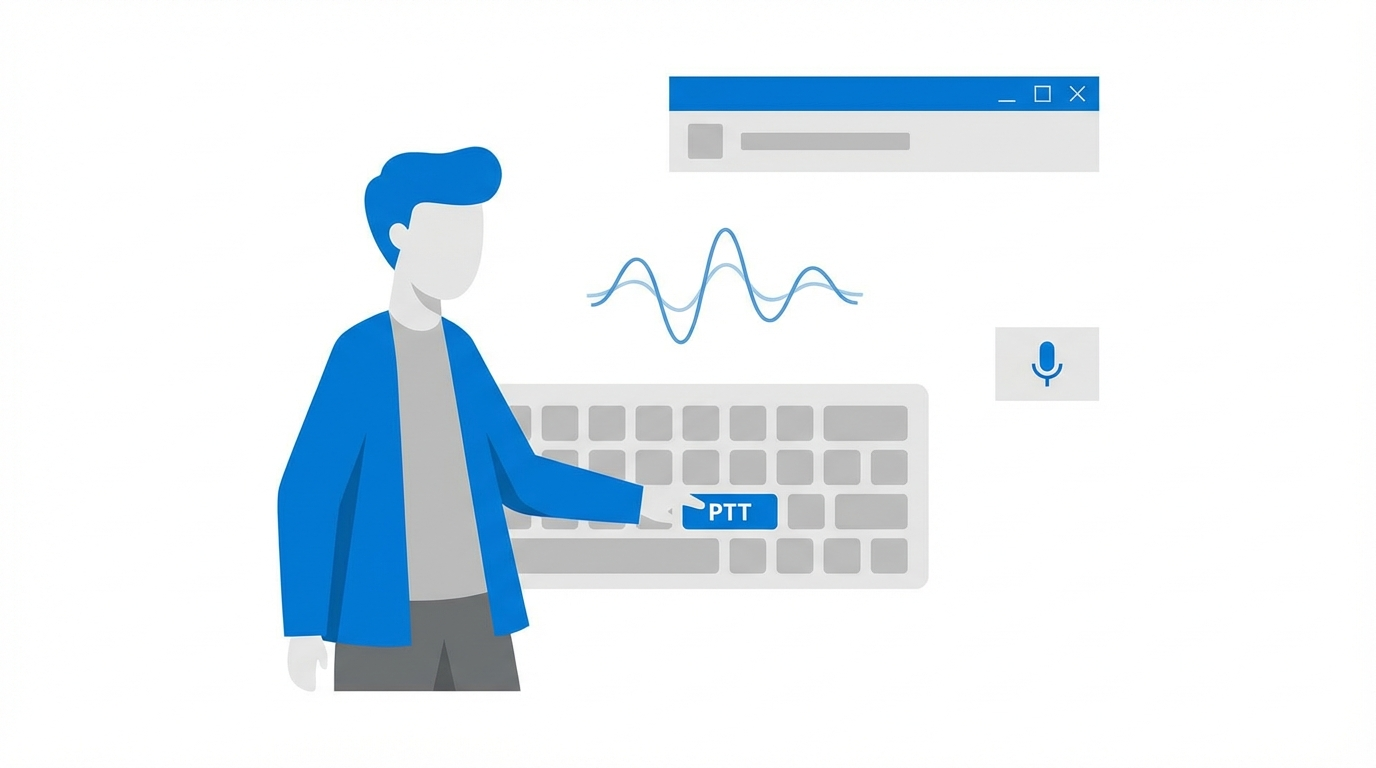
That is what hold-to-talk (push-to-talk) gives you: a simple way to decide exactly when the system is allowed to listen.
What hold-to-talk solves (in real life)
1) The “thinking out loud” problem
When you dictate, you do not talk like you type. You pause. You restart a sentence. You do little vocal edits like “no, change that to…” and sometimes you just stop to think.
In an always-on microphone model, the speech engine has to guess what those pauses mean. It may keep streaming audio and “hallucinate” punctuation, or it may time out and then stitch the next phrase into the wrong spot. Even with a good model, the user experience can feel messy.
Hold-to-talk turns dictation into an intentional action. If you are not holding the key, you can think in silence.
2) Background speech and accidental captures
Open offices, clinical workrooms, family noise, even your own phone audio can end up in the transcript. A lot of people do not realize how often they say half sentences to themselves while working.
With hold-to-talk, accidental captures drop dramatically because the default state is “off.”
3) Cursor context and multi-app workflows
In practice, dictation is rarely “write a document from start to finish.” It is filling forms, answering chat, updating a chart, drafting an email, and pasting into a portal. That means your cursor context changes constantly.
A hold-to-talk hotkey is a small thing, but it matches how people actually work: hands on keyboard, quick burst of speech, immediate return to editing.
Why always-on dictation feels worse in VDI (Citrix/RDP)
Remote desktops add two kinds of friction:
- Latency: the text insertion is delayed, so you are always half a sentence ahead of what you see.
- Focus instability: the active field can change due to remote rendering, popups, or the remote client stealing focus.
Always-on dictation amplifies both. You are speaking while the UI is still catching up.
Hold-to-talk does not eliminate latency, but it does reduce the damage. You speak in short, controlled bursts. You can wait a beat, check the cursor, then speak again. You are less likely to dump a 30-second stream into the wrong window.
A practical setup that works (and is easy to adopt)
If you want dictation to stick, the setup has to be low drama.
1) Pick a single hotkey you can hit without thinking. Many people use a side mouse button, Caps Lock, or a function key. 2) Use “press and hold” instead of “toggle” at first. Toggles create anxiety because you are never fully sure whether you are live. 3) Keep sessions short. Dictate one or two sentences, then edit. Do not try to freewrite an entire page by voice on day one. 4) Make correction fast. If it takes more than a second to fix a word, you will stop using the tool.
That last point matters more than most people admit.
The second half of the equation: instant corrections
Hold-to-talk gives you control over capture. But you still need control over corrections.
There is a specific failure mode that kills dictation adoption: you realize you said the wrong term and you cannot fix it quickly without switching to the mouse, selecting text, and re-dictating.
Good dictation software needs to handle mid-sentence corrections in a way that feels natural. The user intent is simple:
- Keep most of what I just said.
- Replace the last phrase with the corrected phrase.
- Do it without me babysitting the selection.
If you have ever used Dragon, you know why people put up with it: it has a correction workflow that feels deterministic. Modern AI speech models are much more accurate, but the “editing loop” is where many products still feel unfinished.
What to look for in an AI dictation app in 2026 (especially on Windows)
If you are evaluating tools, here are the features that correlate with real daily use:
- Hold-to-talk (true push-to-talk, not just a microphone toggle)
- Low-latency text injection (the faster it types, the less you overshoot)
- Reliable operation inside Citrix/RDP/VDI
- A correction workflow that does not require constant text selection
- A simple “mode” switch for medical vs legal vocabulary, if you do professional documentation
On Windows, the text injection layer is a make-or-break detail. If the tool cannot insert text into the field you are actually using, the best speech model in the world does not matter.
Where DictaFlow fits
DictaFlow is a Windows-native dictation app designed around two ideas: push-to-talk control and fast, reliable typing into the app you are already in, including many Citrix/RDP environments.
It also focuses heavily on the correction loop. The goal is that when you say “actually, make that…” you get a clean replacement instead of a messy second sentence.
If you want to try it, start with the boring test that predicts success: open the place you write most (EHR note field, Word, Outlook, a case management system), hold the hotkey, dictate two sentences, release, and then correct one phrase. If that feels smooth, you will use it.
You can grab DictaFlow here: https://dictaflow.io/
The bottom line
Always-on dictation sounds convenient, but it often fails for the same reason always-on notifications fail: humans need quiet by default.
Hold-to-talk is the simplest way to make dictation feel like a power tool instead of a distraction. Pair it with a fast correction loop, and dictation stops being a demo and starts being a habit.
Related DictaFlow Guides
Explore the pages built for the exact workflows these posts keep touching: Windows dictation, Citrix/VDI, medical documentation, legal drafting, and side-by-side comparisons.
Ready to stop typing?
DictaFlow is the only AI dictation tool built for speed, privacy, and technical workflows.
Download DictaFlow Free