November 12, 2026
Windows Terminal Dictation: PowerShell Setup in 2026
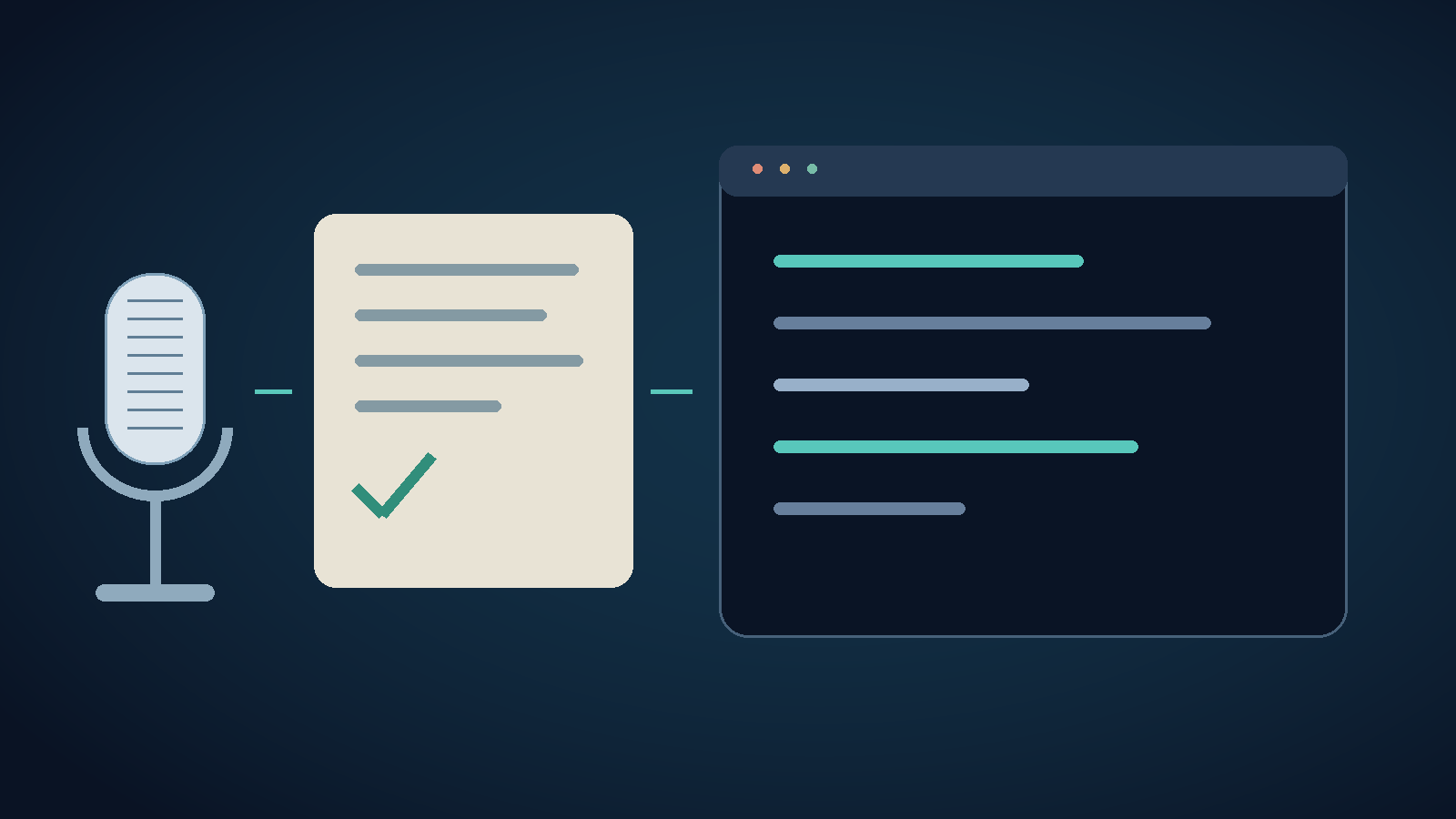
For Windows Terminal dictation, start in an editable note, not at a live PowerShell prompt. Speak the explanation and check exact strings. Then transfer only the text the destination expects. A shell and an AI assistant may share the same window, but they accept completely different input.
Free includes 2,000 cloud words per 30-day cycle. Direct Pro: $9/month or $84/year.
First check what is listening inside the terminal
Windows Terminal hosts command-line apps. Your active tab might be running PowerShell, a WSL shell, an SSH session, or an interactive coding assistant. Dictation types into whichever program has focus. It won't turn a regular PowerShell prompt into a natural-language assistant.
If you want help explaining a script, enter your request in the assistant's input field. To run a PowerShell command, prepare and review the actual PowerShell syntax. For prose about a failure, write a note or draft an issue. Keeping these separate prevents a good transcript from becoming the wrong kind of input.
For example, an assistant prompt might include this fictional request: Please explain why the Northbridge import fails after the second file. Do not edit files or run the import. Attach the real error and file path as exact text. You usually don't need to read an error stack aloud character by character. Our AI coding dictation guide explains the difference between explanatory prose and exact identifiers.
Set up Windows dictation outside the shell first
Install the Windows app from the DictaFlow download page, sign in, and follow the desktop getting-started guide. Choose a dictation shortcut that won't conflict with your terminal or editor. Hold the trigger, speak a short sentence into Notepad, then release it. Check what appeared before switching to another app.
Try a harmless diagnostic sentence, such as: The Northbridge import has two pending files, and I have not approved a restart. Check the project name, the number, and the word not. This is a suggested check, not a benchmark we ran. If Notepad already shows the wrong words, fix the microphone, selected model, or vocabulary before you investigate Windows Terminal.
Add recurring project names to the Knowledge Base using the custom vocabulary guide. Vocabulary can help with recognition, but it won't guarantee exact syntax. Type or paste hashes, credentials, paths, and case-sensitive identifiers from a trusted source. Never use a secret to test your microphone.
Keep multiline drafts out of a live PowerShell prompt
Microsoft documents a Windows Terminal setting called multiLinePasteWarning. It defaults to true and asks you to confirm before pasting multiple lines. Leave it enabled. Microsoft warns that, in most shells, a newline can run a command before you inspect it. The warning adds a useful check, but it doesn't guarantee that every way of inserting text will stop for review.
PowerShell's PSReadLine treats its Paste function differently from pasting characters one by one into the console. Its documentation says the two paths can lead to different execution behavior. A Ctrl+V shortcut alone doesn't show which layer handled the paste, since terminal and shell bindings can differ. Avoid changing bindings just to get one dictation demo working.
In PSReadLine's standard modes, Shift+Enter is documented as AddLine. It adds a continuation line for editing instead of accepting the current input. This applies to PSReadLine, not every interactive program in Windows Terminal. A coding assistant may use different keys. Keep a multiline prompt in an editor until you've confirmed the destination's own paste and submit behavior.
Don't assume simulated typing solves this safety problem. If inserted text includes a line break, the receiving application still decides how to interpret it. For commands that change files or systems, prepare a script in an editor, check its syntax, and choose carefully how to run it. Dictation cleanup doesn't validate commands.
When Notepad works but the destination does not
Repeat the same harmless sentence in a disposable editable field in the intended application. Compare its transcript with Notepad. Wrong words in both suggest a recognition or cleanup issue. Correct words in Notepad but missing text elsewhere point to focus, shortcut handling, insertion, or application policy. Don't test by speaking random prose into an active shell.
DictaFlow supports Paste and Typing output on Windows. If clipboard insertion fails, try Typing with harmless single-line text in a suitable field. Keep the review buffer for multiline content. Our remote desktop dictation guide covers local versus remote input. The CLI dictation guide covers tools that return transcripts to scripts instead of the cursor.
If the destination is elevated or centrally managed, test it against a normal, permitted application first. Follow your organization's tool policy. Don't elevate a dictation app or weaken clipboard controls. This guide doesn't certify that PowerShell, WSL, SSH, or every terminal program is compatible. A successful Notepad test shows only that one part of the path works.
What to buy, and when to keep the free option
This is vendor-authored guidance from DictaFlow. A separate app makes sense if you want the same speech shortcut in notes, editor prompts, and other supported text fields. If your assistant's built-in voice already covers your needs, start there. See the Claude Code voice setup article for that narrower option.
The current DictaFlow product facts list native apps for Windows, Mac, iPhone/iPad, and Android. Direct desktop/web Pro costs $9/month or $84/year, which works out to $7/month when billed annually. Monthly Pro includes 100,000 cloud words per cycle; annual Pro includes 200,000. Free includes 2,000 cloud words per 30-day cycle. Store and legacy subscriptions may differ.
Pro includes Local Offline dictation on supported devices once you've set it up. Choosing Local Offline doesn't make every separate cloud editing feature run locally. Use it when you need to work without an internet connection, and check any extra processing you enable. For a broader purchase comparison, see the dictation software comparison. You still need to review shell input, whether you use a subscription or a local model.
Verified sources
Checked on November 12, 2026, this guidance draws on Microsoft Windows Terminal interaction settings, including warnings about multiline pastes; Microsoft PSReadLine functions, including Paste and AddLine; Windows Terminal actions; and the DictaFlow setup and product pages linked above. It is based on documentation, not hands-on testing of Windows Terminal compatibility.
Windows Terminal dictation FAQ
Can I dictate plain English directly into PowerShell?
PowerShell expects commands, not ordinary requests. Dictate explanatory prose into a note or an AI assistant's editable input. Review actual commands in an editor before running them.
Should I disable Windows Terminal's multiline paste warning?
Leave it enabled. Microsoft notes that pasted newlines in a shell may run commands. The warning adds an extra check, but it doesn't cover every way text can be inserted.
Does Typing output guarantee that a command will not run?
No. Typing changes how content is inserted, not how the destination behaves. Line breaks and submit keys can still matter. Keep multiline content in a review buffer until you confirm how the receiving application behaves.
How do I tell recognition errors from insertion errors?
Dictate the same harmless sentence in Notepad and in a disposable editable destination. Wrong words in both suggest a recognition or cleanup problem. If Notepad is correct but the other destination fails, the issue may involve focus, insertion, or application policy.
Free includes 2,000 cloud words per 30-day cycle. Direct Pro: $9/month or $84/year.