July 11, 2026
Scrivener Dictation in 2026: A Better Writing Setup
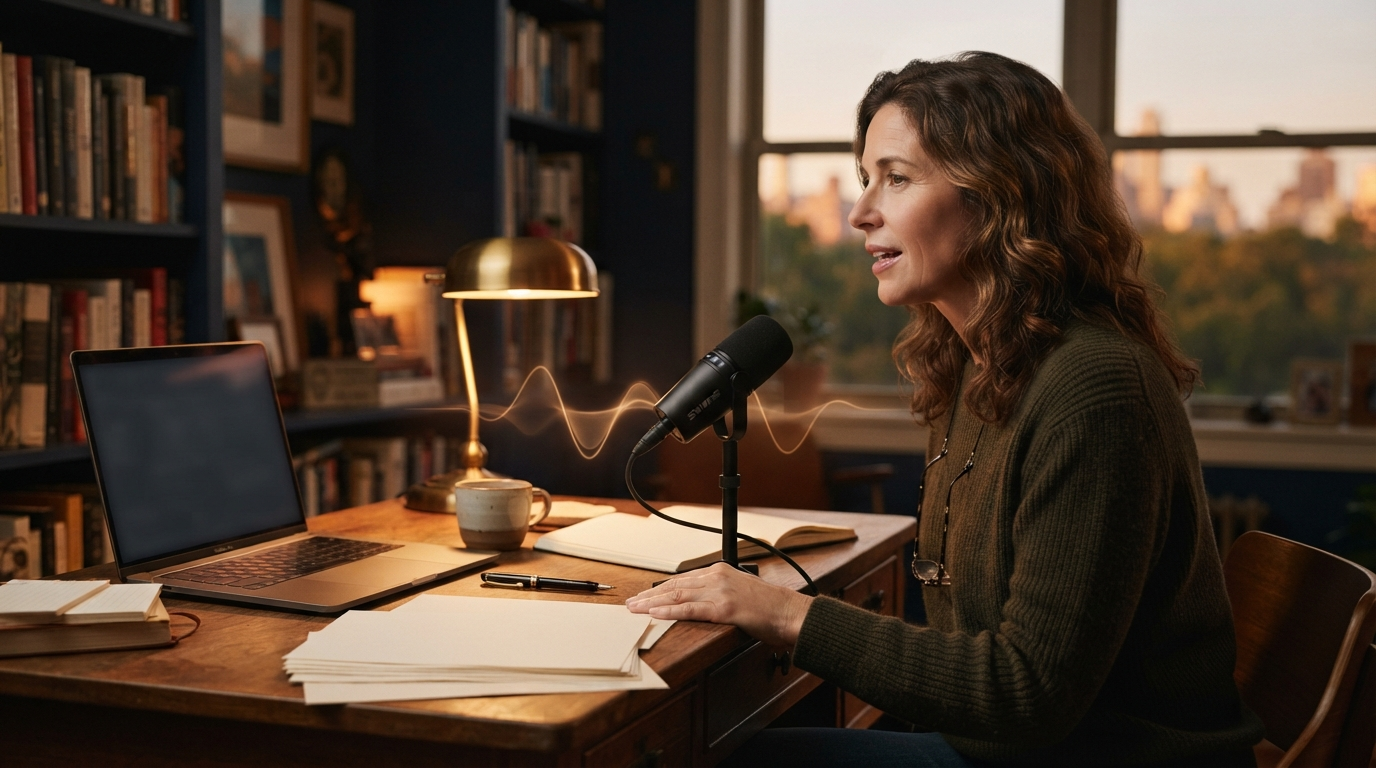
Scrivener dictation feels like an obvious win for novelists. A long manuscript means a ton of typing, and speaking can get a rough scene onto the page before you start second-guessing every sentence.
The catch is that Scrivener doesn’t have its own speech engine. Literature & Latte’s dictation guide points writers to macOS Dictation, Windows Voice Typing, Dragon, or a separate transcription app. Those options will put words into the editor, but they each shape the writing process in pretty different ways.
I think the best Scrivener dictation setup in 2026 is the one you barely notice. You should be able to drop the cursor into a scene, speak a paragraph, stop, check it, then keep going. You shouldn’t have to record audio, export it, wait for a transcript, and paste the result back into your manuscript.
Scrivener supports dictation, just not by itself
Scrivener accepts text from the built-in dictation tools and third-party voice apps on both Mac and Windows. On a Mac, you can turn on Dictation in System Settings and use the shortcut you set while the cursor is in the editor. On Windows, just place the cursor in Scrivener and open Voice Typing with Win+H.
That’s enough for a free test. Dictate one scene, not a whole chapter. See how the tool handles character names, made-up places, dialogue and the punctuation you use most often.
The weak point isn’t getting the first sentence onto the page. It’s keeping the setup pleasant after the tenth correction. Fiction exposes every little accuracy problem because manuscripts are full of names and language generic speech tools have never seen.
Live dictation beats recording first
Writers often mix up two workflows. One is live dictation, where text appears in the active Scrivener document while you speak. The other is recorded transcription, where you capture audio and process it later.
Recording first can make sense on a walk or in the car. It also helps when you want to capture a long, uninterrupted monologue. But then you’ve got a second job on your hands. You still need to go through the transcript, split it into scenes, fix the speaker labels, and move the text into the right Scrivener documents.
Live dictation works better when you’re already in the manuscript. You see the paragraph right away. You can stop after a line of dialogue, fix a name, add a beat and keep going. The feedback loop is shorter, and that matters more than raw words per minute.
The setup I would use on Mac or Windows
Start with a quiet room and a decent microphone. You don’t need expensive studio gear. A headset or even a laptop mic, kept at a steady distance, is usually better than a fancy microphone that’s too far away.
Next, assign a shortcut or button to dictation. Hold-to-talk is especially useful for fiction because it keeps side comments and thinking noises out of the manuscript. Put the cursor in the Scrivener editor, hold the trigger, speak one to three sentences, then release and review.
Keep each burst short at first. Long, uninterrupted dictation looks impressive in demos, but short bursts are easier to fix and less likely to send a bad character name through an entire page.
Before a long session, build a vocabulary list. Add character names, places, spells, technical terms, and any words with tricky capitalization. This is where a dedicated tool like DictaFlow really earns its keep. Its Knowledge Base and custom vocabulary can handle terms that built-in dictation keeps guessing wrong on, and its app-aware formatting can adjust cleanup to whatever editor you're using.
Dialogue is the real test
A dictation tool can look accurate on a clean business sentence and still be awful for fiction. Dialogue brings quotation marks, paragraph breaks, contractions, interruptions, and deliberately odd grammar.
Run a five-minute test with a conversation between two characters. Include a proper noun, a brief interruption, and a new paragraph for each speaker. Then count how many times you have to reach for the keyboard.
Do not chase a perfect raw transcript. The useful question is whether correction is faster than typing the scene from scratch. If you spend more time repairing quote marks and names than composing, the setup is not helping.
DictaFlow's AI refinement is meant for cleanup that preserves your voice, not for rewriting the prose into generic polished copy. That distinction matters for fiction. A dictation app should remove filler, repeated words, and transcription mistakes without sanding down the sentence you meant to write.
Why system-wide dictation matters to authors
A Scrivener session does not stay in Scrivener. You search the web for a historical detail, answer an editor in email, update a character sheet, write a note in another app, and post a progress update to your writing group.
Built-in Scrivener dictation advice usually stops at the manuscript editor. A system-wide tool keeps going with the rest of the workflow. DictaFlow uses the same hold-to-talk habit in Scrivener, email, browser fields, notes and prompts on Mac and Windows. You don’t have to remember which app has a microphone button or which shortcut kicks off a different speech engine.
The DictaFlow comparison page covers the differences between dedicated dictation tools and built-in options. The getting started guide has the shorter setup path if you just want to test it inside a real project.
What to try before paying for anything
Use the free tools first. On Mac, test Apple's Dictation inside a duplicate Scrivener project. On Windows, try Win+H. Dictate the same 300-word scene with each option you are considering.
Score the result on the things that affect your manuscript: character names, punctuation, paragraph breaks, start and stop friction, and how often you touch the keyboard. Ignore flashy summaries and abstract accuracy percentages.
If the built-in option handles your work, keep it. Free is hard to beat. If it keeps missing your vocabulary, makes corrections awkward, or traps dictation inside one narrow workflow, try a dedicated system-wide layer.
The bottom line
Scrivener dictation in 2026 is not a hidden feature you need to unlock. It is a choice about which voice tool feeds the editor.
The simplest free setup is macOS Dictation or Windows Voice Typing. The better setup for daily writing is the one that starts instantly, learns the vocabulary of your book, keeps correction cheap, and works outside Scrivener too.
If you are writing a novel or another long project and built-in dictation keeps fighting the names and dialogue, try DictaFlow free. Test it on one difficult scene. You will know pretty quickly whether the workflow fits.
Related pages
Useful next stops for setup help and dedicated dictation comparisons.