July 10, 2026
OneNote Dictation in 2026: Setup, Limits, and Alternatives
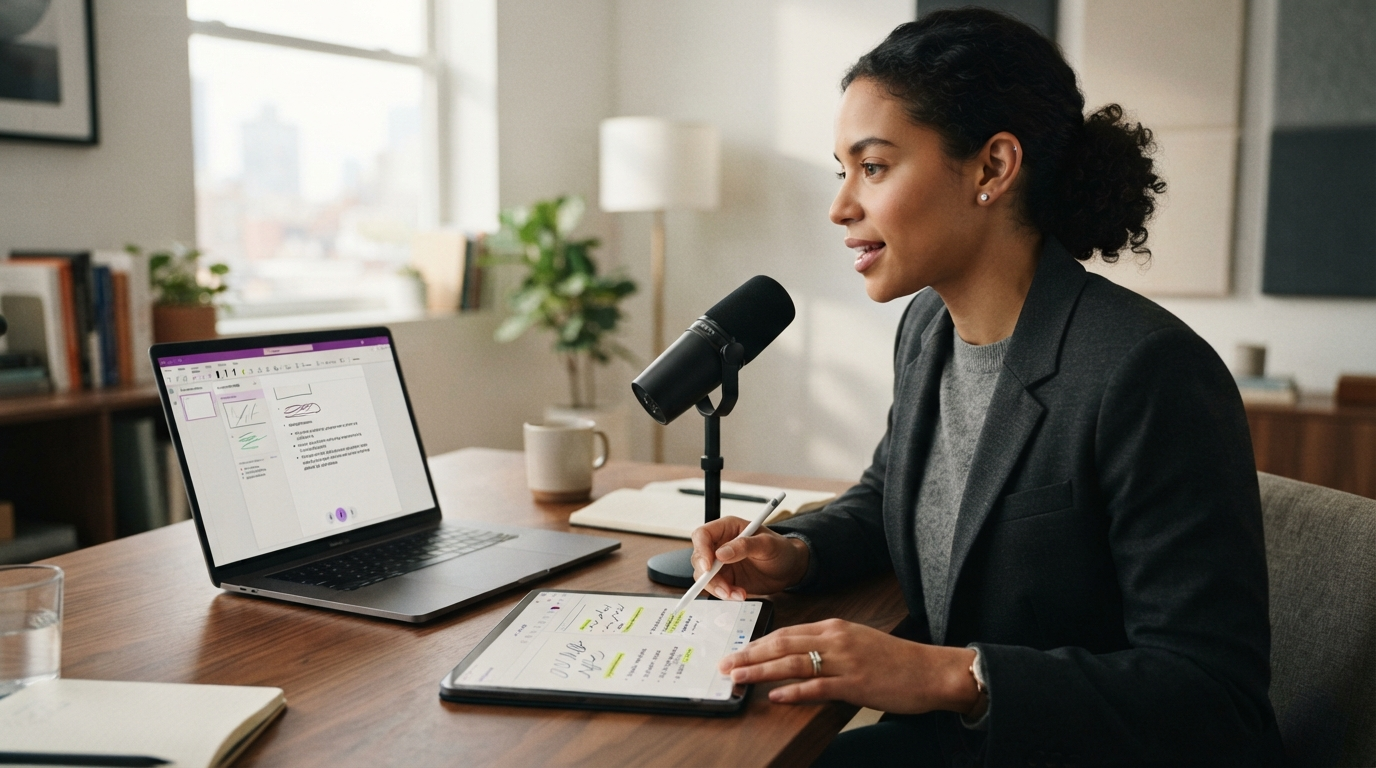
OneNote dictation is one of those features people try almost by accident. They are already in the notebook, the microphone is right there, and the promise sounds good: talk, capture the thought, move on.
That still works in 2026. A Microsoft Q&A reply from February told faculty users the built-in dictation feature is available directly in Word, OneNote, Outlook, and PowerPoint through the Home tab, with automatic punctuation and real-time speech-to-text. PCMag's updated 2026 speech-to-text roundup also still treats Microsoft's built-in tools as obvious starting points for a lot of people.
So this is not a question of whether OneNote dictation exists. It does. The better question is whether it stays useful once your notes stop being a neat little demo and start looking like an actual workday.
For quick capture inside one notebook page, OneNote dictation is pretty decent. For real note-taking workflows, it still runs into the same wall as most built-in dictation tools: it works best inside one surface, while the work around your notes keeps spilling into other apps. That is where DictaFlow starts to feel a lot stronger.
What OneNote dictation gets right
The built-in setup is easy, and that matters. You do not need to learn a new interface just to test voice input. If you already live in OneNote for class notes, client notes, meeting prep, or research pages, built-in dictation gives you a low-friction way to start speaking instead of typing.
That is useful for rough bullet capture, fast meeting notes, lecture summaries, brainstorm pages, and the little moments where you want words on the page before the thought disappears. OneNote is also naturally good at messy note-taking. You can dump bullets, headings, quick reactions, and half-finished ideas into the same page without pretending the note is already polished.
That combination is why OneNote dictation still attracts people in 2026. It feels fast to start, and starting is half the battle.
Why voice notes are not the same thing
This is the part a lot of note apps blur together.
Recording yourself is not the same as dictating notes. A voice note gives you audio to revisit later. Dictation gives you editable text right now. Those are different workflows with different costs.
If you record a thought and promise yourself you will clean it up later, you are creating another thing to process. Another playback step. Another transcript to skim. Another blob of raw material sitting in your notes until you deal with it.
If you dictate directly into a page, the note is already usable. You can turn it into bullets, action items, headings, a study guide, a client summary, or the first pass of an email draft without opening another playback panel. That is why live dictation often beats voice notes for people who are trying to think on the move, not archive audio for later.
OneNote dictation helps with that live capture. It just does not fully solve what comes after.
Where OneNote dictation starts to feel narrow
The first problem is that notes rarely stay inside OneNote.
You capture the meeting summary. Then you send two follow-ups in Outlook. Then you paste the action items into Teams. Then you open a browser tab to pull a link or a quote. Then you drop the cleaned-up version into a CRM, a task manager, or a shared doc. The note was only one stop in the workflow.
The second problem is that a lot of useful note-taking is short-burst work. You are not always dictating a full page. Sometimes it is one heading, one checkbox list, one action item, one correction, one quote, one next step. Built-in tools are usually fine for longer drafting. They get more awkward when you need ten quick bursts across ten little contexts.
The third problem is vocabulary. People who rely on notes heavily often repeat the same names, acronyms, course terms, product names, client names, ticket IDs, or medical and legal language. Generic built-ins can do okay, but they still tend to wobble when the note gets domain-specific.
And then there is the ugly reality: plenty of people do not just work in friendly modern apps. They touch remote desktops, weird enterprise tools, browser fields, and old Windows software that were never designed around voice. If your dictation habit only feels reliable in OneNote, you still end up back on the keyboard for the annoying parts.
What a better OneNote setup looks like
The better setup is not to replace OneNote. It is to stop treating dictation as something that only exists inside OneNote.
A stronger workflow looks like this: put your cursor wherever you already work, hold a key, speak, release, and keep moving. Use the same voice habit in OneNote, then in Outlook, then in Teams, then in the browser, then in your task app, then back in your notebook without mentally switching systems each time.
That is the main reason DictaFlow fits this kind of note-taking better. It is system-wide, so your note capture habit survives the handoff between pages, messages, forms, prompts, and the rest of the day. It also gives you hold-to-talk control, custom vocabulary support, and better odds when the workflow gets technical or stubborn.
If you want the cleaner side-by-side breakdown, the DictaFlow comparison page is the fast version. If you just want to try the workflow without reading a wall of feature copy first, the getting started guide is the better move.
Who should stick with built-in OneNote dictation
Built-in OneNote dictation is still fine if your needs are light.
If you mostly capture personal notes in one notebook, do not care about using the same workflow anywhere else, and just want a free way to test speaking your thoughts out loud, it is a reasonable place to begin. I would not tell a casual student or occasional meeting-note user that they need a dedicated dictation app on day one.
But if you take notes all day, move constantly between apps, rely on repeated jargon, or want dictation to feel dependable outside the notebook too, OneNote dictation starts to feel small fast.
The bottom line
OneNote dictation in 2026 is real, useful, and better than the old stereotype that built-in voice tools are only for novelty.
It is also still built for a simpler workflow than most people actually have.
If you just need quick voice capture on one page, it may be enough. If you want note-taking that survives the jump into email, chat, browser research, remote systems, and all the little follow-up work that happens after the note, try DictaFlow free. That is where the gap gets obvious.
Related pages
Useful next stops if you want setup help, comparisons, or broader workflow guides.