July 06, 2026
Google Docs Voice Typing Help 2026 | DictaFlow
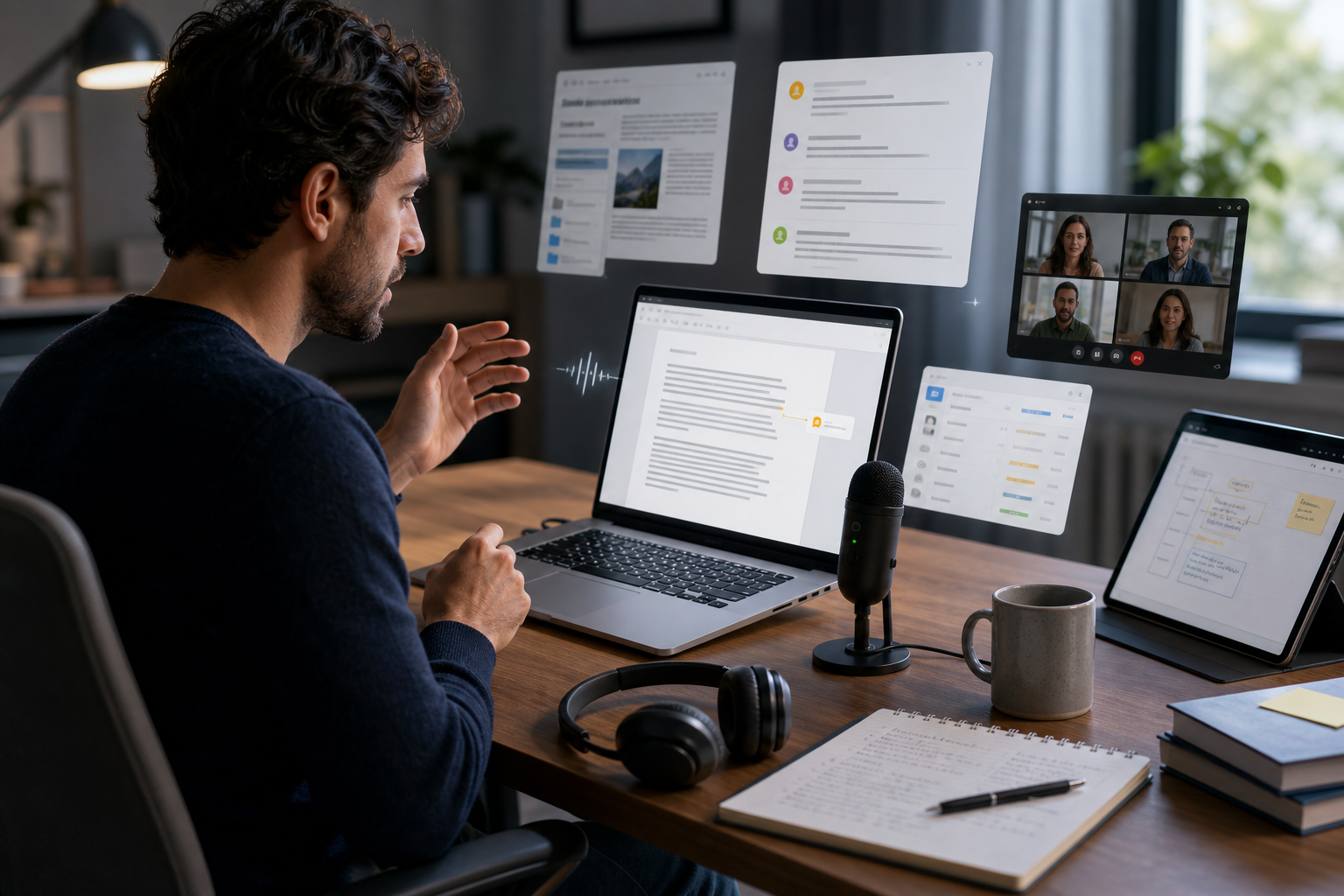
Google Docs voice typing is still one of the easiest ways to start dictating. It is built in, it is free, and Google's own support docs say it now works in the latest versions of Chrome, Edge, and Safari, not just one browser.
But the part that still feels old in 2026 is everything around it. Google Docs can hear you inside the document. That does not mean it gives you a clean dictation workflow once the job turns into comments, research tabs, side notes, Gmail follow-ups, or anything outside the page you are drafting on.
That gap matters more now because Google is clearly pushing voice deeper into Workspace. At Google I/O, the company announced voice-based prompting for Docs and Keep, which is useful if your goal is to brainstorm or draft with AI by voice. It still is not the same thing as system-wide dictation that follows your cursor wherever the work goes next.
So if you searched for Google Docs voice typing in 2026, the real question probably is not "can Google Docs do speech to text?" It can. The better question is whether it still breaks your flow once writing turns into the rest of your workday. In my experience, that answer is still yes. That is where DictaFlow starts to make more sense.
What changed for Google Docs voice typing
Google has not abandoned voice input. The official Google Docs help page still gives voice typing a serious feature set: start from Tools, use spoken punctuation, and use editing commands like "select paragraph," "insert link," or "insert comment." It also says voice commands are available only in English, which is a pretty important limitation if you work across languages.
Then Google added a newer layer on top. TechCrunch reported in May that Google was bringing voice-based prompting to Docs and Keep. That is a different direction from classic voice typing. Instead of just turning speech into text, Google wants your voice to steer AI inside Workspace too.
That sounds modern, and some of it is. But it also highlights the split. Google Docs now has old-school voice typing, spoken editing commands, and newer AI voice prompting. What it still does not have is one dependable dictation habit that follows you through the whole writing workflow.
Where Google Docs still works well
If your day really is just long stretches of drafting in one document, Google Docs voice typing is still fine. You can open a doc, click the mic, speak a paragraph, drop in punctuation commands, and keep moving. For students, writers, researchers, and anyone outlining a first draft, that is still a solid free starting point.
It is also better than a lot of people remember. The support docs now frame it as available in current Chrome, Edge, and Safari, which removes some of the old setup friction. And the built-in edit commands are deeper than most casual users realize. You can format text, insert comments, move around the page, and clean up mistakes without constantly turning the mic on and off.
If that is your entire job, stop there. Free is good when it actually covers the task.
Why it still breaks flow for real work
The problem shows up the second the document stops being the whole job. Real Google Docs work usually spills outward. You are drafting in Docs, then replying to a comment, then checking a source in another tab, then answering a Gmail thread, then dropping a summary into Slack or Teams, then maybe pasting a cleaned-up version into a CRM or project tool.
Google Docs voice typing does not travel with you through that chain. It is a feature inside one product, not a system-wide input layer. So even if the first draft feels fast, the rest of the workflow still drags.
That is why people bounce off built-in dictation tools. The transcription is not always the main problem. The problem is that you build momentum by speaking, then lose it when the work jumps to another field. Once that happens, you are back to typing, copy-pasting, or trying to force one browser feature to cover five different jobs.
The weird tax of docs-only dictation
There is also a smaller annoyance that adds up. Google's help page is honest that the browser controls the speech-to-text service before the text is sent into Docs. That means the experience still feels tied to a browser context, not to your computer as a whole. The tool works where Google expects it to work.
That sounds obvious, but it changes behavior. People start using voice only for the "main draft" and quietly switch back to the keyboard for the surrounding tasks. Comments become typed. Side notes become typed. Rewrite prompts become typed. Follow-up emails become typed. The result is a half-voice workflow that never fully sticks.
That is the hidden tax. You are not just measuring recognition accuracy. You are measuring whether the habit survives contact with a messy workday.
What a better Google Docs dictation setup looks like
The setup that actually feels modern is simpler than the feature list. Put your cursor where you already work. Hold a key. Speak. Release. The text appears in the active field. Then keep the same habit in Docs comments, browser forms, email drafts, note apps, chat tools, and the next app after that.
That matters in Google Docs specifically because so much of the value in Docs is collaboration. Writing rarely stays in the body of a single document. It spreads into suggestion comments, meeting notes, status updates, and messages around the document. A dictation setup that stops at the page itself misses the point.
That is also why hold-to-talk beats always-listening for most people doing knowledge work. It is fast, controlled, and easy to use in short bursts. You do not need a big recording moment. You need ten clean seconds in the right field.
Why DictaFlow fits this workflow better
DictaFlow fits Google Docs users well because it solves the part Google does not. It is not trying to replace Docs as your writing surface. It just gives you a better speech layer around it.
You can draft in Docs, then keep using the same hold-to-talk habit in Gmail, Slack, Teams, browser tabs, prompts, notes, and stubborn web apps where built-in dictation usually gives up. That is the difference between a feature and a workflow.
It also helps when your writing has repeated names, internal shorthand, or technical vocabulary. Google Docs voice typing is fine for everyday language. It gets shakier when every paragraph includes product names, acronyms, customer terms, or phrases you use all week. DictaFlow's custom vocabulary and Knowledge Base help a lot there.
And the pricing is straightforward. DictaFlow Pro is $7/month or $69/year. If you want the quick setup path, the getting started guide is the fastest place to begin. If you want the side-by-side context, the comparison page makes the tradeoffs obvious.
When the built-in option is enough
Not everyone needs a paid dictation app. If you mostly write in one Google Doc at a time and you do not care about carrying the habit into the rest of your tools, use the built-in feature first. It is free, it is there, and for a lot of people that is enough.
The upgrade case is simple though. If your writing spills into comments, email, chat, browser work, or app hopping all day, docs-only dictation starts to feel cramped fast.
The bottom line
Google Docs voice typing still works in 2026. It just still thinks too small.
Google is clearly interested in voice again, and the AI prompting push inside Docs and Keep makes that even more obvious. But the everyday pain has not changed much. The hard part is not getting one paragraph into one document. The hard part is keeping that speed once the work moves.
If you want a free starting point, Google Docs is still a decent one. If you want dictation that survives the whole workflow around the document, try DictaFlow free. That is the cleaner fix.
Related pages
Useful next stops if you want setup help, comparisons, or adjacent workflow guides.