June 12, 2026
Best Dictation Apps for People with RSI and Carpal Tunnel in 2026
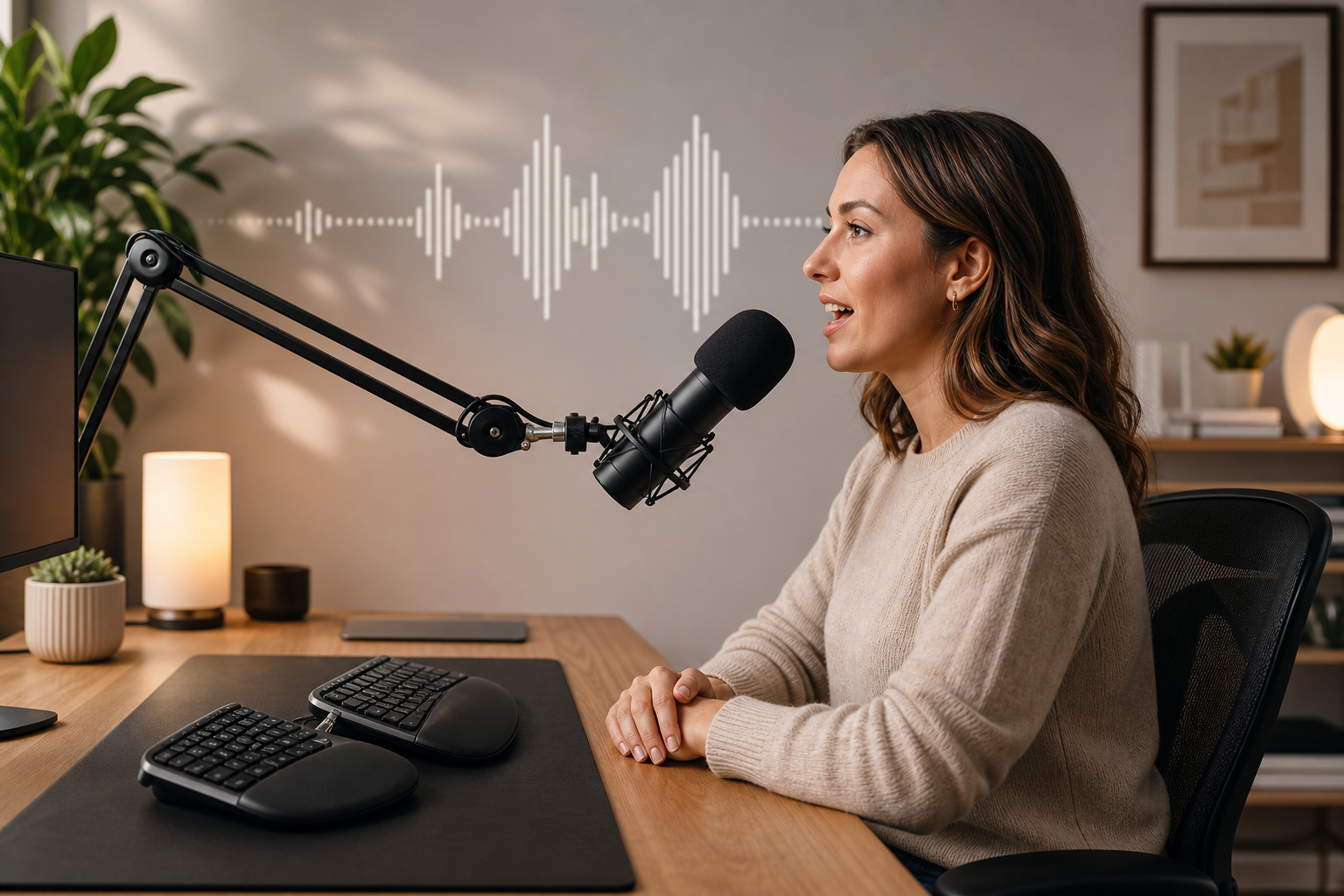
When typing hurts, you stop typing. But most jobs do not let you stop.
RSI and carpal tunnel trap people in a miserable loop: type through the pain, make it worse, rest for a few days, then do it all over again. Voice dictation should be the obvious fix.
Talk instead of type. The problem is, most dictation tools were not built for people who physically cannot use a keyboard at all.
They were built as a speed boost for people who already type fine. That difference matters.
A dictation tool for RSI needs to do more than turn speech into text. It needs to replace the keyboard entirely: navigation, editing, correction, selecting text, moving between apps, formatting.
If you still need to grab the mouse or keyboard every few sentences, the tool is not solving the actual problem. Here are the best dictation apps that actually cut down keyboard use in 2026, ranked by how well they work when typing is not an option.
1. DictaFlow
DictaFlow is the best all-around dictation tool for RSI and carpal tunnel because it was built for hands-free use from day one, not slapped on later. The main setup is hold-to-talk: press and hold a hotkey, speak, release, and the text appears wherever your cursor is.
You can bind that to a foot pedal, a mouse side button, or any keyboard key that does not hurt to press. Once you are dictating, the mid-sentence correction feature, Actually Override, lets you fix mistakes by speaking a keyword instead of reaching for backspace.
What makes it stand out for RSI specifically is the keystroke simulation. DictaFlow types text by simulating actual key presses, not by pasting from the clipboard. That means it works in apps that usually block paste: remote desktops, Citrix, VMware, and locked-down work environments.
If your workplace forces you into a virtual desktop that kills normal dictation, this is the feature that saves you. It runs on Mac, Windows, and iOS.
Android has a native Google Play app. Pricing is $7/month for the Pro plan, which gets you 100,000 words per month and cross-platform access.
There is a free tier if you want to try it first. The custom vocabulary feature also matters for RSI users who need to dictate technical terms, medication names, or industry jargon without fixing the output by hand. Best for: People who need full keyboard replacement across multiple apps, including locked-down work environments.
2. Dragon Professional
Dragon is the old guard. It has been around for decades and its RSI-specific capabilities run deeper than anything else on the market: full voice commands for mouse control, window management, and application navigation.
You can say "click file menu" or "move mouse up ten pixels" and it actually works. The catch is price and platform.
Dragon Professional costs $699 for the perpetual license. Dragon Medical One runs $699-$1,700 per year.
It only works on Windows; the Mac version was discontinued. For some RSI users, that is a dealbreaker.
For others, the depth of voice control is worth the cost. Dragon also requires training: you spend 10-15 minutes reading a passage so it learns your voice.
The accuracy after training is excellent, but the setup is heavier than newer tools. Best for: Windows-only users who need the deepest possible voice control over their entire computer, and who can afford the upfront cost.
3. Apple Dictation
Apple Dictation is free and built into every Mac and iPhone. For basic dictation, it works.
You tap the microphone key (F5 on Mac, or the mic button on iOS) and start talking. For RSI users, the appeal is zero setup and zero cost.
The limitation is that Apple Dictation stops being useful the moment you need to do anything beyond basic text entry. There is no custom vocabulary, no correction commands, no hold-to-talk mode, and no voice navigation.
You need the keyboard for everything except the raw words on the screen. It also only works on Apple devices.
If you have a Windows work machine, you are out of luck. Best for: Mac-only users with mild RSI who mostly need relief from typing long-form text and can still use the keyboard for navigation.
4. Windows Voice Typing (Windows 11)
Windows Voice Typing is Microsoft's built-in dictation, activated with Win+H. Like Apple Dictation, it is free and works out of the box.
Unlike Apple Dictation, it includes basic voice commands for punctuation and some editing. The accuracy is decent, especially in quiet environments.
The auto-punctuation feature, added in Windows 11, cuts down on manual formatting. But it has the same basic limitation: it is a text-entry tool, not a keyboard replacement.
You cannot navigate apps, select text, or control the mouse with your voice. For RSI users on Windows who cannot afford Dragon, this is the starting point.
It gets you off the keyboard for the actual typing. You will still need the keyboard for everything else. Best for: Windows users on a budget who need to reduce typing volume but can still handle some keyboard interaction.
Which One Should You Pick?
If you have severe RSI or carpal tunnel and need to eliminate keyboard use entirely, the choice is between DictaFlow and Dragon. Dragon gives you deeper voice control on Windows at a high upfront cost.
DictaFlow gives you cross-platform coverage, works in locked-down environments like Citrix and remote desktops, and costs $7/month instead of $699. If your RSI is mild and you just need to cut down on typing, start with the free built-in tools, Apple Dictation on Mac, Windows Voice Typing on PC, and see if they are enough.
Most people find they are not, especially once they realize how much they still need the keyboard for correction and navigation. For most RSI users in 2026, DictaFlow hits the sweet spot: affordable enough to try without a big commitment, powerful enough to actually reduce keyboard dependence, and cross-platform enough to work on whatever machine you are stuck with.
You can try DictaFlow free and see if it gets you off the keyboard for real.
Related DictaFlow pages
More dictation guides for RSI and carpal tunnel relief.