October 25, 2026
Acrobat Reader Dictation on Windows: PDF Comments 2026
Speak the review comment, not a replacement for the source document.
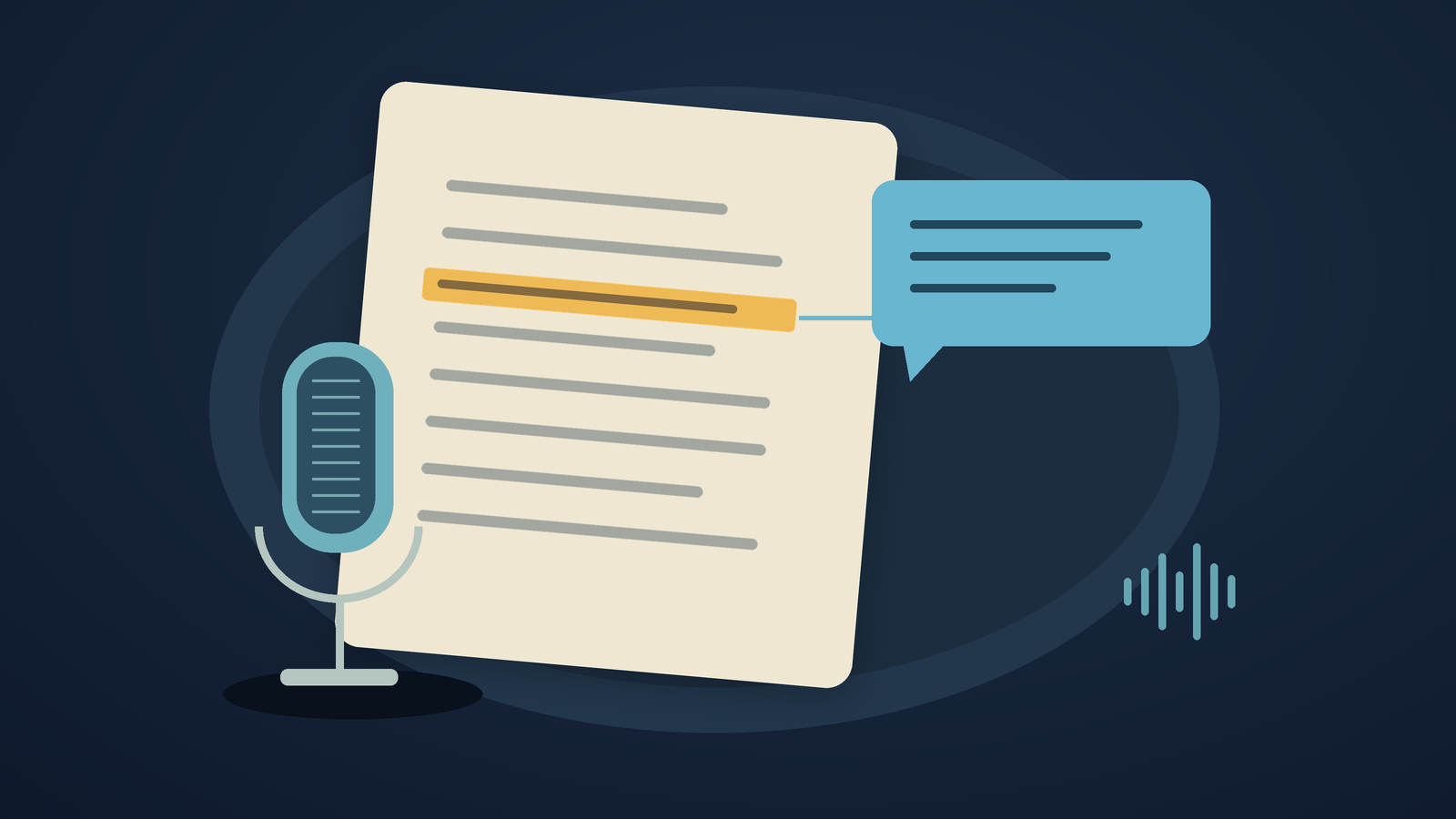
For Acrobat Reader dictation on Windows 11, open a PDF comment and click inside its editable text box. Press Windows key + H, wait for Listening, then speak a short review note. Stop dictation and check the text before posting. Selecting a passage by itself does not give speech recognition a place to type. [source]
Use this approach to comment on a proposal, manuscript, or supplier's draft without changing the PDF's wording. You can request a change in a comment and leave the document itself untouched. That matters when the person reviewing the file isn't its author.
This setup guide draws on documentation; it doesn't test compatibility across every Reader release. Ryan Shrott, founder of DictaFlow, published it. Try Windows Voice Typing before buying another app. The review notes below are fictional.
Put the cursor in a comment first
Adobe's current instructions say to select text or an image, choose Add a comment, enter your comment, and select Post. The labels may differ by version. First, check that a comment box in your file accepts typed text. If it doesn't, troubleshoot that before looking at the dictation app. [source]
Select a short passage, not a whole page. Open its comment, then click in the entry box until you see a caret. Dictate one sentence: Please clarify whether delivery includes installation. Stop and read the result. Post it only if it says what you meant.
Microsoft describes Windows Voice Typing as online speech recognition. It needs an internet connection, a working microphone, and an active text box. It doesn't make Reader an offline speech recognizer. See Microsoft's official Windows instructions in the sources below. [source]
After posting, select another passage and start a new comment. Stop the microphone before moving on. Otherwise, a remark for the next paragraph may end up in the previous comment or another active field.
Write feedback someone can act on
A useful spoken review note names the problem and asks for a specific decision. Compare "This section is confusing" with "Please name the person responsible for approving the revised delivery date." The second note gives the document owner a clear issue to resolve.
For a fictional supplier proposal, you might highlight the delivery clause and write, "Please confirm whether the stated date means dispatch or arrival." Then add a separate comment to the installation paragraph. Keep the comments separate, even if you noticed both during the same reading session.
Use the keyboard to enter exact clause numbers, part codes, and monetary amounts when voice recognition might get them wrong. Check negation carefully. "Installation is included" and "installation is not included" mean opposite things and can change the request. A polished sentence is still wrong if it changes that meaning.
Don't dictate a long stream of reactions and ask another model to write the final review. If you use cleanup, compare its result with the objection you intended to raise. Keep questions as questions. Don't turn a tentative concern into a claim that the supplier breached an agreement.
When speech is recognized but the comment stays empty
These are two separate failures. A microphone problem keeps usable speech from reaching the recognizer. An insertion problem means recognized words don't appear in the intended comment. Buying a different recognizer may not fix lost focus or a field that can't accept text.
Enter the same harmless sentence in Notepad, then try it in a new PDF comment. If it works in Notepad, check whether the comment has focus and whether you can type in it manually. Also make sure you're using the desktop Reader app, not a browser PDF viewer. They're separate targets, even when the file looks the same.
If neither destination works, check which microphone is selected and whether Windows allows microphone access. If you're using a work computer, ask IT about any restrictions instead of changing security settings on your own. If only one PDF fails, ask its owner for a copy you can review. Don't try to bypass the document's controls.
If a PDF has no selectable text, use whichever comment placement tools the file and Reader allow. OCR and editing the PDF itself are separate tasks. Dictation enters words in an editable field, but it doesn't let you select text or repair a scanned document.
When a separate dictation app is worth trying
Consider DictaFlow if you want hold-to-talk input in PDF comments, email, and other apps. You hold the trigger, speak, then release to insert text at the cursor. This is system-wide text input, not an Adobe plug-in. DictaFlow does not publish a tested-app compatibility matrix, so verify your own Reader version.
Try the same short comment as a test. Compare the inserted text with what you said, then reopen the saved file. Check that the comment is still attached to the passage you intended. If pasting fails, the setup guide explains Typing Mode. Test it in your field rather than assuming it works around every application restriction. [source]
Consumer Pro costs $9/month or $84/year when bought directly on desktop or web. Existing subscriptions and mobile-store offers may have different prices. Local Offline is an optional setup choice; cloud is the default. Cloud AI cleanup is separate from local transcription. Consumer DictaFlow isn't designed for PHI workflows. [source]
Use Windows Voice Typing if it reliably handles short comments. If you need to change a PDF's content rather than add annotations, use a dedicated PDF editing workflow. The goal is to put the correct comment in the right place with less effort than typing it.
Setup links and related guides
- Windows Voice Typing settings
- Zotero research-note dictation
- DictaFlow setup and insertion modes
- Current DictaFlow facts and pricing
Try DictaFlow free, then check the result in your own application before choosing a paid plan.
Verified sources
Official documentation and live product pricing checked October 25, 2026. Interface details may change. This article does not claim an Adobe or Anki partnership, an application certification, or measured performance results.