November 18, 2026
Windows 365 Input Protection: Dictation Checks (2026)
Check the protected input route before changing a speech workflow. This is a proposed test plan, not a claim of verified compatibility.
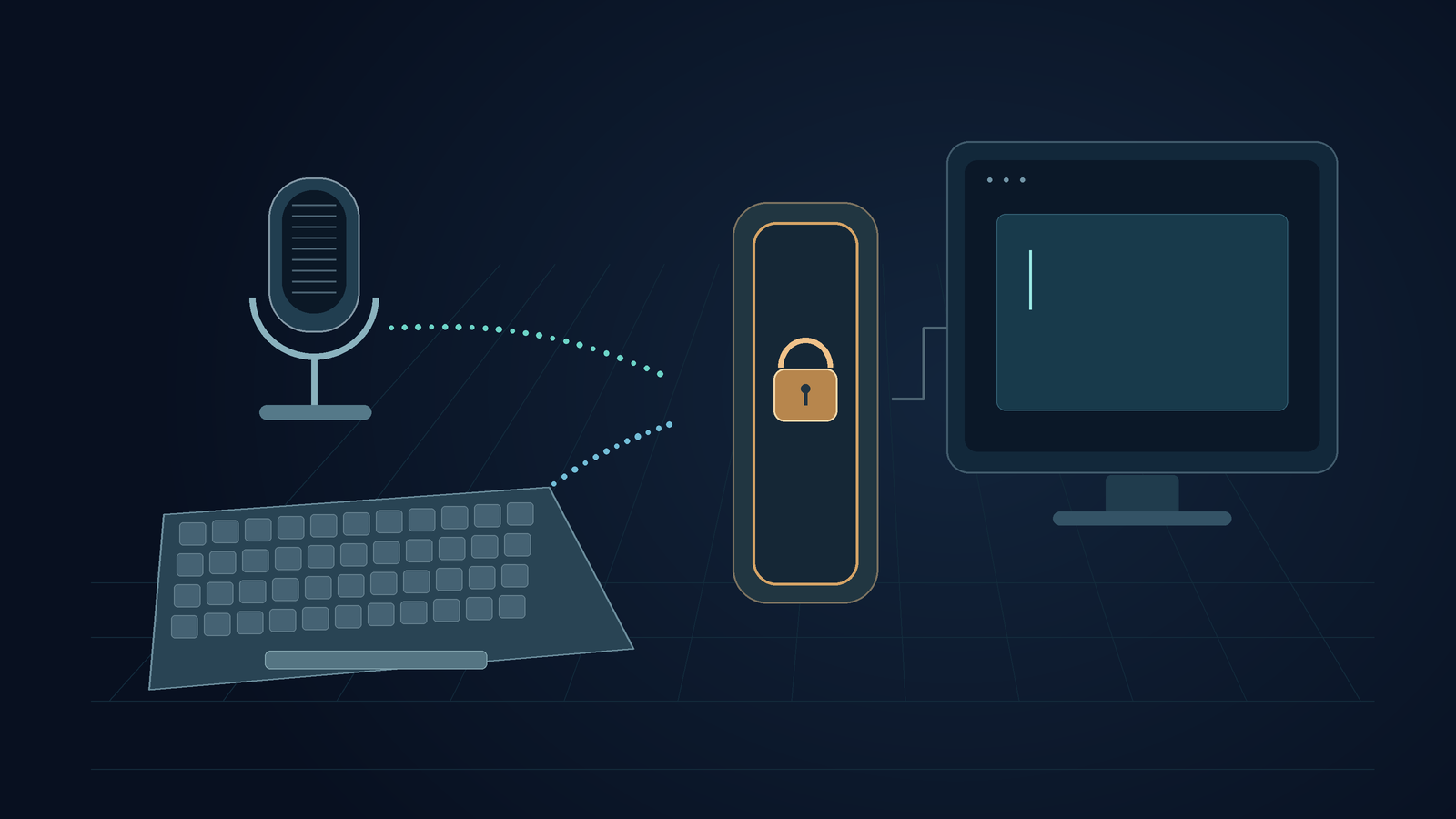
Windows 365 input protection is in public preview. Test dictation apps separately using its protected keyboard route. A successful physical keyboard test doesn't prove that text created locally will reach the same remote field. The cited Microsoft page documents the protected path. It doesn't establish compatibility with every dictation app.[5]
Most of today's Windows 365 news focuses on AI agents getting Cloud PCs. TechRadar says agents can use older Windows apps that don't have useful APIs.[2] I kept noticing a less flashy detail in Microsoft's November 17 Ignite announcement: input protection is still in preview, but output protection is generally available.[1]
The deployment plan should account for this distinction for people who use speech to write. This is a proposed acceptance test, not a report that a Windows 365 dictation failure was reproduced.
Separate the connection problem from the writing problem
Before using the microphone, check that the device meets Microsoft's current requirements. It must run Windows App on a physical Windows 11 device, have the input-protection MSI installed, and be registered with the organization that provides the protected resource. The page lists virtual endpoints, browsers, macOS, iOS, Android, and Windows 365 Link as unsupported clients for this feature.[5]
These are input-protection requirements. They don't mean Windows 365 has stopped supporting other clients. On an unsupported device, connection trouble may prevent a dictation tool from entering text. Reinstalling the speech app would address the wrong problem.
Ask the administrator whether the target Cloud PC enforces the feature. Record the answer along with the endpoint and client versions. A successful test in a regular session doesn't establish compatibility with a protected one. Don't change company policy just to make a demonstration work.
The broad Cloud PC coverage gets one thing right: managing remote computers means looking beyond the apps they run. But it doesn't answer whether dictation is compatible. An article about agents using Windows apps can't tell you whether an employee's existing speech workflow will still work with a different input route on the endpoint.
A keyboard, pasted text, and dictated text are different trials
Microsoft describes input protection as a kernel-level route for keystrokes. Its documentation covers display protection separately, with its own settings.[6] So a blanket claim like "the remote desktop accepts typing" is too vague to guide a rollout decision.
Consider a fictional facilities coordinator updating a maintenance record. She can type a sentence, but pasting from a local note doesn't work. Her dictation app shows the right words on her device, but the remote record stays blank. That doesn't prove speech recognition failed. It suggests checking how the finished text gets into the session.
That alone wouldn't show that input protection caused the failure. Focus, app restrictions, or other session policies could also explain it. Keep those possibilities open until the administrator compares the actual configurations.
Use ordinary, non-sensitive words in a disposable test record. Keep the field type the same for each trial. A local text editor and a remote password field aren't useful for comparing everyday writing.
Test each action on its own and save the text it produces:
- Type a short sentence in the remote field with the physical keyboard.
- If clipboard use is allowed, paste a known sentence from the endpoint.
- Dictate that same sentence using the current output mode, then check the remote field.
- If the dictation app offers another approved output mode, try it without changing the session's security policy.
Record whether the sentence arrived, appeared twice, lost characters, or showed up somewhere else. "The mic works" only confirms that the audio was captured. "The saved maintenance note contains the intended sentence once" gives the coordinator the information they need.
Don't add data to a live customer record just to test an insertion. If the app saves automatically, set up a sandbox or another approved test destination first.
Keep the endpoint microphone out of the diagnosis until it matters
Check two points: where speech becomes text and where the remote app receives it. Mark both in the support note. Don't label both simply as "Windows."
If dictation already produces accurate text in an approved local editor, keep that result. Setting up the microphone again on the remote computer may not help if speech recognition happens elsewhere. If your organization runs a speech app inside the Cloud PC, check how audio reaches it.
Put the speech app's install location and output mode in the support request. Include the remote client, target field, and the exact failure stage. A technician can investigate that sequence. The vague report "dictation broke after the update" leaves them guessing where to start.
If someone relies on accessibility tools for their work, include them in the acceptance check. An IT test with a keyboard doesn't replace a test using that person's actual input method. Arrange an approved alternative before changing a setup that works, so they don't run into problems during a deadline.
What DictaFlow can help test, and what it cannot promise
DictaFlow published this, so it has a commercial interest. On Windows, DictaFlow's Typing Mode sends finished text one character at a time instead of pasting it from the clipboard. The product page warns that remote security policies can block synthetic input.[4]
That's a reason to test it in a controlled trial, not to call it compatible with protected Windows 365 sessions. I haven't tested that specific setup. The cited Microsoft material doesn't confirm that DictaFlow is supported, and switching from Paste to Typing doesn't guarantee the input will be accepted.
If an approved test works, save the exact setup and repeat it in the application field you use for real work. If it fails, don't call it a microphone problem when the words are already correct locally. Share the insertion evidence with IT and the dictation vendor. Don't disable protection, impersonate a physical device, or try to get around policy.
Keep the accepted test result with the endpoint and client versions. Before rollout, confirm that the person can still create and save their work under the policy the organization intends to keep.
Sources
[1] Microsoft Windows 365 Ignite details
[2] TechRadar agent Cloud PC coverage