August 19, 2026
Thunderbird Dictation in 2026: Voice Email Setup Guide
Thunderbird has no built-in dictation button. Here is the reliable Windows and Mac setup, plus a five-minute focus test.
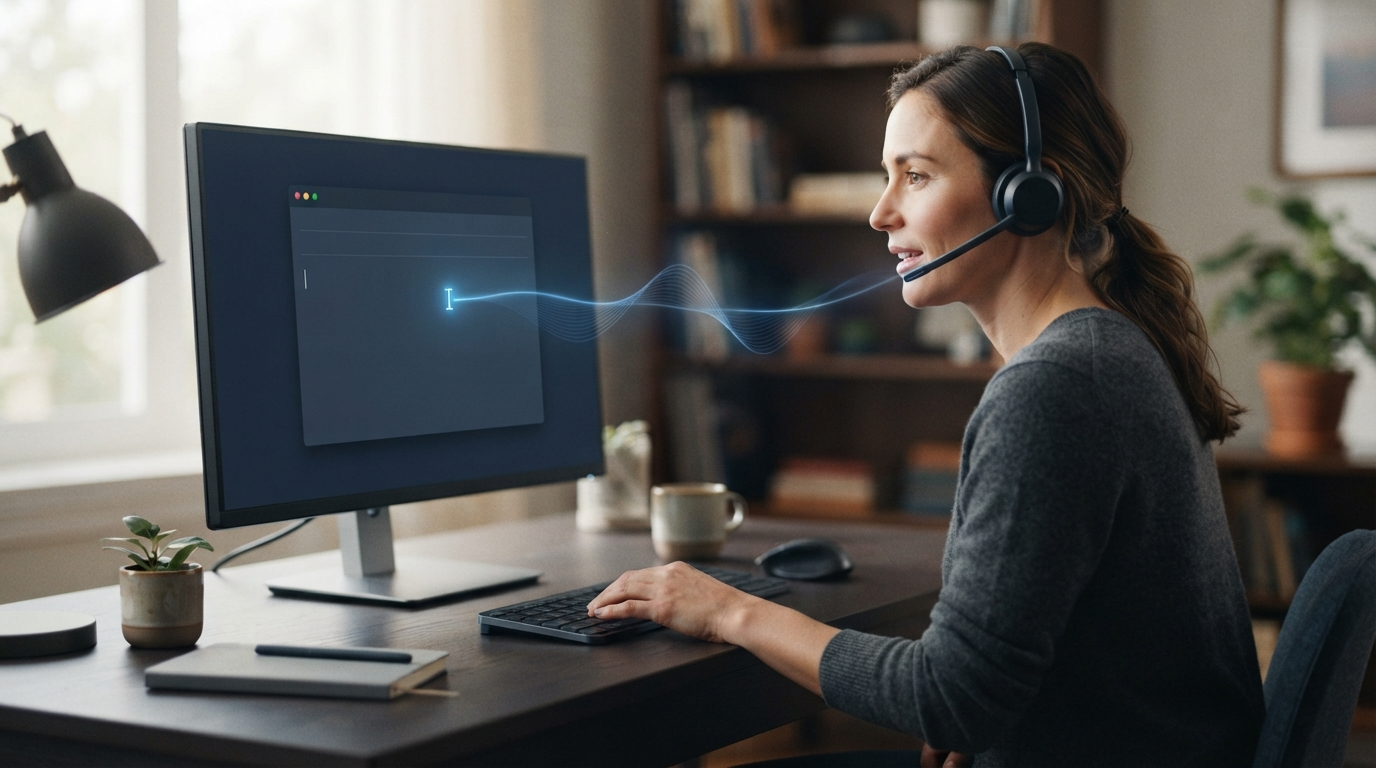
Thunderbird supports dictation in 2026, but the app still doesn't include a microphone button in the message composer. To dictate, use a voice typing tool that works across your system, click in the message body, and start speaking.
That sounds simple until you move between the recipient line, subject, quoted reply, and message body. You need to track more than just your focus. Punctuation, names, signatures, and Thunderbird's rich-text email behavior matter too. A setup that works in a blank document can still place words in the wrong part of an email.
This guide shows the cleanest setup for Windows and Mac, includes a quick reliability test, and explains when a dedicated dictation app is worth using.
Why Thunderbird dictation feels unfinished
People have asked Mozilla to add speech-to-text to Thunderbird. Requests have appeared on Mozilla Connect, along with questions in the Thunderbird support forum. Speech recognition itself isn't the problem. Windows and macOS already have dictation. Thunderbird still needs its own controls to manage focus, corrections, and where an email reply begins and ends.
For now, use Thunderbird as the destination. Your operating system or dictation app handles the microphone and speech recognition. Thunderbird inserts the text wherever the cursor is active.
The same voice tool works in Thunderbird, your browser, a notes app, and a document editor. You can speak directly into an email instead of recording an audio note, waiting for a transcript, and copying it over.
Windows setup with Voice Typing
Microsoft's built-in Voice Typing works in text fields on Windows 10 and Windows 11. Open a message in Thunderbird, click in the message body, and press Windows key + H. When the microphone panel appears, start speaking.
Follow this order to make fewer mistakes:
- Type or verify the recipient first.
- Type the subject if it contains names, codes, or exact numbers.
- Click in the message body and confirm the caret is visible.
- Start Voice Typing with Windows key + H.
- Dictate one paragraph, stop, and review it before continuing.
Microsoft says Voice Typing needs an internet connection. If the panel doesn't open, check your microphone permissions in Windows privacy settings. Also, make sure Thunderbird is selected. If the text appears in the subject line or another field, stop and click back into the message body.
Built-in Voice Typing is a good free option to try. The downside is limited control. You press a shortcut to open the panel, then choose where the text should go. It can't tell that a Thunderbird subject should be short, while the message body can use full sentences.
Mac setup with Apple Dictation
On a Mac, turn on Dictation in System Settings under Keyboard. You can choose the shortcut, language, and microphone source. In Thunderbird, open a new message or reply and click in the message body. Then press your chosen Dictation shortcut.
The same focus rule applies here. Check where the insertion point is before you speak. If the reply contains a long quoted thread, click above the quoted text instead of near its edge. Dictate a short test sentence first, then undo it if it appears in the wrong place.
Apple Dictation works well for occasional emails. It becomes harder to use when you need custom technical terms, type the same names every day, or switch between Thunderbird and other work apps. Repeated corrections also take time because the built-in tool has limited context for your workflow.
A five-minute Thunderbird voice typing test
Don't judge Thunderbird dictation by one clean sentence. Run this short test in a draft email you won't send.
Start by dictating a greeting that includes a person's name. Then dictate two sentences containing a date, a dollar amount, and an acronym. Add a new paragraph. Stop dictation, move the cursor into the first paragraph, and insert a correction. Finally, switch to another app, return to Thunderbird, and dictate one last sentence.
Check these five things:
- Did every phrase appear in the message body?
- Were the name, acronym, date, and amount correct?
- Did spoken punctuation produce the result you expected?
- Could you correct the first paragraph without replacing nearby text?
- Did the microphone restart cleanly after switching apps?
This test checks the email problems that matter: focusing fields, using exact terms, making corrections, and switching between apps. Transcription accuracy is only one part of the result.
Rich text, signatures, and quoted replies
Thunderbird lets you write messages in plain text or HTML. Voice typing usually inserts text where the caret is, but the email's formatting can change the spacing, font style, and paragraph breaks.
If a dictated paragraph picks up strange formatting, place the cursor on a clean line above the signature and try again. Don't dictate directly inside a styled signature block. When replying to a long thread, start above the quoted message and leave one blank line between your reply and the quote.
Review the email before sending it. Check names, attachment references, dates, and promises, even if the rest of the message is accurate. Voice input can speed up drafting, but you still need to read the email.
When a dedicated dictation app helps
A dedicated tool helps when you use email alongside other tasks. DictaFlow uses hold-to-talk dictation. Hold a hotkey, speak, and release it. Your text appears where the cursor is. It works on Windows, Mac, and iOS. On Android, use the native DictaFlow app from Google Play.
For Thunderbird, app-aware formatting treats the message body as an email instead of a generic text box. The Knowledge Base stores names, product terms, abbreviations, and phrases that built-in dictation often misses. Local Offline transcribes without an internet connection, while private cloud processing provides the full feature set.
The bigger difference is that it works across apps. The same shortcut can dictate a Thunderbird reply, browser form, document, or remote desktop session. On Windows, Typing Mode can send keystrokes to Citrix, RDP, and other fields that block clipboard pasting.
DictaFlow Pro costs $7/month or $69/year. Start with the free tools already built into your device. Switch to a dedicated app when fixing errors, correcting vocabulary, or switching between apps takes too much time.
A setup that stays reliable
Keep the workflow simple. Use one microphone and one shortcut. Check the caret before each dictation. Speak one paragraph at a time until the setup works reliably.
If you use both a laptop microphone and a headset, select the input yourself instead of letting the system switch automatically. Test it after updating your operating system or Thunderbird. A changed microphone permission or shortcut can look like a transcription problem when the real issue is the selected input.
For a wider comparison of dictation tools, read the DictaFlow dictation software comparison. The DictaFlow getting started guide explains how to set up hold-to-talk and complete your first dictation.