November 18, 2026
QuickBooks dictation on Windows: invoice notes (2026)
For QuickBooks dictation on Windows, click inside an editable invoice description or customer note, then press Windows + H. Speak your explanation, stop listening, and review the text before saving or sending it. Keep customer selection, amounts, tax settings, and payment details out of your first voice test.
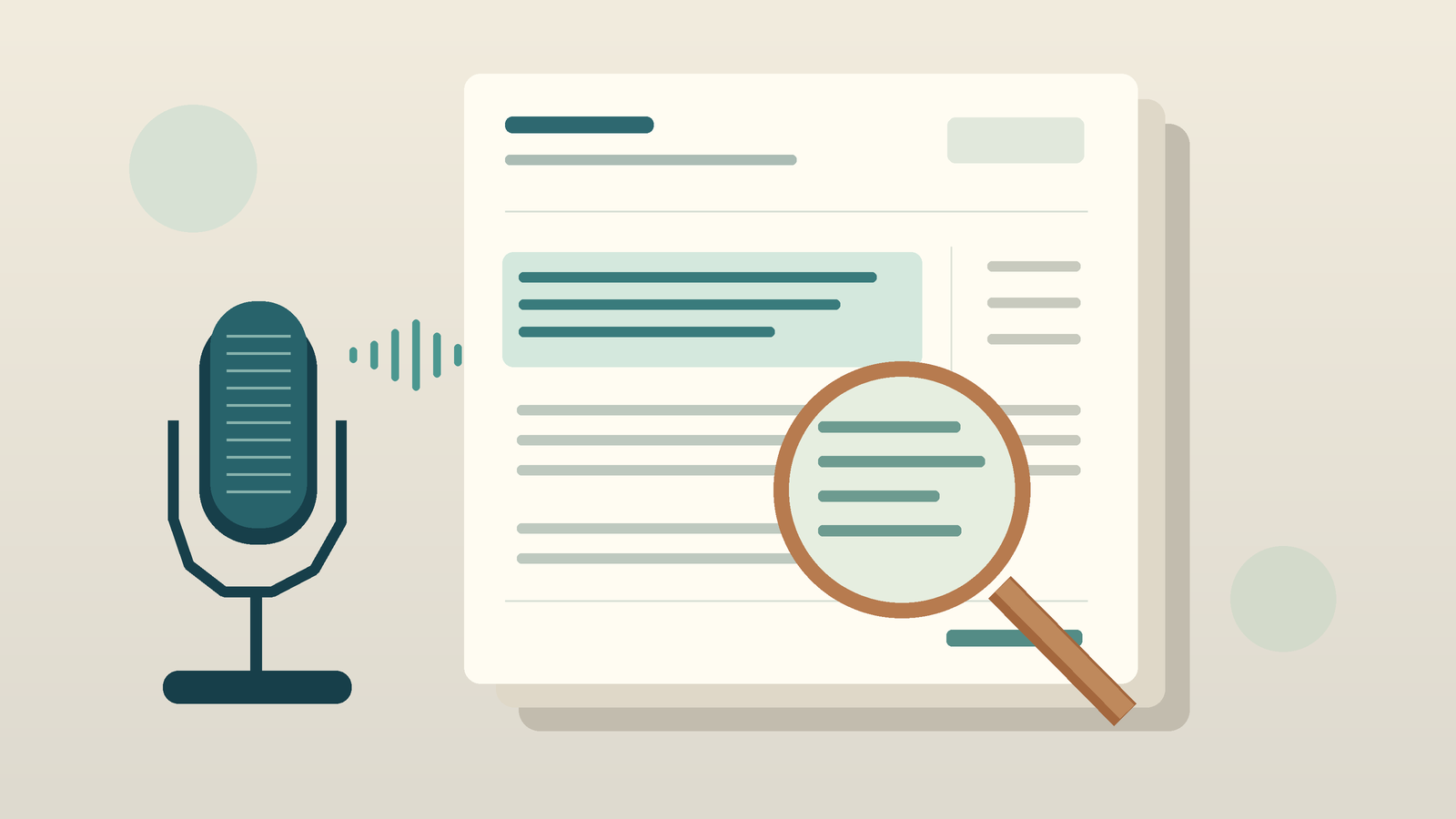
Start with the invoice, not your reusable service item
After finishing a job, a consultant wants the invoice to explain what the team did. It should say they repaired the existing dashboard, not built a replacement. Dictating that sentence makes sense. Asking speech recognition to choose a customer, calculate the bill, and send it is a different task.
Intuit's invoice instructions cover customer selection, products or services, payment options, a customer note, and sending the invoice. The US tutorial starts with Create, then Invoice. Labels and features may vary by country, plan, and invoice layout. This guide covers QuickBooks Online in a browser on Windows, not QuickBooks Desktop.
Select the existing product or service with your keyboard or mouse. Then click the editable description field on the invoice. Don’t open the product’s catalog editor just to describe this one job. Intuit’s separate product and service setup guide explains that an item’s description appears when you record a sale. Changing a reusable item is a catalog decision, not a shortcut for writing a single invoice.
Use a line description for work tied to that charge. Use a customer-facing note for a message about the whole invoice. Before entering anything confidential, check the label: customer-facing text isn’t a private work log. If you can’t edit the description in your layout, ask the account owner to check the invoice settings and your access. Dictation can’t grant permission or show a hidden field.
Try one sentence without sending anything
Use an authorized sample company or another safe test environment. Use fictional customer data and don’t make live payments. Decide with the account owner how to handle test transactions. This article doesn’t assume that saving a test invoice has no accounting effect.
Click the text field you want to use until the insertion point appears. Press Windows + H and wait for the listening indicator. Dictate: 'Reviewed the existing dashboard and repaired the export filter. A replacement dashboard is not included.' Stop voice typing with the microphone button. Keep the mouse away from Send while you check the result.
Read the full sentence, especially 'not included.' Make sure it’s on the right invoice line, not in the customer note or another row. A sentence can read well and still need correcting if it describes the wrong scope. Don’t dictate private discussion about the customer into text the customer will receive.
Microsoft lists an internet connection, a working microphone, and a cursor in a text box as requirements for Windows voice typing. You don’t need to buy another dictation app before trying it. If you only need to dictate an occasional invoice note, Windows + H may be enough.
Check what the customer will actually see
After recognition, correct the description in the field. Before sending, check the invoice preview or customer view. Review each line description separately from the overall note. Look for cut-off text, unexpected line breaks, duplicate sentences, or descriptions linked to the wrong service.
Check the customer’s identity and key numbers using your usual invoicing controls. Dictation doesn’t validate the quantity, rate, tax treatment, bank information, or total. This is a text-entry guide, not accounting advice. Keep the same controls when you add voice input.
If you save the test transaction, reopen it from the usual invoice list and check the saved description. Text that appears briefly in your browser doesn't prove QuickBooks saved it. Complete the approved test cleanup before using this method with a real customer. Get separate approval for a recurring template, since it can be used again.
Where a dedicated dictation app earns its place
If invoice notes are only one part of your writing day, consider DictaFlow. On Windows, hold the configured dictation shortcut, speak, then release it to insert text in a supported field. Try the same short description in QuickBooks and a follow-up email. DictaFlow enters text system-wide; it doesn’t integrate with QuickBooks to create or send invoices.
The platform guide lists native apps for Windows, Mac, iPhone, and Android. On desktop, the Knowledge Base lets you add custom vocabulary for names and terms that come up often. Add useful words, but check them in the final invoice. This won’t guarantee that a client name or identifier is always correct.
Direct Consumer Pro costs $9/month or $84/year, which works out to $7/month when billed annually. Pro includes unlimited dictation under fair use. Free includes 2,000 cloud words every 30-day cycle. Existing subscriptions and app-store prices may differ, so check the purchase screen for your actual offer. Compare the current plans after the free test shows whether the broader workflow helps.
Local Offline can transcribe on supported devices once you’ve set it up and downloaded a model. But QuickBooks Online still isn’t available offline, and cloud-assisted cleanup needs a connection. If the website is unavailable, dictate an approved draft elsewhere. Transfer it later after checking the customer and invoice context.
If the transcript exists but the field stays empty
Dictate the same harmless sentence in Notepad. If recognition fails there too, first check the selected microphone, language, and network requirements. If Notepad gets it right but the QuickBooks field doesn’t, check whether the field has focus, allows editing, and accepts inserted text. Don’t keep changing the microphone.
In DictaFlow, compare normal Paste output with Typing Mode in the safe test environment. Before each attempt, focus the exact field again and wait for the text to finish inserting. Typing Mode offers another way to enter text, but not every browser control accepts simulated keystrokes. If partial text appears, stop retrying and remove the duplicate or incomplete draft first.
If you use a hosted browser, work with your administrator and follow the Citrix and remote-desktop guide. Don’t weaken workplace controls just to make a note field accept dictation. For a broader evaluation, see the voice data entry guide and the Excel dictation article. On Windows, QuickBooks dictation should cut down on sentence typing without changing who approves the invoice.
QuickBooks dictation: common questions
Can I dictate an invoice description in QuickBooks Online?
Try Windows voice typing or a system-wide dictation app in an editable description field. Test it with fictional data first. Whether text is inserted can depend on the field, permissions, browser behavior, and invoice layout. This guide does not claim a tested QuickBooks integration.
Should I edit the product description or the invoice description?
For a one-off explanation, use the editable description on the current invoice. Reusable product or service descriptions belong in the item catalog. Change one only if you want to update that reusable item, not just describe a job for one customer.
Does DictaFlow create or send QuickBooks invoices?
DictaFlow enters text in a supported field. It doesn’t select the customer, calculate charges, verify tax, or send the invoice. The person preparing the transaction still reviews and approves it.
Can I use offline dictation while QuickBooks Online is offline?
Local Offline can transcribe on supported devices once you’ve set it up, but QuickBooks Online still needs an internet connection. You can prepare an approved local draft and transfer it later. Cloud-assisted cleanup also needs internet access.
Sources and scope
Official pages checked November 18, 2026. This vendor-authored setup guide is not a hands-on QuickBooks compatibility review. We have not measured recognition accuracy or invoice saving in a live account. The dashboard description is fictional. QuickBooks is an Intuit product and is not affiliated with this article.
- Intuit: create an invoice (US guide)
- Intuit: product and service item descriptions
- Microsoft: Windows voice typing
Start with a fictional description. Keep invoice approval in your usual workflow.