September 08, 2026
Premiere's New AI Tool Still Needs a Clear Voice Brief
The generator is now in the timeline. The creative direction still needs to be clear.
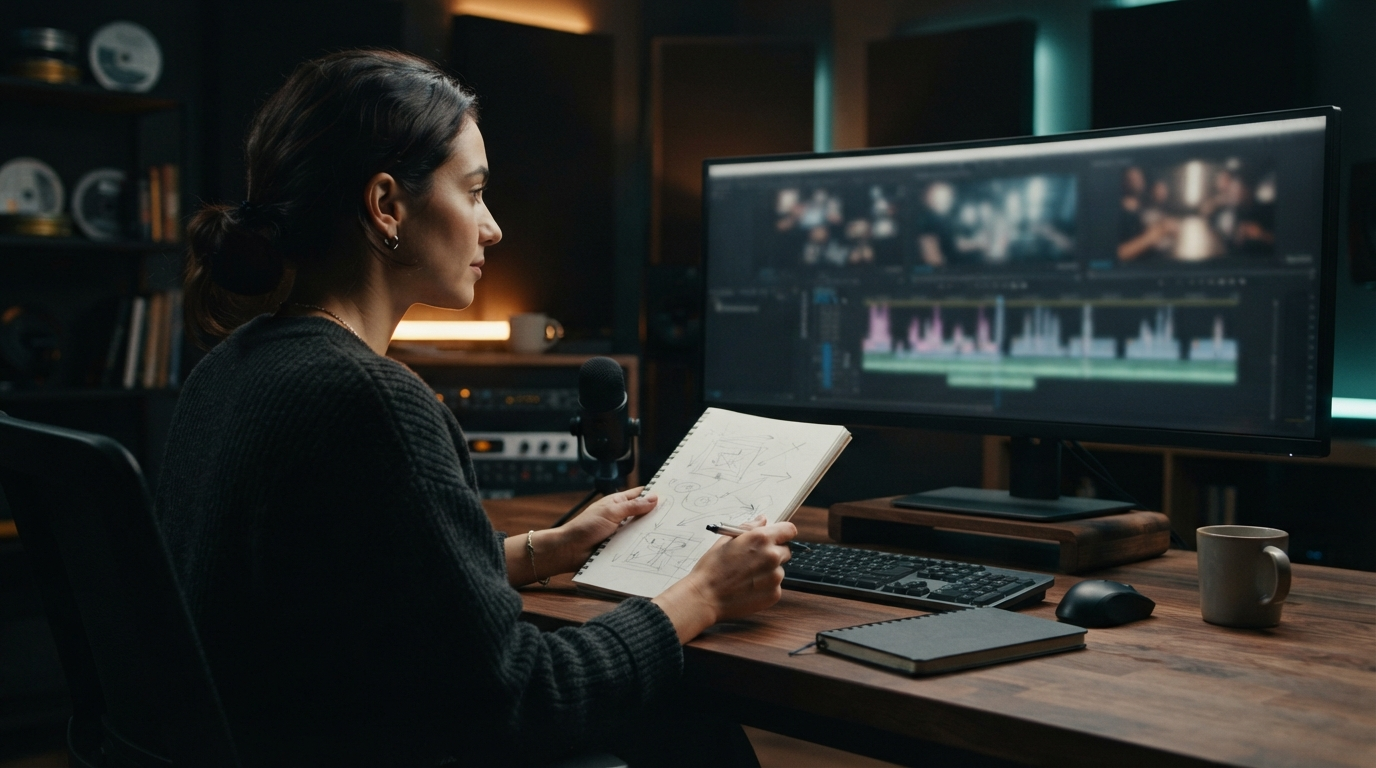
Premiere's new Generative Media tool puts an AI prompt directly in the edit timeline. That is useful. It also makes vague creative direction easier to turn into a polished-looking choice before anyone has said what the shot is actually for.
The Verge reported today that Adobe is bringing a Generative Media tool to Premiere, letting editors select a range in a timeline and generate video, sound effects, music, or soundscapes without leaving the project. ProVideo Coalition described the same interaction: select the range, describe what is needed, and generate it in the timeline.[2][3]
The obvious pitch is speed. The less obvious question is whether the prompt contains enough of the editor's actual intent to make the result useful.
The new tool removes a trip, not the decision
Premiere editors used to leave the timeline to find stock material, make a rough sound bed, or try an external generator. The in-timeline tool removes that trip. Adobe's own help material says its generative video and audio features in apps including Premiere use generative credits, while some partner-model features have separate conditions.[1]
That is a workflow improvement. But getting an output inside the timeline does not tell you whether it supports the scene. A 10-second atmospheric clip might technically fill a gap while changing the mood, timing, or story. A generated sound effect can be clean and still be the wrong sound. Faster access raises the cost of unclear direction because it makes a weak first choice easy to keep.
This is not a complaint about AI media tools. Editors have always worked with rough cuts, placeholders, stock clips, temp music, and reference images. The healthy use of an in-timeline generator is the same: make a fast candidate, label it as a candidate, then decide whether it belongs.
Say the beat before you prompt it
A good creative brief is often much easier to say than type. You can explain the moment in one breath: the speaker pauses after bad news, the room should feel still rather than sad, the sound needs to leave room for the next line. That carries context that disappears when the prompt becomes "cinematic office ambience."
Before opening a generator, record a 20-second voice note describing four things:
- What the viewer should understand or feel at this exact point.
- What must remain untouched, such as a spoken line, a product shot, or a cut point.
- What the generated element is allowed to do.
- What would make it obviously wrong.
Then turn that note into a short edit brief. It may say: "Fill 1.5 seconds after the reply with restrained room tone. Keep the dialogue clear. No music, no crowd, no sudden rise." That is far more useful than asking for something "emotional" and hoping the result lands.
Dictate the brief where the work happens
This is a small but real use for system-wide dictation. While the cut is in front of you, hold a shortcut and say the edit note into the project notes, a text document, or a team message. You do not have to leave the scene to write a tidy prompt from memory.
With DictaFlow, hold a hotkey, speak the rough brief, and release to insert it where your cursor is. The goal is not for the app to invent the visual idea. It is to capture the editor's direction while the timing is still visible. DictaFlow's cleanup can remove transcription roughness without turning a plain note into a different creative decision.
That separation matters. An AI can help generate options. The person watching the cut owns the call on pacing, brand fit, and whether an audience will understand the moment.
Use a short rejection test
A generated asset should have to earn its place. Before leaving it on the timeline, play the sequence three times: once with sound, once muted, and once while watching only the cut before and after the generated section.
Ask a few blunt questions:
- Does this make the story clearer, or merely fuller?
- Would a viewer notice the asset before they notice the point of the scene?
- Does the generated audio compete with a voiceover or key line?
- Is the output specific to this edit, or could it sit in any video?
- If the tool vanished tomorrow, would you still choose this direction?
The last question is useful because a generated option can feel valuable simply because it arrived quickly. If there is no reason to keep it beyond convenience, remove it. A short empty gap is often better than a generic effect screaming for attention.
The early coverage gets the interface right
The reporting on Adobe's update focuses on the smoother interface. That is fair. An editor can ask for media where the media will actually be used, rather than bouncing between tabs and imports. It is a better surface for iteration.
What the coverage cannot solve is the quality of the instruction. The tool can reduce friction around generation. It cannot decide which detail belongs in the scene, where the viewer's attention should go, or whether an editor is using a placeholder as a final answer.
The practical habit is simple: say the beat out loud, reduce it to a clear prompt, generate one or two options, and review them in the full sequence. The generator lives in Premiere now. The brief still has to come from the person telling the story.
Keep the raw note with the edit for one pass. If a producer, client, or teammate asks why the shot or sound is there, the note gives them a real answer. It also makes revisions cheaper because the next editor can see the intention instead of guessing from a polished prompt.