August 29, 2026
Live Dictation Text Keeps Changing in 2026: 5 Fixes
Why provisional words move on screen, and five practical ways to get stable text.
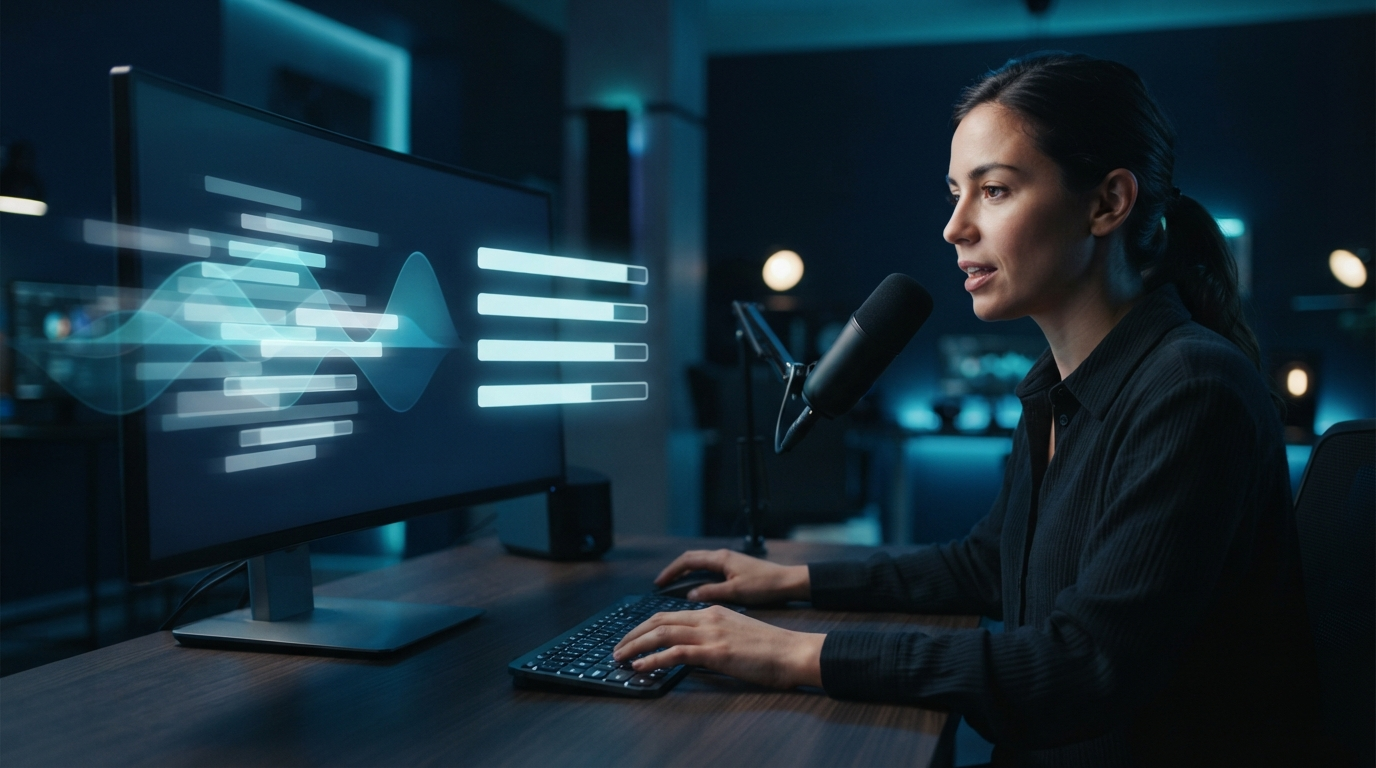
Live dictation text keeps changing in 2026 because many speech tools show interim recognition results before deciding exactly what you said. The words on screen are guesses. As more audio comes in, the recognizer replaces them with a closer match.
That can look impressive in a demo, but it can be difficult to follow during real work. One Hacker News commenter called Apple's changing text "distracting and confusing" and suggested keeping the rough transcript in a scratchpad until it's ready for the document. DictaFlow's pain-point research found the same complaint again this month, so this isn't a one-off reaction.
The issue is partly technical and partly a design choice. MDN calls these early words "interim results," meaning they aren't final yet. A browser or app can choose whether to show them.
Seeing each guess doesn't necessarily make the final transcript faster or more accurate. It only makes the recognition process visible.
Why the words move after they appear
Speech recognition relies on context. The first few sounds might match several words. A recognizer can show its best guess right away, then change it when the next phrase makes the meaning clearer.
Names, technical terms, accents, and sentence endings make revisions more likely. This isn't a normal correction. You aren't editing the sentence.
The recognizer is replacing a temporary hypothesis with its final result. Web speech tools show this difference through a final-state flag. Native apps may hide how they implement it, but the visual effect is much the same.
Constant revision can cause three practical problems. Your eyes may follow words that later disappear. You might stop speaking to fix a mistake that was about to correct itself.
You can also lose track of the cursor as the transcript expands and contracts inside the real document.
1. Turn off interim results when the app allows it
Look for settings called live preview, partial results, streaming text, or interim transcript. Turning off the preview won't disable dictation. It usually makes the app wait for a final chunk before inserting text.
This option is common in developer tools that use browser speech recognition, but consumer apps don't always offer it. MDN says the Web Speech API's interimResults setting defaults to false, though browser support for the wider API is still uneven. If a web tool creates its own moving transcript, you may find this setting inside the tool rather than in the browser.
After changing the option, try saying a sentence that lasts ten seconds. If no text appears as you speak, but the full sentence appears when you pause, the app is committing final chunks instead of showing every guess.
2. Dictate in short, complete blocks
Long streaming sessions give the interface more text to revise. Try speaking one or two complete sentences, then pause and check the committed text before continuing. It may be slower than speaking nonstop, but reviewing in short blocks often makes errors easier to spot and fix.
The best block length depends on the task. A short email reply might fit in one block. For a technical note, use smaller chunks so you can check a part number or name before building the next sentence around it.
Don't pause after every few words. That can remove useful context and reduce accuracy. Aim to finish a complete thought instead of stopping after a set number of seconds.
3. Use push-to-talk with delayed insertion
If live dictation text keeps changing and distracting you from your sentence, try a tool that records only while you hold a key. It inserts the text after you release the key, so provisional words never appear in the document. You get a clear recording signal, finish your thought, and review one stable result.
A separate Hacker News discussion described this same preference: hold a shortcut, speak a longer thought, and paste the finished text within a second. This works differently from continuous dictation. Neither approach is always better, but push-to-talk is cleaner when visual stability matters more than seeing each word right away.
DictaFlow uses this hold-to-talk pattern on Windows and Mac. Hold the hotkey, speak, and release it. The finished text appears at the active cursor.
App-aware formatting can fix transcription quirks for the target app, so you don't have to watch an unfinished sentence rewrite itself.
4. Keep rough speech separate from the final document
The scratchpad idea from the Hacker News discussion helps, even if your app doesn't include one. Dictate into a small note window, review the result, then move the final text into your document. This adds a step, so save it for writing where revisions are costly, such as client messages, medical notes, legal text, code commands, or anything with numbers and names.
A better app can separate these steps for you. Keep the recording state in a small overlay. Send text to the final document only after the recognizer has settled.
You still get feedback without turning the document into a live debugging view. For ordinary notes, direct insertion is faster. You don't need a scratchpad everywhere.
Use one when unstable text could cause expensive mistakes.
5. Measure correction time, not animation speed
A transcript that appears quickly can feel faster than a blank screen, even when both tools finish at the same time. Test them with a timer. Start when you press the dictation control, then stop when the text is accurate enough to send.
Use the same 30-second script three times. Track errors in the final word, the seconds spent fixing them, and any insertion failures. Also note whether the changing preview made you pause or start over.
The better tool is the one that produces usable text with less attention, not the one that shows the first uncertain word fastest. Test the full workflow, too. A tool might work well in a clean document but fail in Outlook, a browser form, Citrix, RDP, or a remote EHR.
DictaFlow's comparison guide explains how recognition, formatting, and text insertion differ across those environments.
Which approach should you choose?
Use continuous live dictation if you want immediate feedback and don't often stop to revise. If the app supports it, hide interim results when you want stable text without switching tools. When accuracy falls during long sessions, use short committed blocks instead.
Choose push-to-talk when you want clear recording boundaries and one finished result at the cursor. It works well for email replies, prompts, notes, and remote fields where you can speak, review, and move on. DictaFlow Pro costs $7/month or $69/year and runs natively on Windows, Mac, and iOS.
You can access it on Android. Local Offline works without an Internet connection after download. Private cloud processing gives you the full hybrid feature set.
If live dictation text keeps changing on screen, look at the interface before blaming recognition accuracy. The recognizer may be working exactly as designed. You need to control when provisional words become part of the document.
Use the DictaFlow getting started guide to test a stable hold-to-talk workflow in the apps you use every day.