August 14, 2026
Kiro CLI Voice Mode in 2026: Local Dictation Setup
Set up local Whisper, push-to-talk, review-before-send, and voice input for cloud development machines.
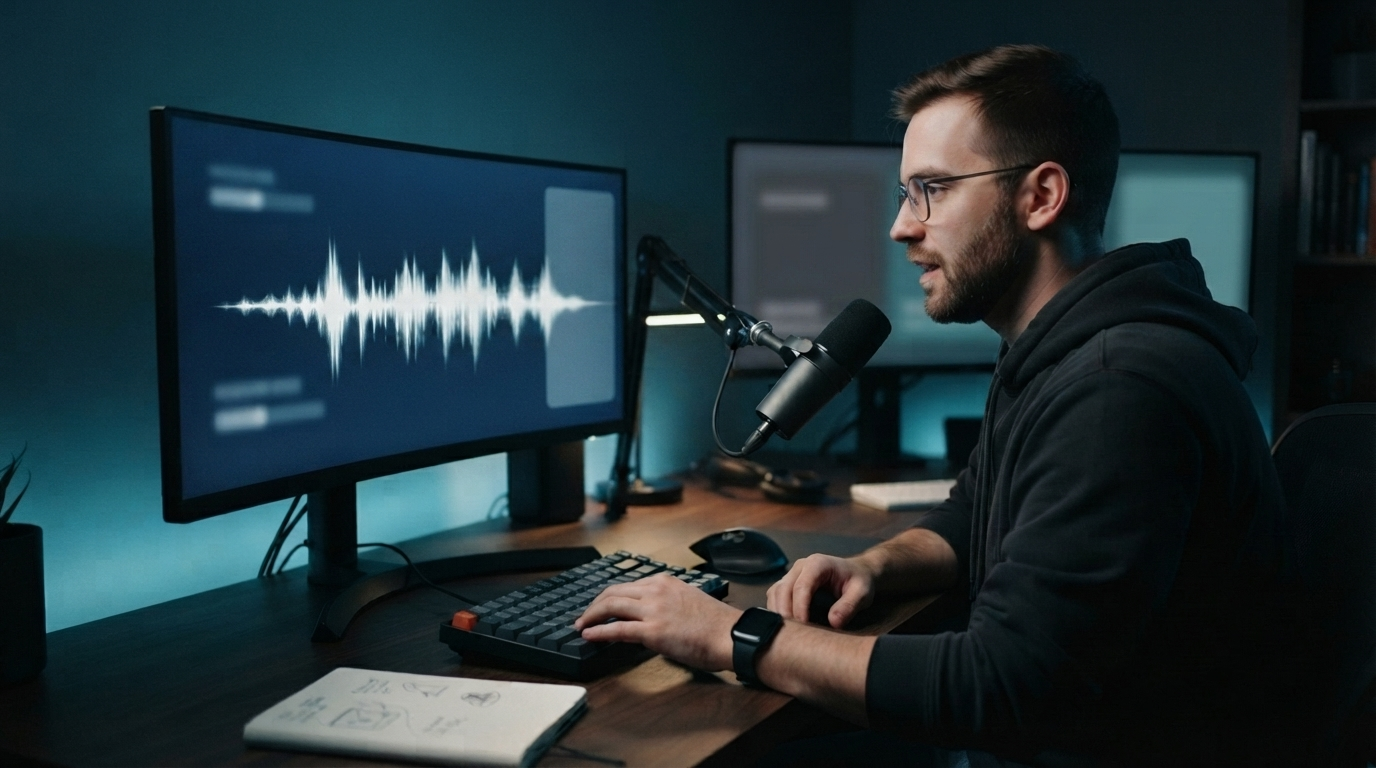
Kiro CLI voice mode arrived at a useful time. Coding agents can now handle longer prompts, but typing a detailed explanation into a terminal still breaks your flow. Kiro’s new voice mode lets you dictate prompts using a local speech model instead.
This isn’t a general voice typing feature for every app. It’s an input method built into the Kiro CLI, and that boundary matters. It works well when you’re explaining a code change, asking about a project, or continuing a terminal conversation. It won’t follow your cursor into GitHub, Jira, Slack, email, or a remote business app.
Can Kiro CLI voice mode replace a separate dictation app in your developer workflow? Set it up and test it to find out.
What Kiro CLI voice mode does
A current Kiro release summary surfaced the new voice dictation feature on August 13, 2026. Kiro's official voice documentation was updated on August 14. Voice mode uses OpenAI Whisper through whisper.cpp. By default, it runs on your computer, so your audio stays on the machine and you don't need a cloud speech API key. The model downloads the first time you use it.
Run /voice in an interactive Kiro CLI chat to record a prompt. You can also hold Space for 1.5 seconds, speak, and then release it. Partial text appears in the input as you talk, so you can catch a bad file name before sending the prompt.
Kiro sends the transcript automatically by default. That’s fast, but it’s a poor choice for commands with exact paths, package names, versions, or destructive actions. Set review-before-send first:
kiro-cli settings set voice.autoSubmit false
Now Kiro puts the transcript in the prompt field instead of sending it right away. Review the text, fix any identifiers, and submit it yourself.
Download the right local model
The first /voice run shows the model name, download size, and license before downloading anything. Kiro's default base model is about 148 MB. The small model is about 466 MB and offers better accuracy at the cost of speed.
Start with the base model on a regular laptop:
kiro-cli settings set voice.modelSize base
Switch to the small model if project names and technical terms need too many corrections:
kiro-cli settings set voice.modelSize small
The model is cached in ~/.cache/kiro/models/. After downloading it and before using it, Kiro checks the model against a pinned SHA-256 digest. According to the official documentation, Kiro rejects an invalid model and downloads it again.
Local transcription is CPU-bound and doesn't use GPU acceleration yet. On an older machine, start by testing the smaller download. Measure how long corrections take before choosing the larger model. A slower transcript isn't worth it if it saves only one correction.
Fix recordings that stop while you think
Silence detection helps, until a short pause cuts off your prompt. Kiro uses voice activity detection to filter out sounds like keyboard clicks and fan noise. The default silence timeout is five seconds.
When you need time to think through a code path, increase the timeout:
kiro-cli settings set voice.silenceTimeout 10
Kiro also limits voice sessions to 300 seconds by default. Long monologues usually don't work well anyway. Write a focused prompt that names the task, relevant files, current behavior, and expected result. Stop to review the transcript, then send a second prompt if needed.
Use the --continuous option for back-and-forth debugging sessions:
/voice --continuous
It starts another recording when the assistant returns to the prompt. Use it to explore, not for risky commands. Keep review-before-send on.
Use project context for technical terms
Kiro passes recent conversation context to Whisper’s initial prompt. This can help recognize identifiers and project terms mentioned earlier in the session. It isn’t a permanent custom dictionary.
Test it with terms that often break dictation, such as repository names, internal services, package names, acronyms, camelCase identifiers, and client names. Put each term in a sentence instead of reading from a glossary. Then repeat the test after the term appears in the Kiro conversation.
Keep exact keyboard strings when one wrong character can cause a problem. Commit hashes, API keys, shell operators, regular expressions, and production resource names are poor targets for dictation. Voice works better for explaining intent than entering character-perfect syntax.
Set up voice on a cloud development machine
A cloud desktop or remote shell might not be able to access your local microphone. Kiro includes a remote voice server for this situation. Run kiro-cli voice-serve on the computer with the microphone, then connect the remote machine through an SSH reverse tunnel. The default port is currently 19876.
Kiro also provides kiro-cli voice-cloud-setup <cloud-hostname>. It checks SSH, sets the server URL, starts the local voice service, and opens the tunnel.
This solves one specific problem: speaking to Kiro on a cloud development machine. It doesn't prove that voice input will work in a full Citrix, RDP, or VDI desktop with organization policies. Microphone redirection, clipboard rules, and field behavior vary, so test the exact hosted environment before relying on it.
Where Kiro voice mode stops
Kiro CLI voice mode works well when you mostly speak prompts to Kiro. It runs locally by default, offers true push-to-talk, displays partial text, lets you review prompts before sending, and includes a well-designed cloud machine option.
The limit is the destination. Developers still write pull request descriptions in GitHub, issue details in Jira, status updates in Slack or Teams, support replies in email, and notes in browser tools. Kiro voice mode can’t type into those fields because it’s part of the Kiro CLI.
A system-wide dictation tool fills that gap. DictaFlow runs on Mac, Windows, and iOS, with native Android app access. Hold a shortcut, speak, and release it to insert text at the active cursor. App-aware formatting cleans up the text for its destination, while the Knowledge Base recognizes project terms and internal names.
DictaFlow Pro costs $7 per month or $69 per year. Local Offline works without an internet connection after you download the model. Cloud processing keeps your data private and includes all features. For Citrix, RDP, VDI, and fields that block clipboard pasting, DictaFlow can simulate keystrokes.
The DictaFlow comparison guide explains the differences between system-wide tools, built-in features, and app-specific voice tools. The getting started guide covers hold-to-talk setup and a basic insertion test.
Run a ten-minute developer test
Use the same script for Kiro and any system-wide alternative. First, dictate a bug report that includes one file path, two function names, an error message, and the expected result. Check the transcript before sending it.
Next, dictate a follow-up prompt after Kiro has seen the project terms. Count the repeated vocabulary errors. Try the base and small models if the first result needs major cleanup.
Then leave the terminal and dictate a GitHub review, a Jira issue, a Slack update, or a short email. If you only need voice input in Kiro, its built-in mode may be enough. If it stops working when you switch apps, use a system-wide layer for those destinations.
Track four things: whether it starts reliably, how long the first text takes, how many corrections each prompt needs, and whether the text appears in the intended field. These numbers tell you more than a polished demo sentence.
The practical choice
Start with Kiro CLI voice mode if Kiro is already your main coding assistant. Turn off auto-submit, try the base model first, and increase the silence timeout if pauses cut you off. Voice mode runs locally by default and is designed for terminal conversations.
Add system-wide dictation when your spoken workflow includes GitHub, Jira, chat, email, browser tools, or remote business software. Kiro handles voice inside Kiro, while a cursor-level tool covers the rest of your workday.