Gemini Omni 1.2 Flash Audio Input: Creator Guide 2026
Generated dialogue, audio references and an approved recording are different jobs. Read the current Google specifications before moving your voiceover.
November 07, 2026
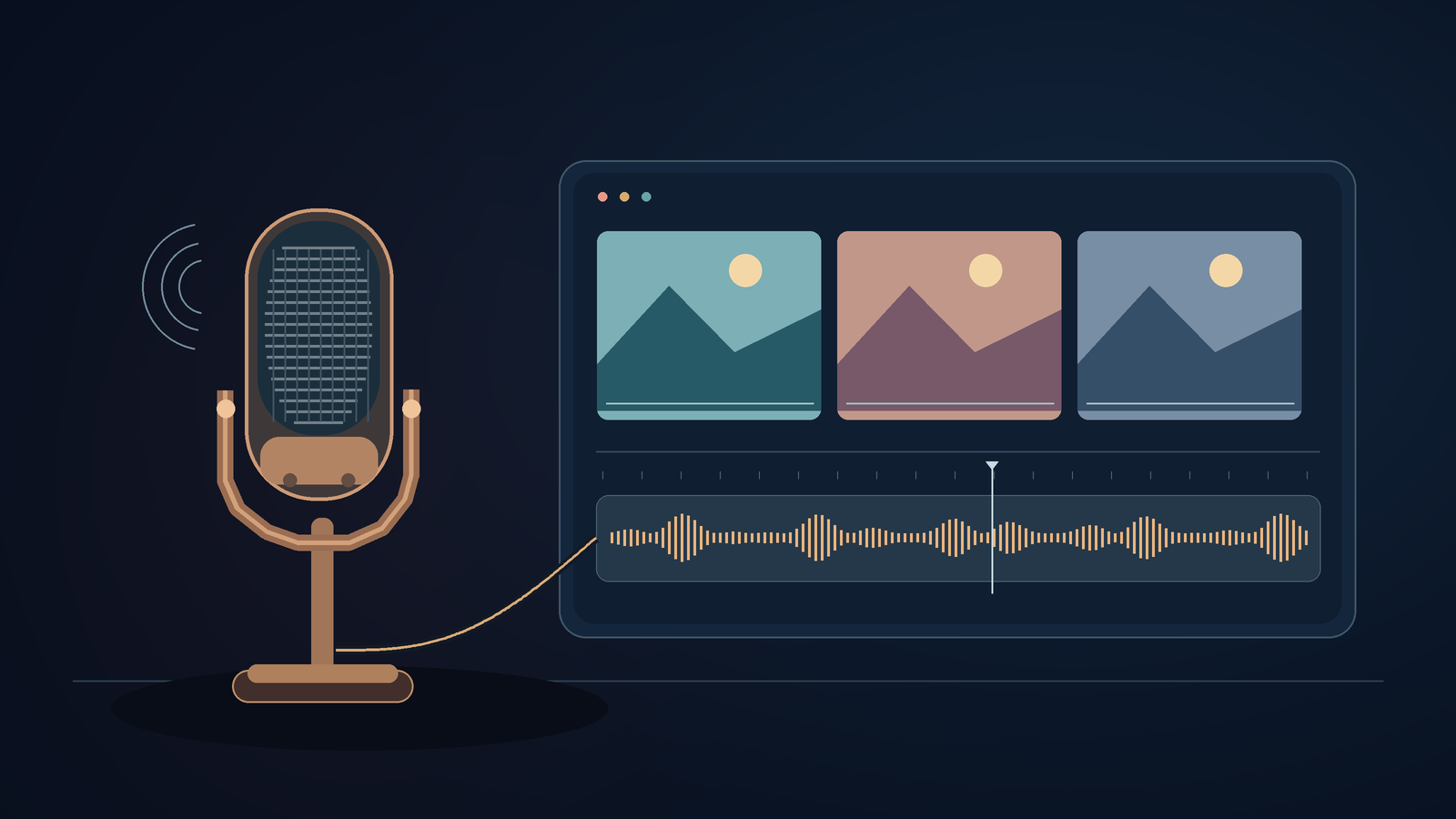
Gemini Omni 1.2 Flash audio input needs a check in the interface you plan to use. Google's launch announcement mentions audio cues. Its current Cloud model page labels Audio as unsupported, although it lists speech generation as supported. Neither page promises to pass your uploaded narration through unchanged.[1][3]
I noticed that distinction while reading the November 5 release. When we checked, its Hacker News post was on the November 7 front page, with 351 points and 241 comments.[7] The Verge also covered its longer clips and conversational edits.[5] But attention and a polished demo don't answer the question creators ask after recording a voiceover: can I keep this take?
I'd sort that out before paying for generations. A creator may already have an approved script and a usable recording for a short product explainer. Only the pictures need work. There's no reason to reopen the recorded performance just because a new model can supply one.
Google's audio claims need their surrounding labels
Google says Gemini Omni 1.2 Flash can create and edit videos up to 15 seconds long. Its launch announcement claims the model can make dialogue sound more natural, improve lip-sync, and give multiple speakers distinct voices. Users can also guide video creation with images, motion clips, and audio cues, the announcement says.[1] These are Google's product claims, not results from our testing.
The Cloud specification and the announcement don't quite match. The modalities section marks audio as unsupported, but the capabilities section says the model can generate speech, music, and sound effects. It lists the Interactions API as supported and the Gemini Live API as unsupported.[3] A video model that adds a soundtrack is different from one that can hold a live voice conversation or transcribe an audio file.
DeepMind's model card lists text, images, audio and video as input types. It says the model can change people's speech during video editing, but Google restricts that feature for now.[2] So access is limited. The card doesn't show that voice editing is unrestricted.
Those documentation differences don't let me give a universal yes or no for every Google product. The safer move is to check the specific interface, account, and operation you plan to use. The Google Cloud page we read was updated November 7, so this isn't a comparison between an old specification and a new announcement.[3]
Developers should check whether their chosen interface accepts a separate audio file, then establish what that file guides. Timing? Voice identity? The actual soundtrack? In a consumer app, check for upload and editing controls. The announcement names several products, but doesn't say they all offer the same controls.[1] If you can't find those controls, don't set a client deadline based on a feature the model might support.
Keep an approved voiceover outside the generation step
A fictional ceramics studio is making a short video about deliveries. The owner has recorded a line about collection dates and a warning that the glaze is fragile. The team wants a better background than the packing bench, but they want to keep the owner's voice.
I'd create the visuals separately, then combine them with the original voiceover in a regular video editor. Keep each shot on screen long enough to match the recording. If a clip runs short, adjust the visuals or revise the script with the owner's approval. Don't replace the dialogue with generated speech just to make the timing work.
This is a proposed workflow for keeping a recording intact. We haven't tested Omni or reproduced a voice-editing failure.
A scene with fictional characters calls for a different kind of work. That's where Google's claims about dialogue and multiple speakers matter.[1] You can judge the generated performance as part of the scene. With an approved recording of a real person, the voice must remain theirs, including the words and pauses they approved.
If you want to try audio and video, use a throwaway sample. Record a short line with a made-up product name and a date, and save the original. Then listen to the exported clip and compare it with the original without watching the video. Eye-catching motion can distract you from a changed name or a missing warning.
A waveform can help you find your way through the audio, but you still need to listen. Similar sounds don't prove it's the same take. If you need to preserve the exact recording, keep the original audio track in your editor and make sure the final export uses it. Before relying on an automated transfer you can't inspect, ask for product-specific guidance.
Revise the script before generating another performance
The conversational editing feature sounds useful. Google says you can change the background, lighting, and aspect ratio in later turns without starting over.[1] The Verge mentions the feature in its short report, too.[5] But the report doesn't test whether those edits preserve uploaded narration, so treat it as release coverage.
If the delivery date changes in the ceramics example, update the script first. Have the owner approve the new sentence before you record it. Keep the earlier take until you've checked the revised export. Then you can confirm which date the customer will hear.
If revising the sentence aloud is easier, DictaFlow, the publisher of this blog, can insert dictated text at your cursor through its desktop hold-to-talk shortcut.[6] You could dictate the revised explanation into your script, then review and edit it before recording. That produces editable text for the script. It doesn't preserve a video's soundtrack, and we aren't claiming an Omni integration.
That keeps instructions for the editor separate from words meant for the audience. "Change collection to Thursday" is an editing note. The line for customers should state the actual collection details. Put them in separate fields or paragraphs so the person making the video knows where each belongs.
Ask about the uploaded file before committing
Before committing to Gemini Omni 1.2 Flash audio input for a project, ask the vendor or your editor a precise question: will this operation retain the uploaded recording, use it as a reference, or create new audio? Include the product name and operation. A reply about the model's overall ability to generate speech won't settle that.
Keep that answer with the project brief. Google's announcement, model card and Cloud specification describe different levels of capability, and they don't establish the same upload behavior across every route.[1][2][3] If the answer remains unclear, keep the voice track in your conventional editor rather than assuming an upload will preserve it.
For the ceramics studio, I'd keep the approved recording and create the background separately. Ask the owner to check the collection date in the final export before the video goes out.
Disclosure: Published by DictaFlow with AI-assisted research and drafting. The ceramics studio is fictional. We have not tested Gemini Omni or verified its audio upload controls firsthand.
Sources
[1] Gemini Omni 1.2 Flash: 15-second video and lower pricing
[2] Gemini Omni Flash - Model Card | Google DeepMind
[3] Gemini Omni 1.2 Flash | Gemini Enterprise Agent Platform | Google Cloud Documentation
[5] Google’s Gemini Omni 1.2 Flash can generate clips up to 15 seconds long. | The Verge
[6] DictaFlow: Consumer Facts on Mac, Windows, Mobile, and Pricing