September 19, 2026
Discord Voice Typing in 2026: Setup Without Misfires
A practical setup for dictating Discord messages without sending them before you review the text.
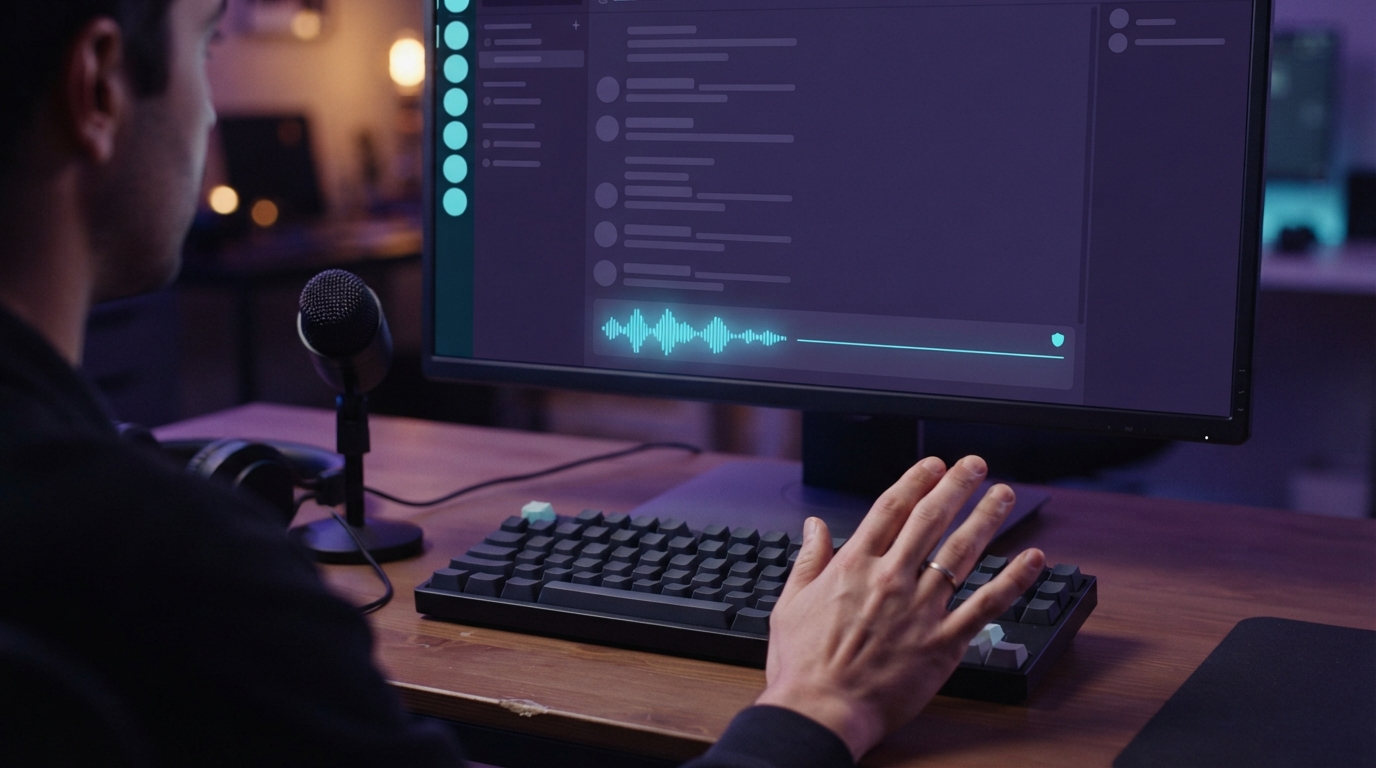
Discord voice typing in 2026 is easy to start, but also easy to mess up. Click the message box, turn on dictation, speak, and press Enter. The catch is that Enter sends the message. If you say a line-break command or press the key too soon, Discord may post half a thought before you can check it.
A safer workflow keeps dictation separate from sending. Speak into the message box, turn off the microphone, read the text, and send it yourself. That quick review matters more in Discord than in a private document because everyone sees mistakes right away.
Pick the right kind of voice feature
People often lump three different tools under "Discord speech to text," but each one does a different job.
Discord Voice Messages let you send an audio recording. Discord's support page says you can record them in the mobile app, and people can listen on any Discord platform. Use them when tone matters and the other person needs to hear your voice.
Voice-channel transcription turns a live conversation into a written record. You usually need a bot or a separate meeting transcription service for that. It can help with notes, moderation, or accessibility, but it won't help you write a short message in a channel or DM.
Voice typing puts editable text wherever your cursor is. Choose it when you want a regular Discord message you can review, edit, search, quote, and copy later.
Start with the free Windows setup
On Windows 11 or Windows 10, click the Discord message box and press Windows key + H. Microsoft says Windows voice typing needs an internet connection, a working microphone, and a cursor in a text box. Wait for the "Listening" alert before you speak.
Dictate one short message first. Stop listening by pressing the microphone button or saying "stop listening." Check the names, links, channel references, and punctuation. Press Enter only after the draft looks right.
The key setting is automatic punctuation. It can make longer messages easier to read, but it might place punctuation where you didn't expect it. Test it with the messages you actually send. A server update and a two-word gaming reply need different settings.
If Windows voice typing won't start, go to Settings > Privacy and security > Microphone. Microsoft also recommends checking the selected input device and the current voice typing language. Test the microphone in a simple app such as Notepad. If it works there but not in Discord, click the message box to refocus it, then try again.
Set up voice typing on a Mac
Apple's built-in Dictation works in the Discord desktop app and browser version. Turn it on under System Settings > Keyboard > Dictation. You can choose or customize its keyboard shortcut. On supported keyboards, press the microphone key to start Dictation. Fn-D is another documented shortcut.
Click the Discord message box before starting Dictation. Speak your draft, stop Dictation, and review it before sending. Keep the message unsent while you correct usernames, server slang, game titles, code terms, or product names.
Discord's microphone permission and Mac Dictation do different things. Discord needs microphone access for calls and voice messages. Dictation is a Mac feature that enters text into the field you're using. If calls work but no text appears, test Dictation in TextEdit. This will show whether the problem is with your Mac setup or the Discord field.
Avoid the Enter-key trap
Discord's official text-channel guide says Enter sends the message. That makes it the main risk when you use voice typing.
Use Shift+Enter to add a line break within the same message. Never map the dictation stop command to Enter. Stopping speech recognition and sending the message must remain separate actions.
This helps with accessibility, not just convenience. Someone who dictates because typing causes pain may send longer messages. An accidental send means more corrections, mouse movement, and repeated input. Leaving the draft in place until the user explicitly sends it makes the process less stressful and easier to trust.
For sensitive channels, test the workflow in a private server or DM first. Use harmless sample text. Check that spoken punctuation doesn't send the message, line breaks work as expected, and the microphone stops when you expect it to.
Know when built-in dictation is enough
Windows Voice Typing and Apple Dictation are good places to start because they're already built into your computer. If you send a few Discord messages by voice each day and they correctly recognize common names, you may not need another app.
A dedicated dictation tool helps when the built-in option keeps mishearing the same words, needs too much cleanup, or feels awkward in Discord, browsers, documents, and work apps.
DictaFlow uses hold-to-talk dictation. Hold the shortcut, speak, then release it to place the text at your cursor without sending the message. Its Knowledge Base remembers recurring server names, technical terms, game titles, and usernames. App-aware formatting can keep Discord messages casual and use a different style for email or documents.
You can use the same shortcut in other Windows and Mac apps, not just Discord. That's the practical difference between an app feature and dictation that works across your system. The DictaFlow comparison guide compares built-in dictation, Wispr Flow, Dragon, and other alternatives. The getting started guide shows how to test hold-to-talk in the apps you already use.
A five-minute Discord voice typing test
Use a private channel and run five quick checks:
- Dictate one sentence with a username or server name.
- Dictate two sentences and check automatic punctuation.
- Add a line break without sending the message.
- Stop the microphone and confirm the draft stays in the box.
- Edit one word with the keyboard, then send manually.
If all five work, the setup is probably good enough for everyday chat. If it gets names or repeated terms wrong, try custom vocabulary. If it sends messages before you review them, fix that before using voice typing in a busy channel.
Discord voice typing should create regular editable messages, not a separate way to communicate. Start with the free tools. Keep sending as a deliberate final step. Add a dedicated dictation app only when your computer's built-in options become a bottleneck.