August 30, 2026
Dictation in Full-Screen Apps: 2026 Recording Guide
How to tell when desktop dictation is listening, processing, inserted, or stuck.
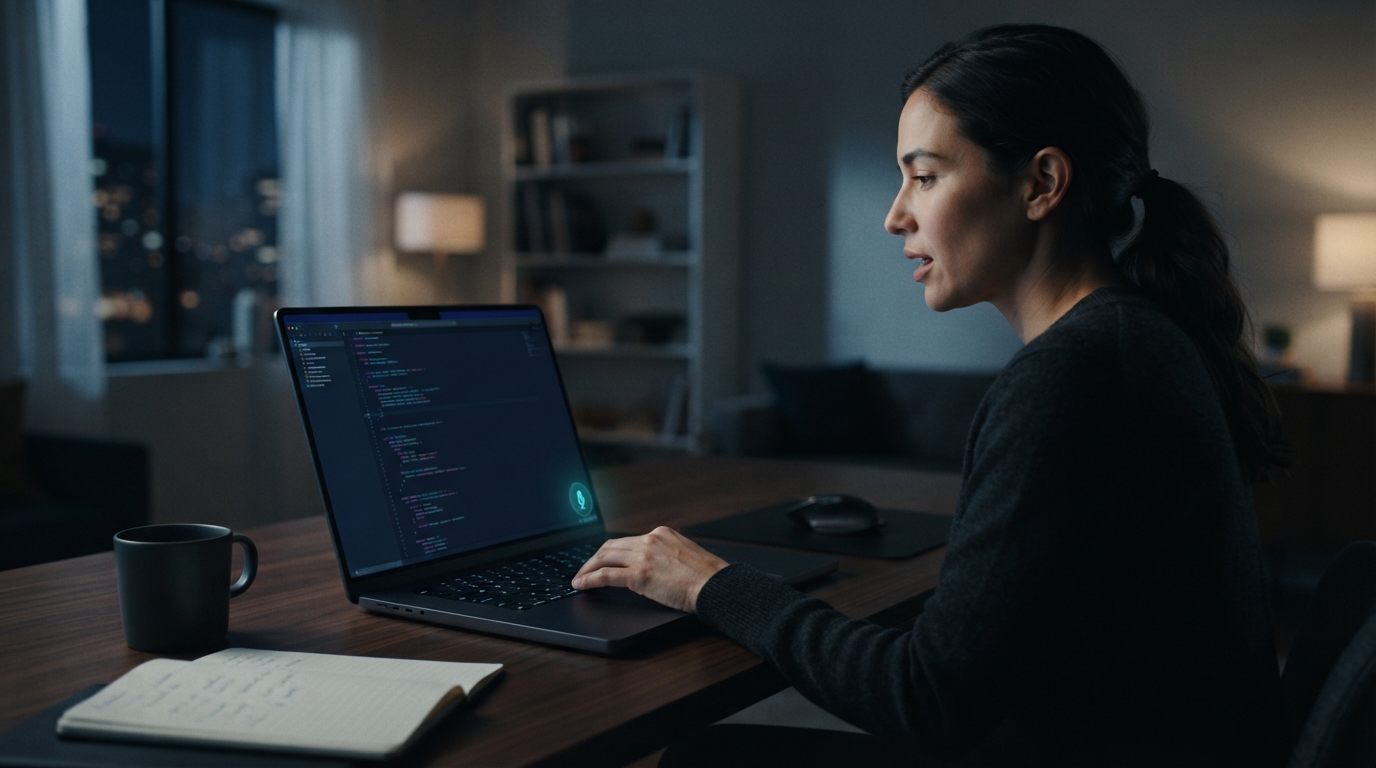
Full-screen mode should cut out distractions, but it can also hide the one signal you need while dictating: whether the microphone is listening.
That may sound minor until you speak two sentences into a code editor, presentation, remote desktop, or video player and nothing appears. Did recording start? Is the app still listening? Is it processing your words? Did the shortcut fail? A good dictation setup should answer those questions without making you leave the app you're using.
A recent Hacker News discussion about FnScribe, an open-source offline dictation app for macOS, highlighted the issue. One commenter noticed that the app uses its menu bar icon to show status, then asked what happens when a window is full screen and the menu bar is hidden. The question applies to many other apps too, making it a useful test for any desktop dictation tool.
Full-screen mode exposes weak status design
A menu bar icon works when the menu bar is visible, but it may disappear in a full-screen editor or presentation. Windows has the same issue with small tray icons when the taskbar is hidden. The dictation engine may work perfectly, yet the person using it can't tell what state it's in.
This leads to two costly mistakes. People start talking before recording begins, and their first words disappear. Or they keep talking after recording stops and wait for text that will never come. The recognition model gets blamed, even though the problem happened before transcription.
The problem is worse with toggle-to-record controls. One key press starts recording, and another stops it, but nothing physical reminds you that the microphone stays open between presses. Hold-to-talk is simpler because the key sets the recording window. Press it to listen, then release it to stop and insert. Visual feedback still matters, but the control doesn't rely on remembering an invisible toggle state.
The five states a dictation app should make clear
Recording status isn't simply on or off. A useful desktop dictation tool needs to show five distinct moments:
- Ready: the shortcut is available and microphone permission is working.
- Listening: audio is being captured right now.
- Processing: recording has ended, but the text is not ready yet.
- Inserted: the result reached the active text field.
- Failed: recording, transcription, or text insertion did not complete.
These states don't need five giant popups. A compact edge indicator, brief sound, waveform, or small badge beside the cursor can do the job. The feedback should remain visible over a full-screen app without covering the field where the text will appear.
Sound alone isn't enough. People may mute their computers, wear headphones, join calls, or work in shared rooms. Visual feedback has limits too, especially when someone is focused on another part of the screen. The best setup combines a subtle visual signal with optional audio or haptic feedback.
Run this full-screen dictation test before paying
Marketing demos usually use a clean text editor with every system bar visible. Test the awkward cases instead.
Start with a full-screen browser, code editor, or document. Turn on dictation and make sure you can tell when capture starts without moving the pointer to show the menu bar or taskbar. Speak a short sentence, stop, and look for a separate processing state before the text appears.
Next, switch to a second monitor. Many status overlays appear only on the primary display, even when the active text field is on another screen. Repeat the test in a remote desktop or virtual machine if you use one for work. The text should appear in the target field, and the status signal should stay on the screen you're watching.
Then force one failure. Turn off microphone permission or disconnect the selected microphone. A silent failure is a bad sign. The app should explain what went wrong instead of making you repeat the same sentence.
Finish with a longer paragraph. Confirm that the recording indicator stays visible while the app is still listening. Also check that the processing indicator doesn't look like an active microphone. Users should be able to tell these two states apart at a glance.
Full-screen status matters most in demanding workflows
It may seem unimportant if you dictate one short email a week. It matters more when dictation becomes part of focused work.
Developers use full-screen editors and terminals. Presenters rehearse with slides covering the display. Clinicians and legal staff work in Citrix, RDP, VMware Horizon, and other hosted systems where the local menu bar may be hidden. Writers hide interface chrome to stay focused. In all these cases, leaving full screen just to check the microphone defeats the purpose of using voice input.
Text insertion adds another layer. A tool may finish transcription but still fail to paste into a clipboard-hostile field or remote session. That's why the inserted state matters. Successful recognition and successful insertion aren't the same thing.
Where DictaFlow fits
DictaFlow uses hold-to-talk dictation. Hold a hotkey, speak, then release it to process and insert the result. This makes the recording boundary clearer than an invisible toggle. DictaFlow works on Mac, Windows, and iOS, with native Android app access.
For hosted work in locked-down environments, DictaFlow can type through simulated keystrokes instead of relying only on the clipboard. This helps in Citrix, RDP, VMware Horizon, EHR fields, and other places where dictation that depends on normal pasting can fail. App-aware formatting, along with a custom vocabulary or Knowledge Base, helps when a full-screen app contains code, clinical terms, names, or product language.
The broader dictation software comparison explains the tradeoffs between built-in tools and paid alternatives. The getting started guide covers the hold-to-talk setup and your first test.
A small signal prevents a lot of repeated speech
The full-screen test is simple: start recording without showing the system bars, speak, stop, and confirm that the text appears. At each step, you should know what the dictation app is doing.
Accuracy still matters, along with speed, vocabulary, and price. But none of that helps if you can't tell whether the app is recording. Before choosing a dictation app in 2026, test it in the full-screen software where you actually work. If the only reliable status signal is hidden in a menu bar, the interface isn't finished.