November 15, 2026
ClickUp dictation on Windows: comments vs Voice Clips 2026
For ClickUp dictation on Windows, choose Talk to Text to create an editable comment. Use Voice Clip when your teammates need an audio recording. ClickUp lists both options in the comment composer. You can also press Windows key + H to enter text in a focused field. Check the draft before sending, especially to make sure you chose the right output.
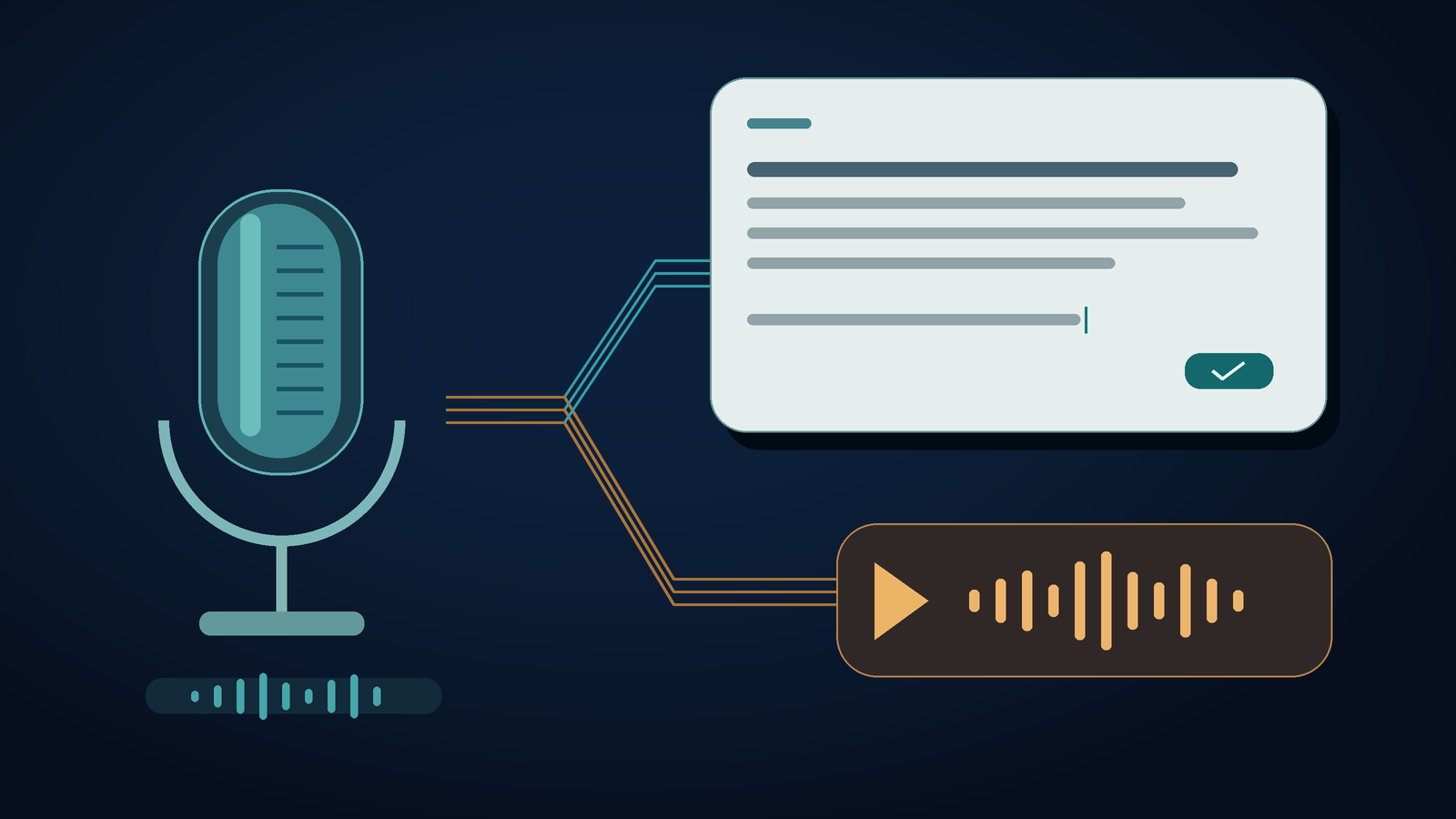
The microphone can lead to two different outputs
A colleague needs a decision they can read between calls. You dictate your answer, click the wrong button, and send a recording instead. Better speech recognition won't solve that problem. Before making the first real update, decide whether you’re sending text or audio.
ClickUp’s comment instructions say to select the microphone, then Transcribe, to create an editable draft. The separate Voice Clips guide says to finish with Voice note, which adds an audio clip to the comment draft. Check the labels in your workspace, since microphone buttons may work differently.
The docs also say Voice Clips get automatic transcripts when the AI ClickApp is enabled. The transcript comes with a recording, so it doesn’t let you edit a text-only comment before sending it. Clip access and limits depend on your plan and role. If you’re missing an option, ask your workspace administrator before buying another tool.
Draft one text comment without sending it early
Use a disposable task that won’t notify a customer. Open its comment box, type a few characters, then delete them. This checks that you can edit the field. Selecting a task alone won’t place the cursor in its comment box.
Start the microphone and speak a short update. Choose Transcribe to create a text draft, then stop and check the result. ClickUp documents Enter on PC as a way to send a comment, so don't press it just to test a new paragraph. Use the editor controls you can see, and check how your workspace behaves before working in a live thread.
Try this fictional update: 'The draft is ready for review. Do not publish it yet. The replacement image still needs approval.' Check that 'Do not publish' remains intact and the image still sounds unapproved. If cleanup changes the meaning, restore it before sending.
To notify someone, select the person from ClickUp's mention picker. If the update needs a tracked action, use the assigned-comment control and confirm the person you selected. Saying someone's name doesn't mean you've created a mention or assigned a comment. Check this separately from spelling.
When the recording is the useful part
Choose a Voice Clip when tone or pronunciation matters and your team is okay with audio updates. For example, an editor may need to hear how a product name is pronounced. Text is easier to scan, but audio preserves the spoken explanation. Ask the recipient which format they need.
The official Voice Clips instructions explain how to play and download clips, copy a clip link, and delete clips. Clips also appear in Clips Hub. Treat audio attachments as shared workplace content, not temporary private dictation. Check the attachment and its intended audience before posting. Don’t record another person’s conversation for this text-entry exercise.
For a routine approval request, use a short text comment you’ve reviewed. For a screen walkthrough, use ClickUp’s separate Clips feature. Neither option requires an outside dictation app instead of ClickUp.
Try Windows voice typing as the no-extra-subscription route
Click the editable comment field, press Windows key + H, and wait until voice typing is listening. Dictate a short sentence, then stop listening before you review or send it. Microsoft's voice typing guide says you need internet access, a microphone, and a focused text box. Supported languages and punctuation behavior vary.
If nothing appears, dictate the same sentence in Notepad with the same microphone and input method. If it fails there too, check capture, permission, language, or service settings. If it works, check the ClickUp field and whether it has focus. Test the browser and desktop app separately. This article doesn’t certify compatibility with either one.
If the words appear twice, turn off all listening tools before trying again. Use one input method for your next attempt. Wait for delayed output, then check the draft before deleting or repeating anything. This prevents a slow insertion from creating duplicate instructions.
Compare cross-app input honestly
ClickUp also offers dictation beyond its own comment fields. The current Talk to Text overview lists browser and desktop access. It also explains how Brain MAX can dictate into other text boxes when the desktop app is open. Check which AI features your account includes instead of assuming ClickUp voice only works inside ClickUp.
Consider a separate input app if you want a different trigger or way to work during the day. DictaFlow's setup guide explains hold-to-talk: focus the destination, hold your configured trigger, speak, then release to insert the text. Try normal dictation first. Check the platform guide for device requirements, since a feature listed for desktop may not work on every phone.
The Consumer facts page lists Pro at $9/month or $84/year for new purchases made directly on desktop or web. The annual plan works out to $7/month with annual billing, not the monthly list price. Free includes 2,000 cloud words per 30-day cycle. Store purchases and existing subscriptions may have different prices. Cloud is the default. Local Offline on supported devices doesn't make ClickUp's online workspace available offline, and AI cleanup still requires cloud processing.
We publish this guide and sell DictaFlow, so this is documentation-based advice, not an independent accuracy test or a claim of official ClickUp integration. For broader buying criteria, see the comparison page. Keep using ClickUp's native option or Windows voice typing if it already works for you. Before you pay, compare a complete comment after review, not just a clean transcript.
For recurring project terms, use custom vocabulary, then check the spelling in the final comment. For neighboring workflows, read the Asana task-update guide and Trello card-description guide. Their setup results do not establish ClickUp compatibility.
ClickUp dictation questions
How do I dictate a text comment in ClickUp on Windows?
Open a task comment you can edit, start its microphone, then choose Transcribe when you're done. Review the text before sending. If Transcribe isn't available, focus the comment field and try Windows key + H.
Why did ClickUp attach audio instead of inserting text?
Finishing a voice note adds a Voice Clip to the draft. To create an editable text comment, choose Talk to Text, then select Transcribe. Check the text before posting.
Can ClickUp dictation work outside ClickUp?
Yes. ClickUp documents Talk to Text in Brain MAX desktop for other text boxes while the desktop app is open. Availability and limits depend on your plan and role. This is separate from posting a task Voice Clip.
Does saying a name assign a ClickUp comment?
Don’t assume it does. Use the assigned-comment control to select the intended person. Check mentions and assignments separately from the dictated prose.
Sources checked November 15, 2026
ClickUp: comments, Transcribe and Enter behavior
ClickUp: Voice Clips and recordings
ClickUp: Talk to Text and Brain MAX scope
Microsoft: voice typing requirements
DictaFlow: current Consumer product facts
DictaFlow: setup and output controls
Start with a harmless test comment and review the result before posting.