Blurt Dictation Review 2026: What a Free App Costs
A documentation-based look at metered audio, Mac requirements, and where the words land.
October 07, 2026
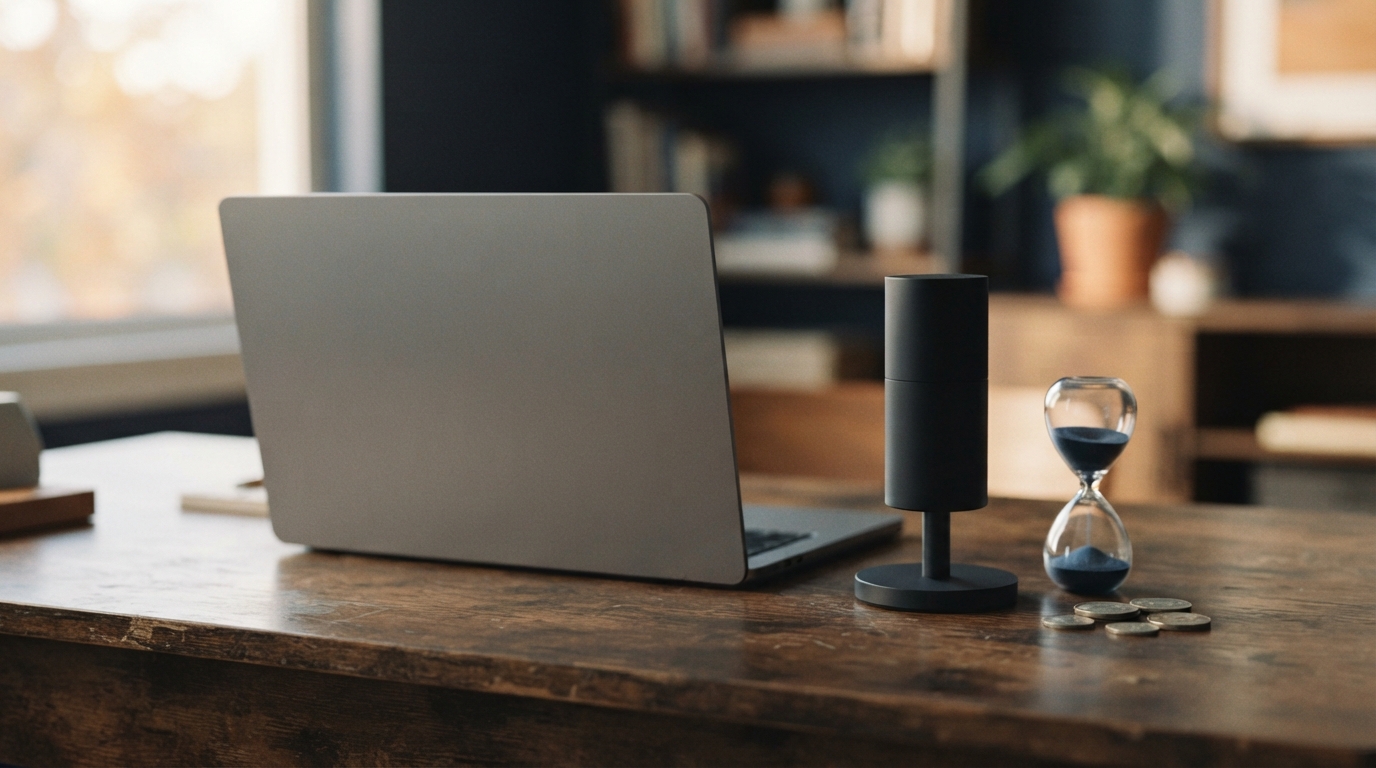
A free download can still come with an audio bill. That's the first thing to know about AssemblyAI's Blurt before you replace a paid dictation subscription. You're choosing an app with an audio bill, not unlimited free transcription.
AssemblyAI introduced its Dictation API on September 15, 2026, and released Blurt as an open source Mac app built on it. That makes this a good time to ask a practical question: does paying for recorded audio fit your writing habits better than paying each month? Read the launch announcement.
This Blurt dictation review looks at its current documentation and pricing. We didn't run a hands-on Mac benchmark. The trial suggestions below are checks you can repeat yourself, not results from our own testing. We also make DictaFlow, so keep that relationship in mind when considering our alternative recommendation.
The bill follows your microphone time
Blurt's official product page describes the app as free and MIT-licensed. You provide an AssemblyAI API key. New accounts receive free credits. Once those credits run out, audio processing costs about $0.62 per hour. An introductory credit balance isn't the same as a permanent free allowance.
The current Dictation API pricing lists a rate of $0.62 per hour, including transcription and the finished output. At that rate, five hours of audio costs $3.10, and twenty hours costs $12.40. These are simple estimates before credits, discounts, taxes, or billing adjustments. They aren't an invoice quote.
That can be a good deal if you dictate a few short messages each day. If you dictate long drafts, you'll need a different estimate. Track your recorded minutes during a typical week, then use that number to estimate a month. Don't count the time you spend at the computer as audio time.
At $7 a month, the rough break-even point is about 11.3 recorded hours. That's only a price comparison. A subscription may include word limits, different processing modes, or platform features that metered audio doesn't include. If you compare the dollar amounts without accounting for those differences, you may choose the wrong option.
Check the Mac requirement before you install
One documentation mismatch is worth noting. Blurt's product FAQ says macOS 14 or later. Its current repository README says macOS 15 or later, on Intel or Apple Silicon. Check the requirement for the release you download. Don't assume the older FAQ means your Mac will work.
The README setup requires your API key, Microphone permission, and Accessibility permission. The default trigger is right Command, with tap-to-toggle and hold-to-talk options. Blurt uses cloud transcription, not a local speech model. An open-source app isn't automatically an offline app.
For your first test, open an empty document and use harmless text. Finish the setup, click in the document, and try a short message. If it fails, check three separate stages: Did recording start? Did transcription finish? Did anything appear in the document? A microphone problem won't be fixed by searching for clipboard solutions.
Keep your API key out of screenshots, bug reports, and shared setup notes. If someone helps you troubleshoot, share a redacted error message and your installed version instead. You don't need to paste an account secret into a public issue just to describe a failed sentence.
Try a correction that changes the meaning
Blurt's product page promises filler removal and selectable writing styles. Its launch announcement also says it can resolve spoken self-corrections. Those features sound useful, but your first test should be more demanding than a clean greeting.
Try a fictional studio order: 'Send the matte paper samples on Monday, sorry, make that Wednesday. Keep the glossy samples here.' Check whether the output gives the final day and keeps the instruction about the glossy paper. Correct punctuation isn't enough if the text changes which package should move.
Next, dictate a line that is deliberately uncertain: 'We may approve the second print run after the proof arrives.' Check that the cleanup keeps the uncertainty. If the output quietly changes 'may approve' to 'will approve,' it isn't a better draft, even if it sounds smoother.
Test ordinary prose first. Then add a fictional customer name and one exact order number. Keep a typed reference beside the output. Judge how much editing it needs before you can use it, not how impressive it looked at first.
If cleanup changes the meaning, the README explains another option. In Settings, open Styles and turn off Enhanced transcripts to insert the verbatim transcript. Run the same correction test in both modes before choosing one.
Don't judge speed by the vendor's short-clip figures alone. Time the full experience on your own connection, from releasing the shortcut until readable text appears in your document. Count failed insertions and the corrections you make afterward, too. A fast API response is only one part of finishing a message.
Clipboard insertion deserves its own trial
The Blurt README says Blurt saves the current clipboard, inserts text with a simulated Command-V, then restores the clipboard. That gives you a specific behavior to test, especially if you work in a hosted desktop or a restricted field.
Begin with a disposable local document. Type 'Start' and 'End,' put the cursor between them, and dictate an instruction about packaging a framed print. Check that the text appears between the markers and leaves both intact. Once that works, try it in your actual work application.
During a remote session, test a harmless manual paste on its own. If the environment blocks pasting, don't assume a voice app can bypass that rule. Ask your administrator which input methods are approved instead of changing security settings just to make the demo work.
Repeat a short insertion in the browser form or desktop app you use most. Check the line breaks and existing text, not only whether the words appeared somewhere. Keep drafts out of a live send box during the trial. The goal is reliable, editable text, not accidentally publishing a test message.
When a subscription makes more sense
Choose Blurt if you want a Mac app with inspectable source and metered audio. Its model lets you try the software without taking on another app subscription. Choose a different tool for workflow reasons, not because either download button says "free."
DictaFlow has native apps for Windows, Mac, iOS, and Android. Consumer Pro costs $7/month or $69/year. Its published plans set word limits for cloud use, so you don't get unlimited cloud audio. Local Offline works without internet on supported devices after setup, but cloud cleanup still needs a connection.
On desktop, DictaFlow's Typing Mode enters text one character at a time in many Citrix and RDP workflows. Test it in your own environment, since secure fields and remote policies may still block text insertion. This matters if clipboard insertion, rather than recognition accuracy, is the problem.
Use the comparison guide to identify your workflow requirements, then follow the getting-started guide to set things up. Run the same fictional paper order test with each candidate. Don't compare a simple greeting in one app with a complicated paragraph in another.
The answer to this Blurt dictation review is pretty simple: free software can be good value if you use only a modest amount of audio. Check the audio bill and test insertion before switching. If it works well on your Mac and in the fields you use every day, there's no reason to replace it just for a longer feature list.