August 31, 2026
Best Voice Dictation Software for Architects in 2026
A practical field-to-office test for site notes, technical terms, reports, and remote project systems.
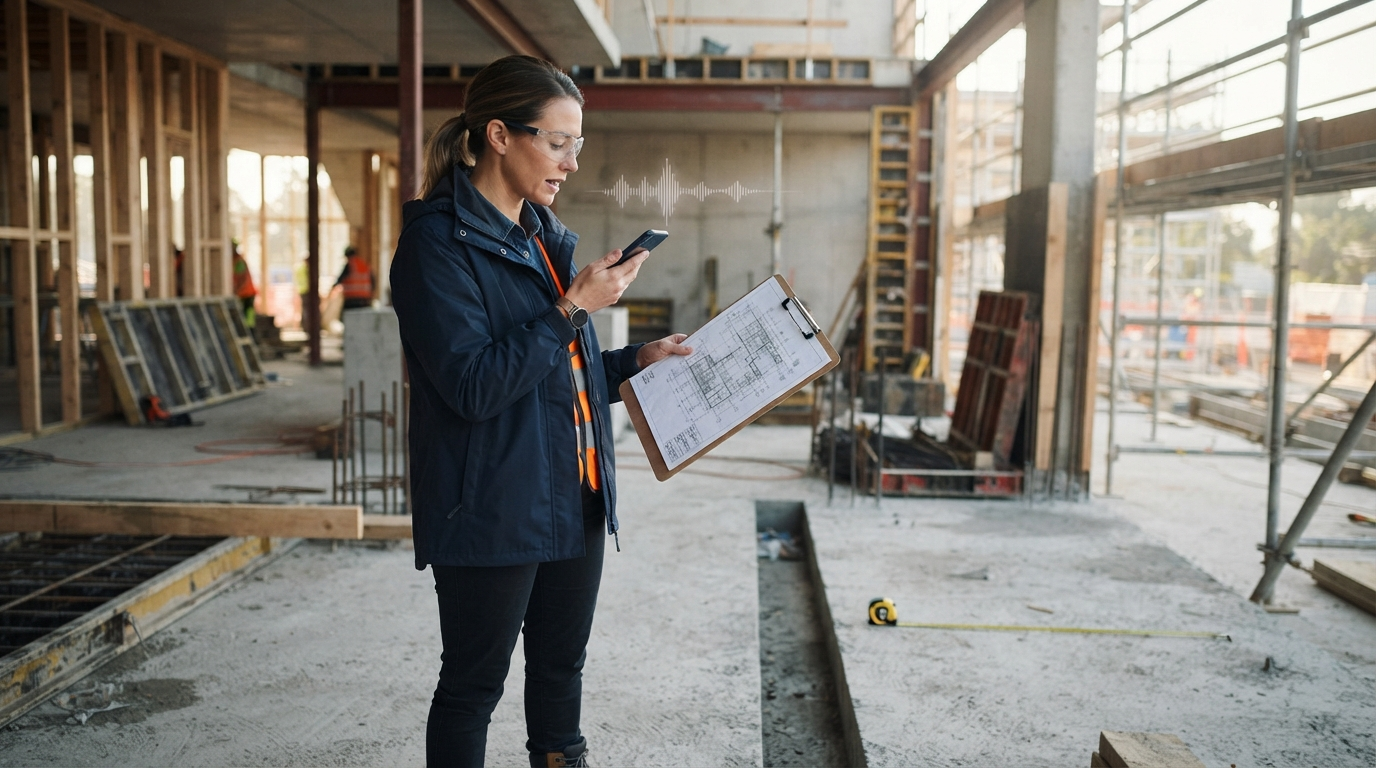
Architects rarely write everything in one quiet document. A site observation might begin next to a noisy mechanical room, become a phone note, and end up as a field report, RFI, email, drawing comment, or punch-list item at the office. Dictation saves time only when those words remain usable throughout the process.
A recent Hacker News discussion about offline dictation raised a practical problem: background noise can hurt recognition, and users want better echo cancellation or denoising. That issue is even worse on a construction site than in a quiet demo. Wind, traffic, power tools, and nearby conversations can turn a quick voice note into a cleanup job.
The best voice dictation software for architects in 2026 needs to handle technical vocabulary, noisy recordings, and text insertion in the apps architects already use. A clean transcript is not enough if it stays stuck in a separate editor.
Start with the architect's real handoff
Don't test dictation with a generic paragraph. Write a one-minute script about a fictional project. Include a room number, drawing reference, material, manufacturer, dimension, and action item.
For example: "Level three, room 312. Check detail A six on sheet A 5.2. Confirm the mineral wool firestop at the north shaft wall. Send an RFI before Friday."
Read the script in four places: a phone note, an email, a browser field, and the project system your team uses. If your office uses Citrix, RDP, or VMware Horizon, run the same test there too. Record incorrect terms, numbers, and insertion failures in separate lists. A missing comma is annoying. A changed room number or detail reference can send someone to the wrong place.
Also test one recording with background noise. You don't need an active construction site. Play a fan, cafe recording, or street noise at low volume. This will show whether the app still catches short codes and material names. Keep the test data fictional, especially when trying a cloud service.
What architects should score
Recognition speed is easy to spot, but correction time tells you more. A tool that produces text in two seconds but needs a minute of fixes is slower than one that takes five seconds and gets the important nouns right.
Score each tool on these areas:
- Project terms: room tags, sheet numbers, consultant names, products, and abbreviations.
- Numbers: dimensions, dates, levels, quantities, and drawing references.
- Destination: email, reports, browser forms, remote desktops, and project management fields.
- Control: clear start and stop commands, especially when people nearby are talking.
- Cleanup: punctuation and formatting that preserve technical meaning.
A custom vocabulary matters because each project uses different architectural terms. One project might involve medical gas terms for a healthcare renovation. The next might focus on millwork and finish codes in a residential project. The tool should let you update the vocabulary without training a new speech profile from scratch.
1. DictaFlow for cross-app architectural work
DictaFlow works well when architects need to move notes between the site, office, and hosted project systems. Hold a hotkey, speak, and release it. The text appears at the active cursor, so you don't have to work from a separate transcript window. The native iPhone and iPad app supports mobile capture. Desktop apps are available for Windows and Mac, and Android users can install the native app from Google Play.
The Knowledge Base stores project names, consultant names, room labels, manufacturers, and materials you use often. App-aware formatting can keep a short email concise and format a field note as a paragraph. It avoids turning both into generic AI writing. Cleanup is designed to preserve the speaker's voice and technical meaning.
DictaFlow also supports keystroke insertion in Citrix, RDP, VMware Horizon, and other fields where clipboard tools may fail. This helps firms that work in locked-down client environments or remote Windows systems. Test the exact field before rollout, since no insertion method works everywhere.
DictaFlow Pro costs $7/month or $69/year. After downloading the model, Local Offline can transcribe without an Internet connection. Cloud processing is private and includes the full hybrid feature set.
Best for: Architects who want one hold-to-talk workflow across desktop apps, mobile capture, and remote project systems.
2. Dragon Professional for Windows power users
Dragon Professional is still a strong choice for firms that work entirely on Windows. It supports custom words, voice commands, and detailed desktop automation. Experienced users can build workflows for recurring reports and other routine commands.
The main drawbacks are the price and setup time. Dragon Professional starts at around $699, runs only on Windows, and takes more configuration than a lightweight hold-to-talk app. It makes sense for firms that already have Dragon profiles, macros, and staff who know the system. It's less useful for teams that split their work between Mac and Windows or want the same tool on a phone.
Best for: Windows-only power users who need extensive commands and are willing to maintain a trained setup.
3. Apple Dictation and Windows Voice Typing as free baselines
Built-in dictation is the best place to start because it's free. Apple Dictation works on Mac and iOS. On Windows, press Windows key + H to open Voice Typing in many text fields.
These tools work well for short emails and notes. They struggle more with project vocabulary and workflow controls. They don't offer a project Knowledge Base, app-aware formatting, a hold-to-talk option, or a keystroke path for remote systems. If they keep changing the same manufacturer or detail reference, the time spent correcting errors can outweigh the savings.
Best for: Occasional notes and a free baseline before testing paid software.
4. Wispr Flow for cloud-first desktop cleanup
Wispr Flow runs on Mac and Windows and costs about $15/month. It focuses on polished dictation through the cloud in common desktop apps. Setup is simple, making it a reasonable choice for architects who mainly dictate email, chat, and standard documents.
Test it with real project terms and hosted destinations before you pay. Wispr Flow doesn't offer DictaFlow's local offline option, custom Knowledge Base, or Citrix and VDI keystroke insertion path. A clean email result doesn't prove that the same note will reach a remote project field.
Best for: Mac and Windows users who want cloud-based cleanup in regular desktop apps.
Run a five-day architecture pilot
Pick five recurring tasks instead of dictating random prose: a site observation, RFI draft, consultant email, meeting follow-up, and drawing-review comment. Give every tool the same fictional terms and destinations.
Track the total time from pressing the shortcut to finishing the review. Mark each error as vocabulary, number, formatting, or insertion. On the final day, repeat the first script. A good custom vocabulary should prevent repeated term errors, not make you fix the same mistake again.
The best voice dictation software for architects isn't the one with the flashiest transcript. It preserves room numbers and material names, works wherever the cursor is, and stays out of the way. Start with built-in dictation as a free baseline. Choose Dragon for deep Windows control, Wispr Flow for cloud-first desktop cleanup, or DictaFlow for cross-platform hold-to-talk, project vocabulary, and remote-system insertion.
Compare the main options in the DictaFlow comparison guide. Then use the getting started guide to run the same architecture test in your own apps.