September 07, 2026
Best Microphone for Dictation in 2026: USB vs Bluetooth
USB, built-in, or Bluetooth? Test the audio path before blaming the dictation app.
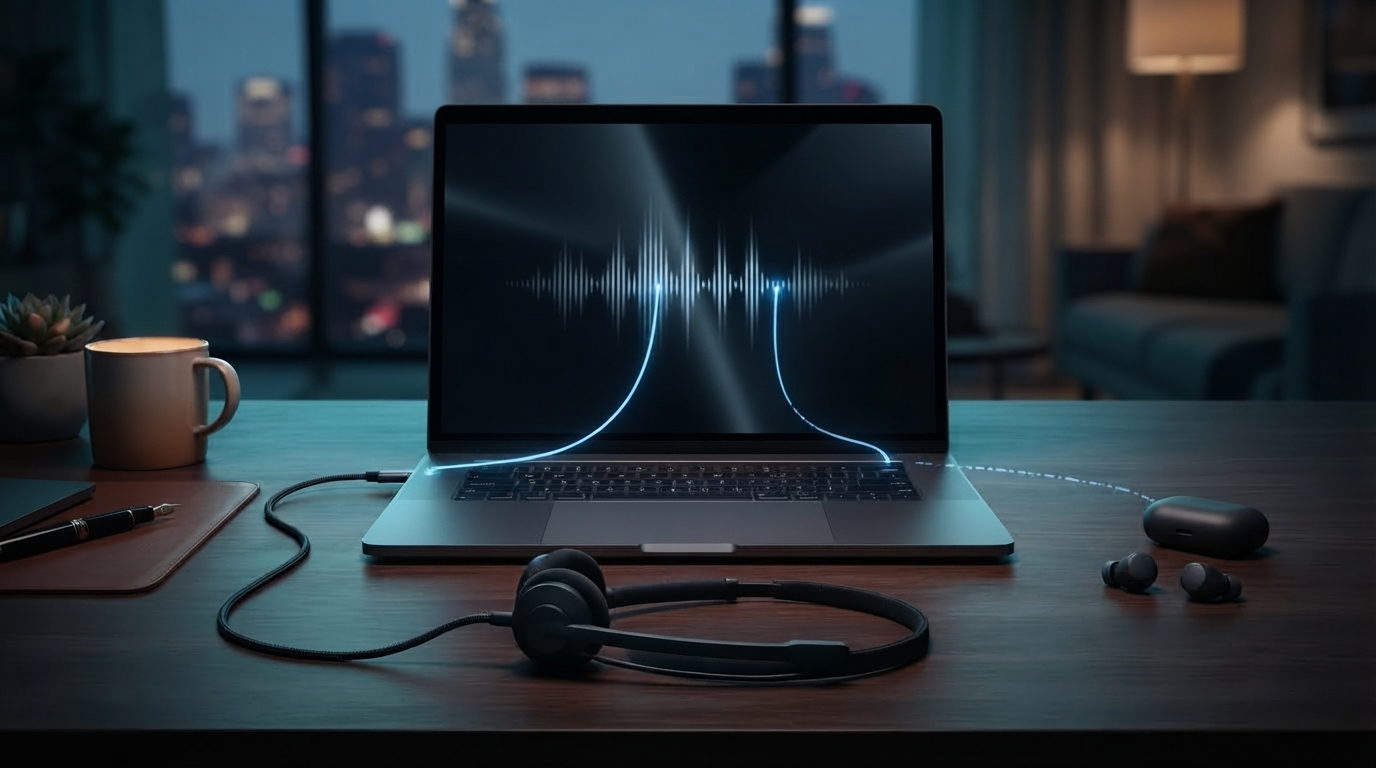
A better dictation model can't restore detail it never received. If the first word vanishes, names sound unclear, or accuracy drops when you connect a headset, test the microphone path before replacing the software.
That became a real problem in 2026. Wispr Flow now warns customers that AirPods and other Bluetooth earbuds may cut off the first word and cause more transcription errors than wired options. Microsoft has also added Bluetooth LE Audio controls to newer Windows 11 systems, but the setting only appears when both the computer and headset support it.
The best microphone for dictation in 2026 is usually the one that captures clear, consistent speech without much setup. For most desks, start with your laptop’s built-in microphone. If the room is noisy or you speak softly, a wired USB headset with a boom near your mouth is the safer upgrade. Bluetooth is convenient, but test it properly to make sure accuracy doesn’t suffer.
Why Bluetooth can reduce dictation accuracy
Bluetooth headphones can sound great when you're only listening. Things change once the microphone turns on. Microsoft says Bluetooth Classic uses the Hands-Free Profile for microphone input and audio playback at the same time. Windows supports narrowband and wideband HFP modes. Newer Bluetooth LE Audio hardware can provide better sound when the microphone is active.
That difference explains a common surprise: music sounds fine, but dictation gets thin or less reliable when the headset mic turns on. The cause may be the audio profile, the hardware combination, or a slow switch between devices, not the speech model itself.
Wispr Flow's current microphone guide is unusually direct. It says Bluetooth devices may connect slowly, cut off the first word, and cause more errors than wired microphones. Its help center recommends switching to a built-in or wired microphone if AirPods or another Bluetooth device causes problems. The same advice applies to other apps because the operating system sends the same microphone stream to every dictation tool.
Start with the microphone you already have
Before buying hardware, run a two-minute baseline. Sit where you usually work, choose the laptop's built-in microphone, and dictate the same 60-word sample three times. Include a person's name, an acronym, a dollar amount, and a sentence that starts as soon as you press the shortcut.
Record these four things:
- How often the first word gets cut off
- How many words need fixing
- Whether the selected microphone switches on its own
- Whether accuracy drops when you're on a call, using a music app, or connected to a Bluetooth device
A modern laptop microphone can work well enough in a quiet room. It also avoids battery, pairing, and audio-profile problems. The tradeoff is distance. In a loud office, kitchen, clinic, or shared room, it picks up more background noise.
When buying a USB headset makes more sense
A wired USB headset sounds like a boring recommendation, but that’s why it works. Its boom keeps the microphone close to your mouth, and the USB connection avoids Bluetooth profile switching. The input also usually stays available after sleep or when you switch apps.
You don't need an expensive broadcast microphone for everyday dictation. Choose a comfortable headset with a directional boom, a physical mute control, and a cable long enough to reach across your desk. A basic communications headset often works better than a beautiful studio microphone sitting two feet away.
A desk microphone still makes sense if you don't like headsets. Place it close enough to pick up your voice without raising the input gain so much that it catches keyboard noise and room echo. Test it where you'll actually use it, not in the perfect position shown in a product photo.
Testing Bluetooth on Windows 11
First, pair the headset and select it as the active input under Settings, System, Sound. Dictate your fixed sample in a plain text editor. Repeat the test with the built-in microphone, using the same room, speaking volume, and text.
On supported Windows 11 computers, Microsoft shows a setting called "Format when microphone is active" on the Bluetooth LE Audio device page. If you don't see it, Microsoft says your system can't support stereo audio while that microphone is active. That's a hardware and driver limit, not a hidden switch you can turn on.
Compare the transcripts instead of trusting the headset's retail price. Check for missing openings, names that fail only over Bluetooth, delayed recordings, and a microphone that stays unavailable after the headset reconnects. If Bluetooth drops, keep the headset for listening and select the laptop or USB microphone for dictation.
How to test microphones on a Mac
Apple lets you choose a Dictation microphone in System Settings, under Keyboard > Dictation. The Automatic option selects the device macOS thinks you'll use. For a controlled test, select each microphone manually so your AirPods don't switch the input halfway through the comparison.
Run the same three recordings with the built-in microphone and then with the Bluetooth microphone. If you have a USB headset, use it for the third test. Check the first word, proper nouns, and short phrases. A microphone can handle a long paragraph well but still be frustrating if it misses quick, one-sentence replies.
Give the app and microphone different jobs
The microphone determines the quality of the audio that enters the system. The dictation app handles everything after that, including recognition, vocabulary, cleanup, correction, and insertion into the active text field. A better microphone won't add custom vocabulary or make a browser-only tool work in Citrix. Switching apps won't fix a headset that clips the first word of every sentence.
DictaFlow lets you dictate by holding a button on Windows, Mac, and iOS. On Android, use the native DictaFlow app from Google Play. Custom vocabulary and the Knowledge Base help handle names, acronyms, and technical terms. App-aware formatting adjusts the cleanup for the app you're using. Typing Mode sends keystrokes into Citrix, RDP, VMware Horizon, and other fields that don't accept clipboard insertion.
Pro costs $7/month or $69/year. The free tier lets you run the same microphone test in the apps you use. See the DictaFlow comparison page to compare its workflow with built-in dictation and other paid tools. The getting started guide walks you through the initial hold-to-talk setup.
A buying rule that can save you money
Keep the built-in microphone if it works well in a normal room. Get a wired USB headset if background noise, quiet speech, or changing distance causes errors. Use Bluetooth only after it performs as well as the wired or built-in option on your own sample.
Spend money on evidence, not specifications. Ten minutes of repeatable testing will tell you more about dictation accuracy than a page of microphone marketing.