July 27, 2026
Best Dictation Software for Claims Adjusters in 2026
A practical setup for field notes, exact claim details, remote systems, and sensitive data.
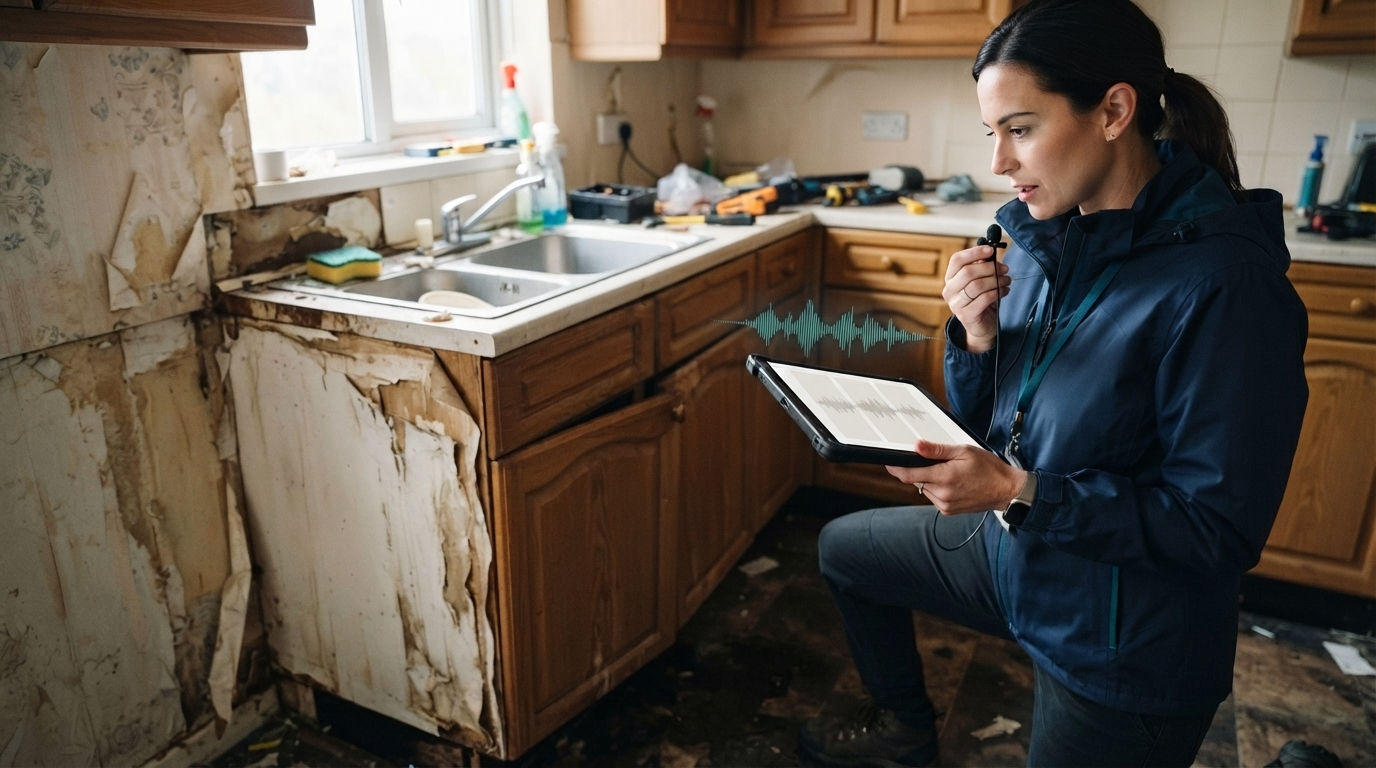
The voice AI story in insurance is mostly about customer calls. New tools promise to automate first notice of loss, route callers, and collect documents. That matters, but it leaves out a less flashy problem. Adjusters still spend much of the day turning inspections, calls, photos, and estimates into clean claim notes.
That's what a good dictation setup should solve. The best dictation software for claims adjusters does not need to run the claim. It needs to capture accurate, editable text inside the systems adjusters already use.
Why ordinary voice typing breaks in claims work
A short email can be sloppy and still work. A claim file cannot. It may include a policy number, cause of loss, room dimensions, contractor names, reserve changes, and a timeline someone might review months later.
Built-in dictation on a phone or computer can handle a simple sentence. It gets frustrating fast when the work includes uncommon surnames, construction terms, vehicle parts, restoration companies, or insurer-specific abbreviations. One wrong term is easy to miss when an adjuster is moving between appointments.
The second problem is where the text has to go. An adjuster might dictate an inspection note, then update Guidewire or another claims platform, reply in Outlook, add an estimate comment, and write a follow-up task. A separate voice recorder or transcription website adds another copy-and-paste step. That is exactly the friction dictation is meant to remove.
The best setup starts with the field note
Don't try to dictate the whole final report at once. Capture one useful block at a time.
A practical property inspection note can follow this order:
- Location and room
- Observed damage
- Measurements or quantities
- Possible cause, clearly labeled as preliminary
- Photos or documents collected
- Next action and owner
For example: "Kitchen, north wall. Water staining extends about four feet from the sink cabinet. Laminate is swollen along the lower edge. Homeowner reports the leak started Saturday morning. Cause not confirmed. Plumber invoice requested. Follow up Tuesday."
That is much easier to review than a ten-minute stream of speech. It also keeps observation separate from opinion. Dictation should make documentation faster, not make the file harder to audit.
Keep exact identifiers on the keyboard
Voice is good for sentences. It is a bad place to gamble with exact identifiers.
Type claim numbers, policy numbers, VINs, phone numbers, email addresses, dollar amounts, and dates when one wrong character could matter. You can дикtate the explanation around them, then type the exact value with the keyboard.
The same rule applies to estimates. Dictate why a line item changed, but type the exact amount and code. This split is faster than correcting a long string of spoken letters and numbers after the fact.
Custom vocabulary matters more than raw benchmark scores
Generic accuracy scores do not tell an adjuster whether the software will recognize the names used on a real file. Build a small vocabulary list from repeated terms: restoration vendors, local contractors, cities, insurer abbreviations, construction materials, vehicle models, and common medical or legal terms.
DictaFlow includes a custom vocabulary and Knowledge Base for this kind of terminology. It also uses app-aware formatting, so a claim note can stay structured while an Outlook reply reads like an email.
Test any tool with a fixed paragraph containing ten terms from your actual work. Run it in a quiet office, a parked car, and a noisy property. Count corrections. A product demo using ordinary words will not answer the question you care about.
Test the claims system, not just Notepad
A dictation app can look perfect in a blank document and still fail in the claims environment. The real test is whether text appears reliably in the field where the adjuster works.
Some insurers run claims software through Citrix, VMware Horizon, or Remote Desktop. Clipboard-based insertion may be blocked or unreliable in those sessions. DictaFlow can use keystroke simulation, which sends text as keyboard input instead of depending only on paste. That is useful for locked-down claim systems, but it still needs to be tested against the carrier's exact setup and security policy.
Use a five-field test before rollout:
- Claim activity note
- Reserve or estimate comment
- Outlook email
- Task description
- Remote desktop or virtual application field
Dictate the same short passage into each one. Check line breaks, punctuation, missing text, and whether the insertion method triggers any security controls.
Privacy needs a plain answer
Claim notes can contain names, addresses, financial details, injury information, and other sensitive data. Before using any dictation product, confirm where audio and text are processed, whether audio is retained, and which settings change that behavior.
Local processing can reduce how much data leaves the device. Cloud processing may offer other accuracy or speed benefits. The important part is knowing which mode is active and whether it fits the insurer's rules. DictaFlow provides local and cloud options, but each carrier should approve the configuration before adjusters use it with real claim data.
A free consumer microphone tool may be fine for a grocery list. It is not automatically acceptable for a claim file just because the transcription looks accurate.
Built-in tools, Dragon, and DictaFlow
Windows Voice Typing and Apple Dictation are free and easy to try. They are reasonable for occasional notes, but they offer limited control over custom vocabulary and difficult remote-work environments.
Dragon remains a familiar choice in insurance and legal work. It has mature voice features, but it is Windows-focused and can be expensive or heavy for teams that only need fast text entry across common apps.
DictaFlow costs $7 per month or $69 per year for Pro. It works on Windows, Mac, and iOS, with native Android app access. Its strongest fit for claims teams is the combination of hold-to-talk control, custom vocabulary, app-aware formatting, and typing into Citrix or Remote Desktop fields.
The right choice depends on the carrier's approved software list and the systems an adjuster must use. Run the same correction and insertion test across every candidate instead of choosing from a feature page.
A 15-minute pilot before a team rollout
When comparing dictation software for claims adjusters, pick one adjuster and five fake claim scenarios. Do not use real customer data during the first test.
Create one property note, one auto note, one liability call summary, one email, and one task. Include uncommon names, measurements, dates, and a few exact identifiers that must be typed. Record how many corrections each passage needs and whether text lands in the correct field.
Then test the workflow on the slowest laptop and the most restrictive remote session the team actually uses. A tool that only works on a clean personal computer is not ready for production.
If the pilot works, start with DictaFlow's setup guide and create a shared vocabulary list for the team. Keep the first rollout small. The useful metric is not words per minute. It is how quickly an adjuster can produce a clear note that needs no second cleanup pass.
Claims work already has enough software. The right dictation software for claims adjusters should remove a writing step, not add another inbox for unfinished transcripts.