May 30, 2026
Best Dictation Apps for Remote Workers in 2026
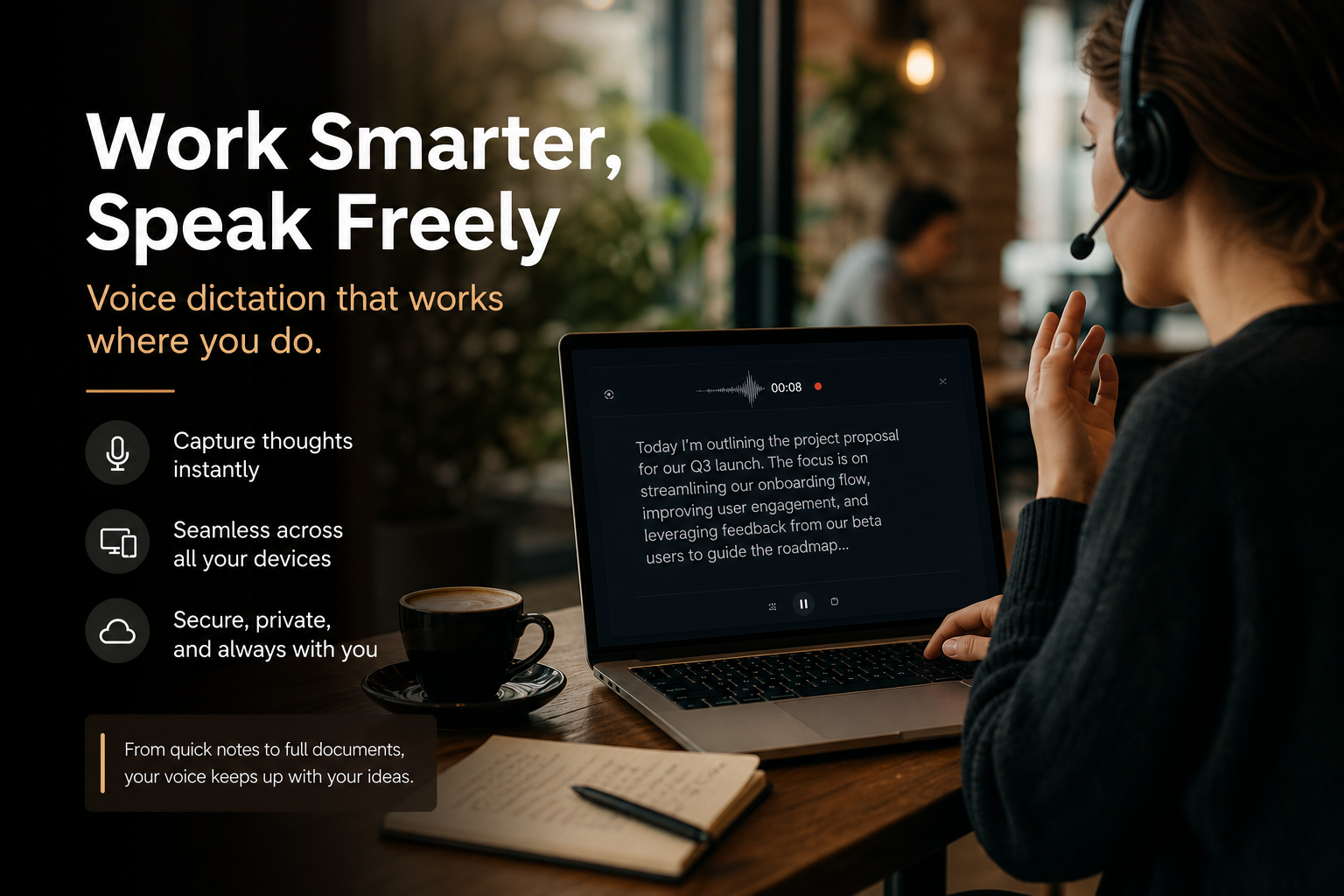
Remote work sounds great until you’re sitting in a coffee shop, laptop open, trying to blast out a long email or a detailed Slack message while balancing a latte. Typing on a cramped keyboard in a noisy room is slow, and the built-in dictation on your Mac or PC keeps mangling your words. Remote workers need dictation that actually works wherever they set up shop, not just in a quiet home office.
Voice dictation isn’t just about speed. It’s about being able to work anywhere without a proper desk setup. When you’re on the road, at a co-working space, or parked at a kitchen table, typing for hours isn’t always practical. Dictation lets you keep moving even when your workspace is temporary. But not all dictation tools handle remote work well. Some need a perfect microphone setup to stay accurate.
Some only work in one app. Others fall apart the second you connect to a client’s VPN or remote desktop. Here’s what actually matters for remote workers, and which apps get it right.
What remote workers actually need from dictation
Before comparing specific tools, here’s what makes a dictation app useful when you’re working remotely: Cross-platform is non-negotiable. You might use a Mac laptop at a cafe, a Windows desktop at home, and your iPhone for quick notes between meetings. If your dictation tool only works on one platform, you’re constantly switching between typing and speaking, which defeats the point. It has to work in every app. Remote workers live in Slack, Zoom, Google Docs, Notion, email, and a half dozen other tools.
If dictation only works in “supported” apps, it’s not useful enough. You need something that types wherever your cursor is, no exceptions. Noise handling matters more than you think. Home offices aren’t always quiet. Co-working spaces are louder. Coffee shops are the loudest. A dictation tool that can’t handle background noise will frustrate you more than typing ever did. Client environments are a real test. If you ever connect to a client’s VPN, remote desktop, or Citrix environment, most dictation tools break completely.
The clipboard doesn’t work across sessions. Voice typing that relies on OS-level integration can’t reach the remote machine. Remote workers who take on client projects hit this wall constantly. Correction needs to be voice-driven. Nothing kills your flow faster than grabbing the mouse to fix a transcription error. Good remote dictation lets you correct mistakes without touching anything, just say a keyword and keep going.
1. DictaFlow, the best all-around dictation app for remote workers
DictaFlow is built for the way remote workers actually work. It’s cross-platform, runs on Mac, Windows, iPhone, and Android, and types into any app, Slack, email, Notion, Google Docs, terminal, whatever you have open. The hold-to-talk mechanic is the standout feature for remote work.
You press and hold a hotkey, speak, release, and the text appears wherever your cursor is. No accidental transcription when you’re in a meeting. No fumbling to start and stop. Just clean, intentional dictation. Actually Override is the feature that makes DictaFlow especially useful in noisy environments.
If background noise causes a transcription error, you just say your correction keyword and DictaFlow deletes back to the mistake and keeps transcribing. You never touch the keyboard or mouse to fix errors. For remote workers in shared spaces, that’s the difference between dictation that feels like a superpower and dictation that feels like a chore. For remote workers who connect to client systems, DictaFlow is one of the only tools that works inside Citrix, VMware Horizon, RDP, and other remote desktop environments.
It types keystrokes directly into the remote session instead of relying on clipboard paste, which most remote desktops block. If you’ve ever tried to dictate into a client’s locked-down Windows environment and watched every other tool fail, this is the feature you need. DictaFlow runs local AI models for speed and privacy, with cloud models available when you need more power.
It supports over 100 languages and lets you build a custom dictionary of names, terms, and industry jargon that dictation normally mangles. Pricing is $7 per month for Pro with full access across all platforms. The free tier covers light use with local models. Best for: Remote workers who switch between devices, need dictation that works in every app including client environments, and don’t want to pay $15 per month for Wispr Flow.
2. Apple Dictation, free but limited
Apple Dictation is built into every Mac and iPhone, which makes it the obvious starting point for anyone with Apple hardware. It costs nothing, requires no setup, and works decently in quiet environments for short bursts of text. The problem is that Apple Dictation stops working the moment you step outside Apple’s walled garden. No Windows support. No Android.
It works in Apple apps and some third-party ones, but it’s not a universal typing tool. It doesn’t have hold-to-talk, so it keeps transcribing after you pause. It doesn’t learn your custom vocabulary over time. And it absolutely does not work in Citrix, remote desktop, or client environments. For remote workers who only use Apple devices and only need dictation in quiet home offices, Apple Dictation is fine for quick messages and short emails.
But the moment you need to dictate into Slack while a podcast plays in the background, or type into a client’s Windows remote desktop, it falls apart. Best for: Apple-only remote workers who dictate short messages in quiet environments and don’t need cross-platform support.
3. Wispr Flow, good but expensive for what you get
Wispr Flow is the most well-known dictation app on Mac and Windows. It has a polished interface, solid accuracy, and hold-to-talk functionality. For remote workers who stay in one ecosystem and don’t need to connect to client environments, it’s a capable option. The downsides for remote workers are the price and the gaps.
Wispr Flow costs about $15/month, which is more than double DictaFlow’s Pro tier. It doesn’t support Citrix, VMware, or any remote desktop environments, so client work is off the table. And it doesn’t have a voice-driven correction system like Actually Override, if a transcription error pops up, you’re grabbing the keyboard to fix it.
For remote workers who never touch client systems and are fine with the higher price, Wispr Flow works. But for anyone who needs universal app support and client-environment compatibility, there are better options for less money. Best for: Mac and Windows users who want a polished dictation experience and do not need Citrix, remote desktop, or voice-driven error correction.
4. Windows Voice Typing, free, but only on Windows
Windows Voice Typing is built into Windows 11 and works reasonably well for basic dictation. It’s free, it’s already there, and it handles simple sentences without much trouble. The limitations are significant. It only works on Windows. It doesn’t have hold-to-talk, so you have to manually toggle dictation on and off with Win+H. It doesn’t learn custom vocabulary.
Background noise throws it off badly. And like Apple Dictation, it doesn’t work in remote desktop or Citrix sessions. For remote workers who only use a Windows machine at home and need occasional dictation for short tasks, Windows Voice Typing is a fine free option. For anyone who works across platforms, needs to dictate into client environments, or wants reliability in noisy spaces, it’s not enough. Best for: Windows-only remote workers who need basic free dictation for short messages in quiet environments.
5. Dragon Professional, enterprise power, enterprise price
Dragon Professional has been the gold standard for professional dictation for decades. It’s accurate, it handles complex vocabulary, and it has deep customization options for specific industries like law and healthcare. For most remote workers, Dragon is overkill. It costs $699 and up for a perpetual license. It only runs on Windows after Nuance discontinued the Mac version.
It’s heavy to install and configure. And even at that price point, it still requires extra setup to work in Citrix and remote desktop environments, where DictaFlow just works out of the box. Dragon makes sense for remote workers in specialized professions like law or medicine who need dictation with industry-specific vocabulary and are already committed to Windows.
For everyone else, it’s expensive, platform-locked, and more complex than remote work really demands. Best for: Specialized professionals on Windows who need industry-specific dictation accuracy and have the budget for enterprise software.
Which dictation app should remote workers pick?
If you only use Apple devices and never need dictation outside quiet environments, Apple Dictation is free and good enough for short tasks. If you’re on Windows only and just need occasional basic dictation, Windows Voice Typing is already on your machine and costs nothing. If you want a polished experience on Mac or Windows and don’t mind paying $15/month, Wispr Flow is a solid pick, as long as you never need to dictate into a client’s remote desktop or Citrix session.
If you need dictation that works across Mac, Windows, iPhone, and Android, types into every app including locked-down client environments, lets you fix transcription errors with your voice, and costs $7 per month, try DictaFlow free. For most remote workers, the math is simple. The free tools work until they don’t.
Wispr Flow charges a premium for a polished experience that still has gaps where remote work actually happens. DictaFlow covers the full picture, every platform, every app, every environment, for less than half the price.