Aqua Voice Android Dictation: Keep Your Keyboard in 2026
A new floating microphone, a familiar keyboard, and a few checks before you subscribe.
October 08, 2026
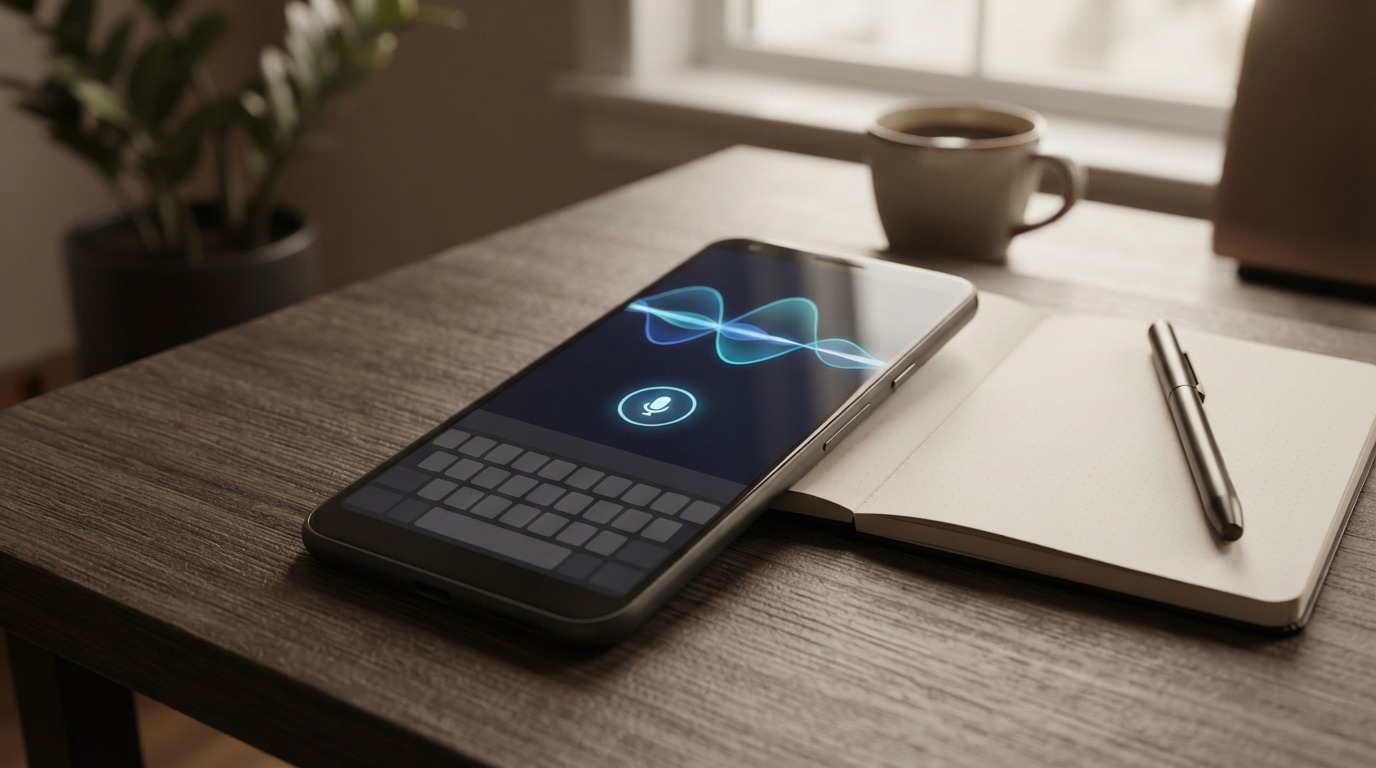
Aqua Voice Android dictation lets you keep the keyboard your thumbs already know. Aqua announced the Android app on October 6, 2026. Its floating microphone appears above your current keyboard and types into the field you’ve selected. The launch announcement covers both tap-to-record and hold-to-talk controls.
That makes this launch more interesting than another claim about speech recognition accuracy. The question is whether a floating control saves enough hassle to become your usual way to write longer messages. If a microphone button gets in the way of every short reply, that advantage can disappear quickly.
This guide is based on documentation, not hands-on Android benchmarks. We make DictaFlow, which also supports Android natively. The checks below are tests you can run on your own phone. They aren't results we measured or proof that one tool works best everywhere.
Start with the keyboard you already like
Aqua's Android documentation says the app works on Android 10 and later, including tablets. Install it from Aqua's Google Play listing, sign in, and follow the permission prompts. Keep your usual keyboard installed. Before using the floating microphone, open a regular note and tap an empty text field.
For your first try, dictate something unimportant, such as a packing note with a rain jacket, charger, spare glasses, and a book. Finish recording, then check what appeared. Did the words go into the open note or somewhere else? Was the keyboard still available for a quick correction?
Include button placement in that first test. Right handed and left handed users won't want it in the same spot. Check whether the control blocks the keyboard's suggestion row, an attachment button, or the corner where your messaging app places Send. A small obstruction repeated fifty times matters more than an elegant launch animation. Aqua says you can drag the button to either edge or drag it down to hide it for ten minutes. Shake the phone to restore it. Settings offers five button sizes.
Understand the permission prompts before continuing
Setup asks for microphone, overlay, Accessibility, and background-use access. Aqua's Android announcement says recordings and text are sent to its servers. Its privacy policy explains the retention setting: Privacy Mode prevents transcript collection, but Aqua may still collect session metadata. This setting doesn't promise offline transcription on Android.
The Play listing gives a clearer picture of how Aqua uses Accessibility: it detects text fields, finds the keyboard, reads nearby text and the active app, inserts dictated text, and makes requested selection edits. Password fields are explicitly excluded. That goes beyond simply allowing the app to draw a microphone icon. Read Aqua's Accessibility disclosure during setup.
If you're evaluating the app on a managed work phone, ask your administrator whether those permissions and processing path are allowed. Use synthetic text until you get approval. Don't test it with a client file just because the floating button appears to work.
Test selection edits separately from dictation
Aqua Voice Android dictation also includes voice editing. The store description says you can revise the current selection or your last transcript. Examples include changing capitalization, translating text, and correcting a name’s spelling. That’s different from putting spoken words on the screen, so it deserves a separate test.
Write this sample yourself: “Toni will bring the blue folder. The replacement cable arrives Monday.” Select only the first sentence. Ask for Toni’s name to be changed to Tony. Check both the selected name and the untouched second sentence. Then undo the edit and verify that you can recover the original.
Next, select the packing note and ask for a list. Make sure all four objects are still there. A prettier list that leaves out the spare glasses is worse than the original paragraph. Keep exact details, especially names and dates, out of broad requests like “make this better.”
For real correspondence, start with one small change: fix a name, remove a repetition, or shorten the greeting. Review the result before sending. This makes the edit easy to check and helps you spot any changes the app made by mistake.
Use the free allowance to check awkward fields
Aqua's FAQ says existing paid subscribers can use Android under the same subscription across Mac, Windows, iPhone, and Android. Starter includes 1,000 free words. Don't assume that means you get a new allowance every month. Before buying, check the app for the current entitlement and paid renewal price. Aqua's FAQ also confirms the shared platform coverage.
Use the Aqua Voice Android dictation trial where your current keyboard microphone feels awkward. Try a calendar event description with a room name, a delivery instruction in a shopping app, and a message that combines a family name with an unfamiliar place. Use a fictional booking instead of a live order.
Keep a short note about what went wrong. “Wrong place name” means you should check the vocabulary or language. “Correct words, wrong field” points to an insertion problem. “Button missing after switching apps” suggests checking permissions, background behavior, or app compatibility. Repeating the whole sentence won’t tell you which problem you’re dealing with.
A simple test is this: dictate, fix one detail, switch apps, and keep going without searching for the control. If you need several taps to recover each time, use your current keyboard microphone for short replies and save the new tool for longer passages.
Where DictaFlow belongs in the decision
If you're already paying for Aqua and like its desktop workflow, test the included Android app first. Buying another subscription before trying it would be unnecessary.
DictaFlow is another option if you’re comparing phone dictation with your usual Windows or Mac writing routine. It has native apps for Windows, Mac, iOS, and Android, with Telegram as an optional extra. On Android, you can dictate through the keyboard or a floating tool. Pro costs $7/month or $69/year, and the free tier includes 2,000 cloud words each month.
Check support for each device instead of assuming every feature works the same way everywhere. DictaFlow's Local Offline capability varies by device, and offline dictation isn't available on every Android device yet. Desktop Typing Mode is designed for many Citrix, RDP, and clipboard-restricted fields, but you still need to test it in your own environment. Neither feature proves that an Android app can bypass company restrictions.
Use the comparison guide to compare your options and the getting-started guide to set things up. For this Aqua launch, focus on two questions: does voice input work with your preferred keyboard, and can you safely correct the result? Test it on your phone before judging the subscription by its desktop feature list.