June 06, 2026
Apple Dictation Still Can’t Handle Punctuation and Formatting in 2026 - Here’s What Actually Works
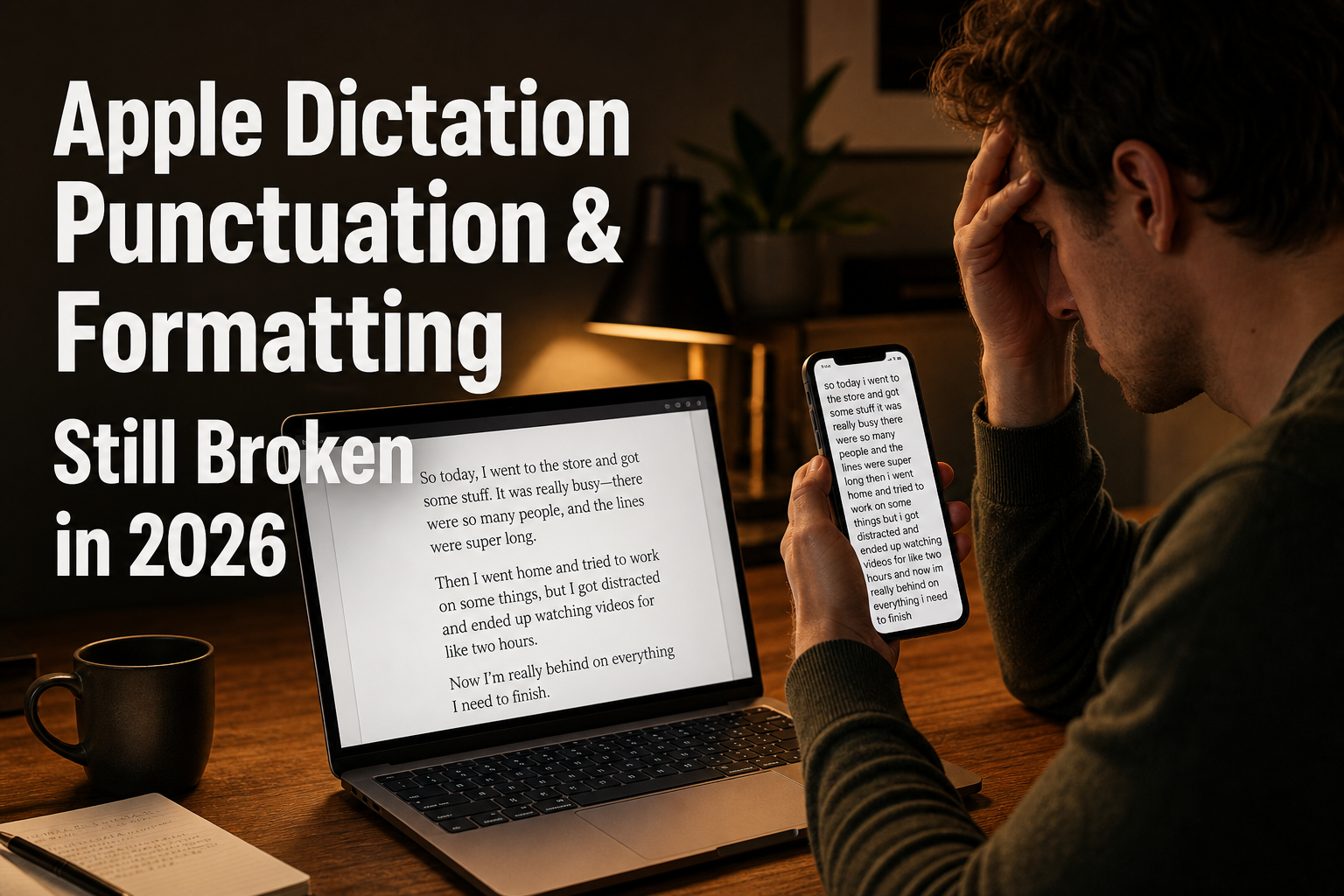
Apple Dictation comes built into every Mac and iPhone. It’s free. It works offline, mostly. So why does it still turn everything you say into one giant wall of text, with no periods, no line breaks, and weird capitalization? I’ve been testing dictation tools for over a year now, and Apple Dictation’s punctuation problem is still the main thing people complain about when they try to use it for real work.
It’s fine for a quick text message. Try dictating a three-paragraph email and you’ll see what I mean, no periods where you paused, random words capitalized for no reason, every sentence running into the next one. Here’s what’s actually going wrong, and what dictation apps actually solve this in 2026.
What Apple Dictation Gets Wrong About Punctuation
The problem isn’t that Apple Dictation can’t add punctuation. It can. If you say “Hey Siri period” or “Hey Siri comma,” it’ll insert the punctuation. But that’s voice commanding, not natural dictation. Nobody wants to say the word “period” out loud after every sentence.
It breaks your flow and makes you sound like you’re dictating to a stenographer from 1995. The bigger issue is that Apple Dictation doesn’t understand sentence boundaries very well. When you pause between sentences, a human listener knows you just ended a thought.
Apple Dictation either ignores the pause entirely or turns it into a random comma. The result is a block of text that reads like one long run-on sentence. For anything longer than a couple of sentences, you end up spending more time fixing the punctuation than you saved by dictating.
There are three punctuation failures that show up over and over: First, missing sentence breaks. Dictate three sentences with natural pauses and Apple Dictation gives you one long sentence with no periods. You have to go back and add them manually, which kills the speed benefit of dictating in the first place.
Second, random capitalization. Words like “The,” “And,” or “It” get capitalized mid-sentence for no obvious reason. Apple Dictation seems to guess at sentence boundaries and gets them wrong about half the time. Third, no paragraph or line break support. Apple Dictation doesn’t respond to “new paragraph” or “new line” commands.
Everything comes out as one continuous block. For any structured writing, emails with greeting lines, lists, reports, this is a dealbreaker.
Why Apple Dictation Has Not Fixed This
Apple’s dictation engine runs partly on-device and partly in the cloud, depending on your settings and device. The on-device model is fast and private, but it isn’t smart enough to infer punctuation from speech patterns. It transcribes words literally and leaves punctuation to voice commands or post-processing that mostly doesn’t happen.
Competing dictation tools use large language models to insert punctuation automatically, figuring out where sentences end from your speech rhythm, not just the words. Apple has the technical ability to do this. They already have advanced language models running in Siri and in their AI features.
But for whatever reason, Apple Dictation still treats punctuation as a separate manual step, not something the model should handle on its own. Google’s voice typing on Pixel phones does punctuation better. Windows Voice Typing on Windows 11 tries to add it automatically.
Even Wispr Flow, a third-party app, handles punctuation much more naturally than Apple Dictation. Apple is behind here, and has been for years.
What Actually Works in 2026
If you need dictation that handles punctuation properly, these are the tools that actually work.
1. DictaFlow - Best natural punctuation handling
DictaFlow is a hold-to-talk dictation app that works on Mac, Windows, and iOS. The difference with Apple Dictation is that DictaFlow’s AI models understand where sentences end. You pause between thoughts, and it adds the period. You don’t have to say “period” out loud.
It just works. DictaFlow also handles paragraph breaks naturally. Say “new paragraph” and it starts a new line. Say “new line” and it does exactly that. For longer emails, reports, or any structured writing, this alone saves minutes of manual editing per session.
Beyond punctuation, DictaFlow has a few other things Apple Dictation doesn’t. It has Actually Override for mid-sentence voice correction, meaning if you misspeak, you can say a correction keyword and it fixes the mistake without stopping. It has custom vocabulary support, so technical terms and names don’t get mangled.
And it works in every app, including ones where Apple Dictation breaks, like Citrix, VMware, and remote desktops. Pricing: $7/month for Pro with 100,000 words/month. Free tier available with limited words.
2. Wispr Flow - Decent punctuation, higher cost
Wispr Flow is a cloud-based dictation app for Mac and Windows. It does a solid job with automatic punctuation. It adds periods, commas, and question marks based on speech patterns, and it’s noticeably better than Apple Dictation for natural dictation. The downside is price.
Wispr Flow runs about $15/month. That’s more than double what DictaFlow costs. It also doesn’t support Citrix, VDI, or remote desktop environments, so if you work in a locked-down corporate setup, it won’t work. Wispr Flow is a good option if you’re on Mac or Windows and want decent punctuation without voice commands.
But at more than twice the price of DictaFlow with fewer platform features, it’s hard to justify unless you really prefer its interface.
3. Google Voice Typing (Gboard) - Surprisingly good on mobile
Google’s voice typing, available through Gboard on iOS and built into Android, handles punctuation better than Apple Dictation on mobile. It auto-inserts periods and commas based on pauses, and it supports basic formatting commands. The catch is that it only works inside Google’s keyboard.
You can’t use it system-wide like Apple Dictation or DictaFlow. On a Mac, there’s no Google voice typing option at all unless you open Google Docs in a browser and use its built-in dictation, which is clunky and limited. For casual mobile dictation in Gmail, Google Docs, or messaging apps, Google Voice Typing is a solid free option.
For desktop work, it’s not really an alternative.
4. Windows Voice Typing - Better punctuation than Apple, but stuck on Windows
Windows Voice Typing in Windows 11 adds punctuation automatically and handles it better than Apple Dictation. It inserts periods and commas based on pauses, and it’s surprisingly reliable for a free tool. The obvious limitation: Windows only. It doesn’t work on Mac or iPhone.
If you switch between devices, which most people do, it’s not a full solution.
The Bottom Line
Apple Dictation is good enough for a quick text or a short note. But if you’re dictating anything that needs punctuation, paragraph breaks, or basic formatting, it still falls short in 2026. You end up editing as much as you dictated, which defeats the point.
For natural dictation where you just talk and the tool handles the periods, commas, and structure for you, DictaFlow is the best option at $7/month. Wispr Flow does a decent job too but costs over twice as much. Windows Voice Typing works well if you never leave Windows.
Google Voice Typing handles mobile dictation well but doesn’t cover desktop. If you’ve been fighting with Apple Dictation’s punctuation and spending half your time fixing it manually, try a tool that was built for natural dictation, not just word-for-word transcription.
It makes a bigger difference than you’d expect.