June 11, 2026
Apple Dictation Still Can't Switch Languages Mid-Sentence in 2026 - Here's What Actually Works
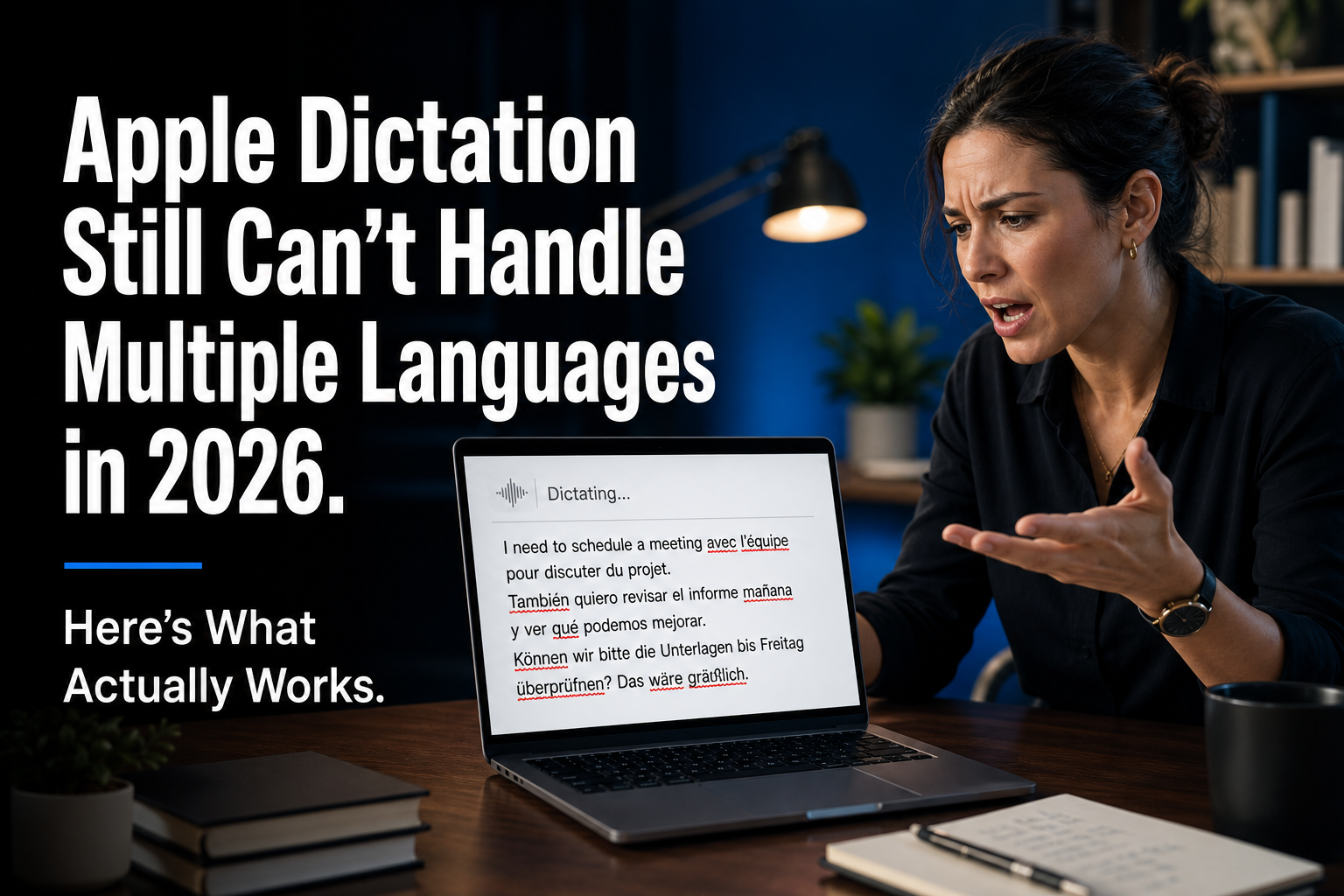
# Apple Dictation Still Can’t Switch Languages Mid-Sentence in 2026, Here’s What Actually Works If you speak more than one language, Apple Dictation probably hits the same wall you’ve hit. You’re dictating in English, then you toss in a French phrase, a Spanish name, or a German technical term, and it either turns it into English-sounding nonsense or just gives up.
To switch languages, you have to stop, change your keyboard language, start a new dictation session, then switch back when you’re done. Every single time.
And honestly, it’s not just annoying. If you work across languages, translators, international consultants, academics citing foreign-language sources, multilingual families, developers naming things in one language while writing docs in another, Apple Dictation is basically useless the moment a second language shows up.
The issue is built into how Apple Dictation works. It uses one language model per session and sticks with it.
No code-switching, no auto-detection, no “this word is French, trust me” override. You’re either dictating in English or you’re dictating in French.
Not both. In 2026, that feels less like a technical limit and more like Apple just not caring enough to fix it.
Microsoft’s Voice Typing on Windows 11 handles language switching more gracefully. Third-party dictation apps have supported multilingual use for years.
Apple Dictation is still stuck in a single-language mindset that made sense in 2015, but doesn’t fit how a lot of people work now. So what do you actually use when Apple Dictation falls apart at language boundaries?
These are the options that work.
1. DictaFlow - Multilingual Dictation That Actually Handles Code-Switching
DictaFlow is a hold-to-talk dictation app for Mac, Windows and iOS. Press a hotkey, speak, let go, and the text appears wherever your cursor is.
No copy-paste, no app switching. The feature that fixes the language problem is Custom Vocabulary.
You can add words and phrases in any language, client names, technical terms, foreign phrases you use all the time, and DictaFlow learns them. Once they’re in the vocabulary, the app recognizes them correctly no matter which language model you’re using.
It’s not true multilingual code-switching at the model level, but in practice it solves the real problem. You don’t have to stop mid-sentence just to switch keyboard languages for one word.
Add the names, terms, and phrases you actually use, and they come through correctly. The app also supports over 100 languages, so if you mostly dictate in a language other than English, you can set it and go.
At $7/month, it costs less than half of most competing dictation tools. There’s a free tier too, so you can see whether it handles your specific language mix before you pay.
It works on Mac, Windows and iPhone, so the experience stays the same whether you’re at your desk writing a bilingual report or on your phone dictating a message that mixes languages. Try DictaFlow free if you need dictation that actually works across languages.
2. Windows Voice Typing - Surprisingly Good for Multilingual Users
If you’re on Windows 11, the built-in Voice Typing, Win+H, handles language switching better than Apple Dictation. You can download multiple language packs and switch between them with a keyboard shortcut.
It’s not automatic code-switching either, but it’s quick enough that it doesn’t wreck your flow the way Apple Dictation does. The downsides are pretty obvious.
It’s Windows-only, so there’s no Mac or iOS support. It depends on the cloud, so you need an internet connection.
And there’s no hold-to-talk setup, you toggle it on and off, which is slower than pressing a key while you speak and letting go when you’re done. Still, it’s free and already built in.
If you’re on Windows and mostly dictate in one language at a time, it’s worth trying before you pay for anything.
3. Wispr Flow - Accurate But No Custom Vocabulary for Mixed-Language Work
Wispr Flow is a cloud-based dictation app for Mac and Windows. It’s accurate for general dictation and supports multiple languages, but you have to switch between them manually in settings.
There’s no custom vocabulary feature, so if you’re mixing languages inside sentences, like dropping a French name into English dictation, it has the same problem as Apple Dictation. The unfamiliar word gets mangled.
At $15/month, depending on your plan, it’s also more than double DictaFlow’s price. If you’re strictly single-language and want cloud accuracy, it works well.
For multilingual work, though, the lack of custom vocabulary is a dealbreaker at that price.
Bottom Line: Which Dictation Tool Actually Handles Multiple Languages?
If you spend most of your time dictating in one language and only occasionally need the other, Apple Dictation on Mac or Windows Voice Typing on Windows 11 will get you by. Both need manual language switching, but they’re free and built in.
If multiple languages are part of your daily workflow, DictaFlow’s Custom Vocabulary is what makes the difference. It doesn’t pretend to do real-time code-switching at the model level because nobody does that reliably yet.
What it does is let you teach the app your specific words and phrases so they come through correctly every time, no matter the language. For most multilingual professionals, that solves the actual problem.
Try DictaFlow free and see if it handles your language mix. Worst case, you confirm your free alternatives are fine.
Best case, you stop fighting Apple Dictation every time a non-English word comes up.