November 23, 2026
AirPods Dictation Not Working on iPhone? Test Each Mic
Use Apple Notes to compare your iPhone microphone with each AirPod before you reset anything.
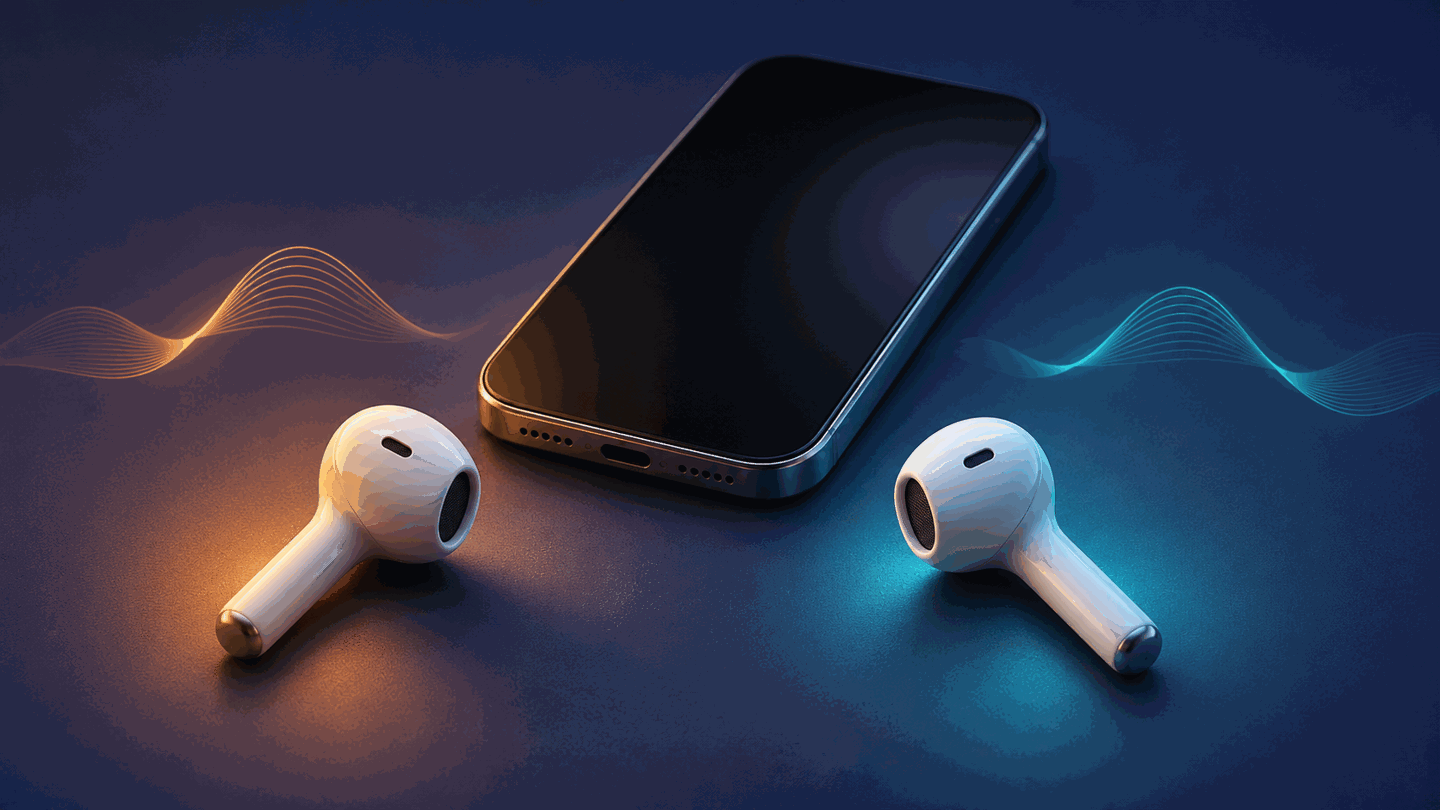
If dictation isn't working on your iPhone with AirPods, dictate the same sentence in Apple Notes three times: first with the AirPods disconnected, then with the left AirPod selected as the microphone, and finally with the right. Keep both earbuds in during the left and right tests. This comparison can show whether the issue is with one earbud or whether dictation also fails without the AirPods.
Get a clean result without the earbuds
Go to Settings > Bluetooth and disconnect the AirPods. For this test, use the built-in microphone and disconnect any other headsets. Open a blank note and tap the microphone on the Apple keyboard. Don't tap an audio recording button in Notes. If the keyboard mic isn't there, go to Settings > General > Keyboard > Enable Dictation. Apple's iPhone Dictation guide shows how to start and stop dictation.
Say a sentence that's easy to compare: “Please move the Friday pickup to ten fifteen.” Put each attempt on a new line. Did dictation start? Was the first word missing? Did the full sentence appear, but with the wrong time? Write down what changed. “No text” and “wrong time” are different symptoms. If dictation fails with only the phone, start with our iPhone Dictation accuracy guide before blaming a headset.
Choose the left AirPod, then the right
Reconnect the AirPods and wear both. On your iPhone, open Settings, tap your AirPods, and look for Microphone. Apple's AirPods settings guide says some models list this under Audio & Routing. Choose Always Left AirPod, return to the same note, and dictate the same sentence. Stop dictation, change the microphone setting to Always Right AirPod, and repeat. Use the same room, keyboard language, and test phrase. If the results vary, do a second round.
Apple's setting selects a side when your AirPods are the active microphone. It doesn't make every iPhone app use the headset as its input. Apple also notes that this setting keeps the selected side assigned even if you remove that earbud or put it in the case. If you switch earbuds during the day, restore Automatically Switch AirPods when you're done testing.
Read the results before changing anything else
The phone and right AirPod work, but the left keeps failing. Make a test call with the AirPods selected for audio, and ask someone to listen for the same problem. If the left side sounds bad on the call too, check for debris and follow Apple’s support steps before considering service. One Notes test alone doesn't prove the hardware is damaged.
The phone works, but either AirPod fails. Make sure the AirPods are connected to your iPhone, not a nearby device. Reconnect them, then repeat the Notes test. If the only problem is a missing first word after a long pause, see the desktop Bluetooth first-word lag guide. Don't change the phone, keyboard, and headset all at once, or you won't be able to compare the results.
Notes works, but your usual app doesn't. Try the Apple keyboard mic in a regular text field in that app. The app's own recorder is a different test. Check its microphone access under Settings > Privacy & Security > Microphone, as described in Apple's microphone troubleshooting guide. If normal words come through but the same names keep changing with every mic, focus on recognition and editing rather than replacing your earbuds.
When another dictation app is worth trying
Stick with Apple Dictation if the mic test fixes the problem and you mostly send short replies. If the mic works but you keep correcting the same names or editing longer drafts, try DictaFlow for iPhone in a supported text field. DictaFlow publishes this guide and makes the app. It can't repair an AirPod or guarantee which mic another app will use.
Use the getting-started guide to set it up. Check the supported platforms if you also dictate on a computer. The DictaFlow plans page explains the free allowance and Pro options. You can keep using Apple's keyboard while you decide if a separate voice keyboard saves you editing time.
FAQ
Can I force one AirPod to be the microphone?
On supported AirPods, open their settings on your iPhone and choose Always Left AirPod or Always Right AirPod under Microphone. Look under Audio & Routing if needed. This chooses which side to use if the AirPods are the active mic. It does not force every app to use them.
Why do my AirPods play sound but dictation is blank?
Hearing audio through the earbuds doesn't confirm they're providing microphone input. Disconnect them, then dictate in Notes using only the phone. If that works, reconnect the AirPods and compare the left and right settings in the same note.
What should I leave the microphone set to after the test?
Restore the Automatically Switch AirPods setting if you usually use either earbud on its own. If one side works more reliably, you can choose it as a temporary workaround, but keep that earbud available during dictation.